How to do a hanging indent in Google Docs
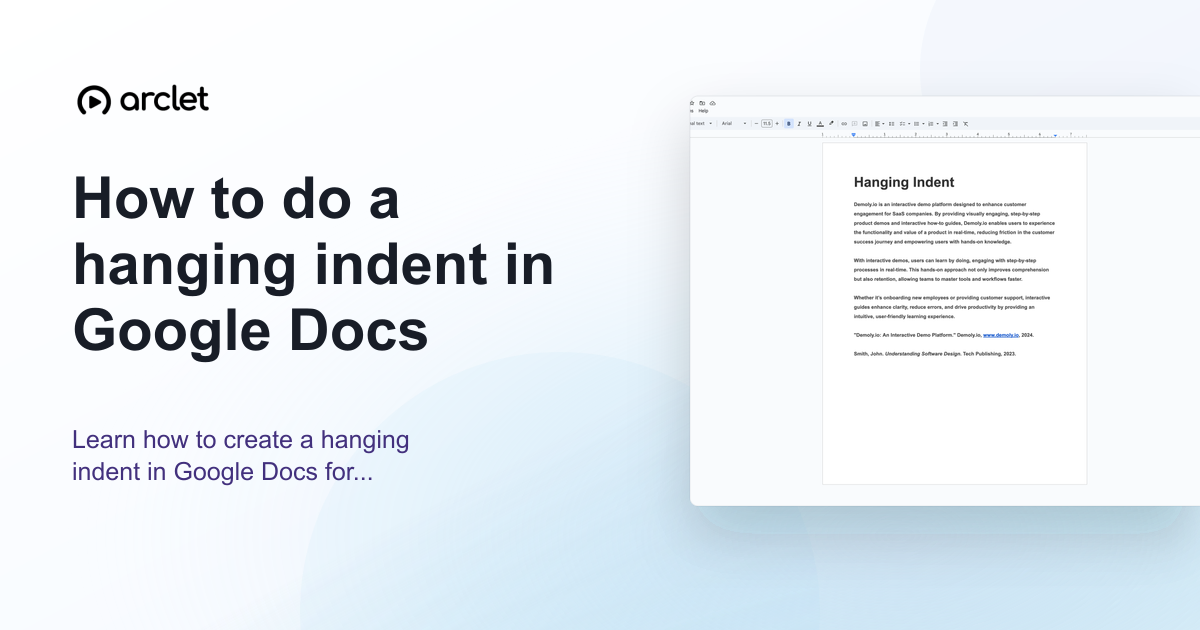
Learn how to do a hanging indent in Google Docs for citations with the Format menu or ruler, including the correct 0.5-inch settings.
Quick answer
To create a hanging indent in Google Docs, select the text, go to Format > Align & indent > Indentation options, set the left indent to 0.5 inches, change the Special indent to Hanging, and set it to 0.5 inches. Click Apply.
Steps at a glance
- Select the paragraph or citation you want to format.
- Click Format in the top menu.
- Choose Align & indent, then Indentation options.
- Set Left to 0.5 and change Special indent to Hanging at 0.5.
- Click Apply.
Interactive demo
This interactive demo was created free with Arclet in 3 minutes.
Create your own demo →Summary
A hanging indent is a paragraph style where the first line starts at the left margin and all subsequent lines are indented. It is the standard format for reference lists, works cited pages, and bibliographies. Google Docs supports hanging indents through the Format > Align & indent > Indentation options dialog.
What is Google Docs?
Hanging indents are required by MLA, APA, and Chicago citation styles for works cited pages and reference lists. They make long citations easier to scan by keeping the author's name visually prominent at the start of each entry.
Step-by-step guide
Step 1
Select the reference text
Highlight the citation or reference paragraph you want to format. For multiple references, select all of them at once.
Step 2
Open the Format menu
Click Format in the top menu bar. Then hover over Align & indent and click Indentation options.
Step 3
Set the left indent
In the Indentation options dialog, set the Left indent to 0.5 inches. This moves all lines of the paragraph to the right.
Step 4
Set the special indent to Hanging
In the Special indent dropdown, choose Hanging. Set the value to 0.5 inches. This pulls the first line back to the left margin, creating the hanging effect.
Step 5
Click Apply
Click Apply. The selected paragraphs now have a hanging indent where the first line starts at the left margin and continuation lines are indented by 0.5 inches.
Why this matters
You're writing a bibliography or works cited page and the second lines of your citations aren't indented correctly. APA and MLA both require it, and trying to do it manually with spaces always breaks when you go back to edit.
Troubleshooting
The hanging indent is applying to all text on the page
Make sure only the reference paragraph is selected before applying. Click anywhere in the paragraph or highlight just that text before opening the indentation options.
My ruler shows a different indent than the dialog
The ruler and the dialog should match. If they differ, use the dialog values as the source of truth. You can also drag the ruler markers manually: drag the bottom triangle right to set the left indent, then drag just the top triangle back left for the first-line indent.
Frequently asked questions
What is a hanging indent?
A hanging indent is a paragraph format where the first line starts at the margin and all subsequent lines are indented. It is the standard format for reference lists and bibliographies.
How do I do a hanging indent in Google Docs on mobile?
Google Docs mobile has limited indent controls. For precise hanging indents, use the web version on a desktop browser where the Indentation options dialog is available.
How do I make a hanging indent on an iPad?
Use Google Docs in a desktop browser for a precise hanging indent. The iPad app does not provide the same Indentation options dialog or ruler controls as the web version.
Is there a keyboard shortcut for a hanging indent in Google Docs?
Google Docs does not provide a dedicated shortcut for the full hanging-indent format. Use Format > Align & indent > Indentation options, or adjust the ruler in a desktop browser.
What is the standard hanging indent size for APA and MLA?
Both APA (7th edition) and MLA (9th edition) recommend a 0.5 inch hanging indent for reference and works cited entries.
Related guides
Continue with more step-by-step guides for getting work done.
 How to double space in Google DocsLearn how to double space in Google Docs on desktop, iPhone, iPad, or with a keyboard shortcut while keeping paragraph spacing consistent.
 How to check word count in Google DocsLearn how to see word count in Google Docs quickly using the Tools menu, keyboard shortcut, or live counter while you write.
Create interactive demos like this one — free, no coding required.
Start for free →