How to check word count in Google Docs
Learn how to see word count in Google Docs quickly using the Tools menu, keyboard shortcut, or live counter while you write.
Quick answer
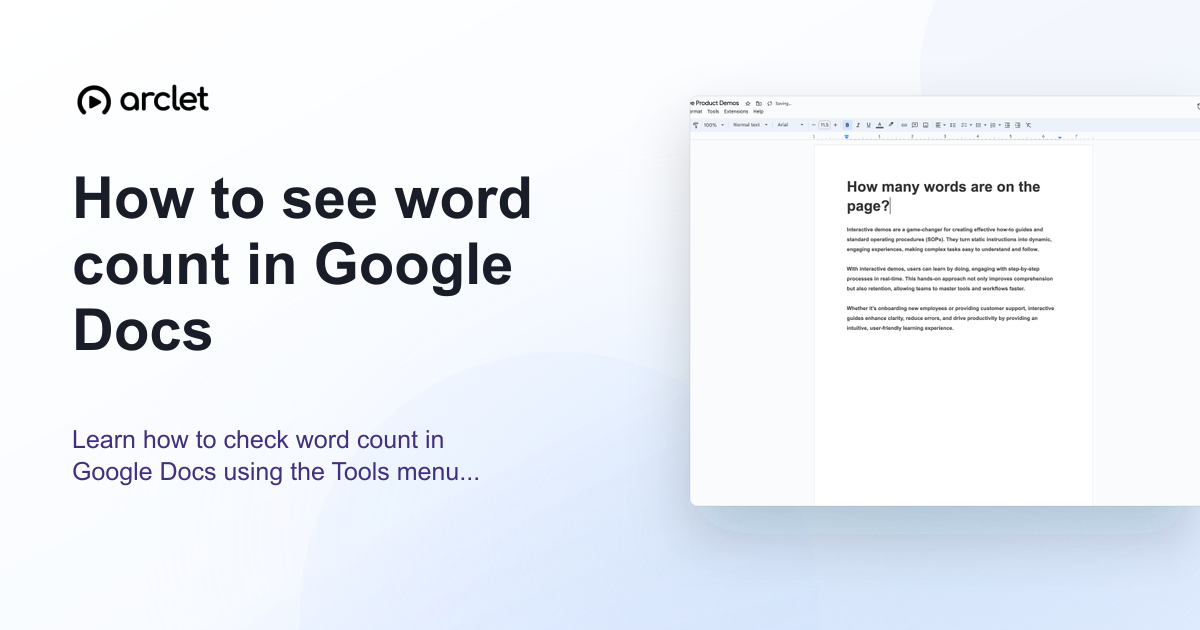
To see word count in Google Docs, go to Tools in the top menu and click Word count. A dialog shows pages, words, characters, and characters without spaces. You can also enable a live word count that stays visible while you type.
Steps at a glance
- Open the Google Doc you want to check.
- Click Tools in the top menu bar.
- Select Word count from the dropdown.
- Review the page, word, and character counts in the dialog.
- Optionally check Display word count while typing to keep the count visible.
Interactive demo
This interactive demo was created free with Arclet in 2 minutes.
Create your own demo →Summary
Google Docs shows word count through the Tools menu. The dialog reports pages, words, characters, and characters without spaces. Enabling the live display option keeps the word count visible in the bottom-left corner of the document while you write.
What is Google Docs?
Google Docs counts words by splitting on whitespace, so hyphenated words count as one word. URLs count as one word. The counter excludes text in comments but includes text in footnotes when the footnote option is shown.
Step-by-step guide
Step 1
Open your Google Doc
Navigate to docs.google.com and open the document you want to check. Make sure you are in edit or viewing mode, not in a comment reply field.
Step 2
Click Tools
In the top menu bar, click Tools. A dropdown menu appears with options including spelling, grammar, voice typing, and word count.
Step 3
Select Word count
Click Word count in the Tools dropdown. The word count dialog opens immediately.
Step 4
Review the count
The dialog shows the number of pages, words, characters (with spaces), and characters (without spaces). If you have text selected, it also shows the count for just the selected text.
Step 5
Enable live word count (optional)
Check the box labelled Display word count while typing, then click OK. A small counter appears in the bottom-left corner of the document and updates as you write.
Why this matters
Your article has a 1,500-word limit and you're not sure if you're over or under. You need to check without copying everything into a separate tool — and ideally keep an eye on it while you write.
Troubleshooting
Word count is greyed out in the Tools menu
You may be in View mode rather than Edit mode. Click the pencil icon in the top-right to switch to editing, then check the Tools menu again.
The live word count counter has disappeared
Reopen Tools > Word count and re-enable the Display word count while typing option.
The word count differs from what Microsoft Word reports
Different applications count words slightly differently, especially around hyphenated words and URLs. Google Docs and Word may show a small difference on the same document.
Frequently asked questions
Can Google Docs show word count while typing?
Yes. In the word count dialog, check the option to display word count while typing. A live counter appears in the bottom-left corner of the document.
Does word count include footnotes?
The main word count dialog shows the full document count. When you have text selected, footnotes in the selection are not counted separately.
Does Google Docs count characters?
Yes. The word count dialog shows character count both with and without spaces.
Is there a keyboard shortcut for word count in Google Docs?
Yes. Press Ctrl+Shift+C on Windows or Cmd+Shift+C on Mac to open the word count dialog directly.
Do hyphenated words count as one word in Google Docs?
Google Docs usually counts a hyphenated term as one word because the term does not contain a space. Use the Word count dialog on your final text if a word limit is strict.
Why is my Google Docs word count different from another app?
Apps can apply different rules to hyphenated terms, URLs, footnotes, and selected text. Check the count in the app required by your assignment or publishing workflow.
Related guides
Continue with more step-by-step guides for getting work done.
 How to strikethrough in Google DocsLearn how to add strikethrough text in Google Docs using the Format menu or keyboard shortcut, and how to remove it afterwards.
 How to print from CanvaLearn how to print from Canva — choose export settings, enable bleed marks for professional results, and order prints directly.
Create interactive demos like this one — free, no coding required.
Start for free →