How to strikethrough in Google Docs
Learn how to add strikethrough text in Google Docs using the Format menu or keyboard shortcut, and how to remove it afterwards.
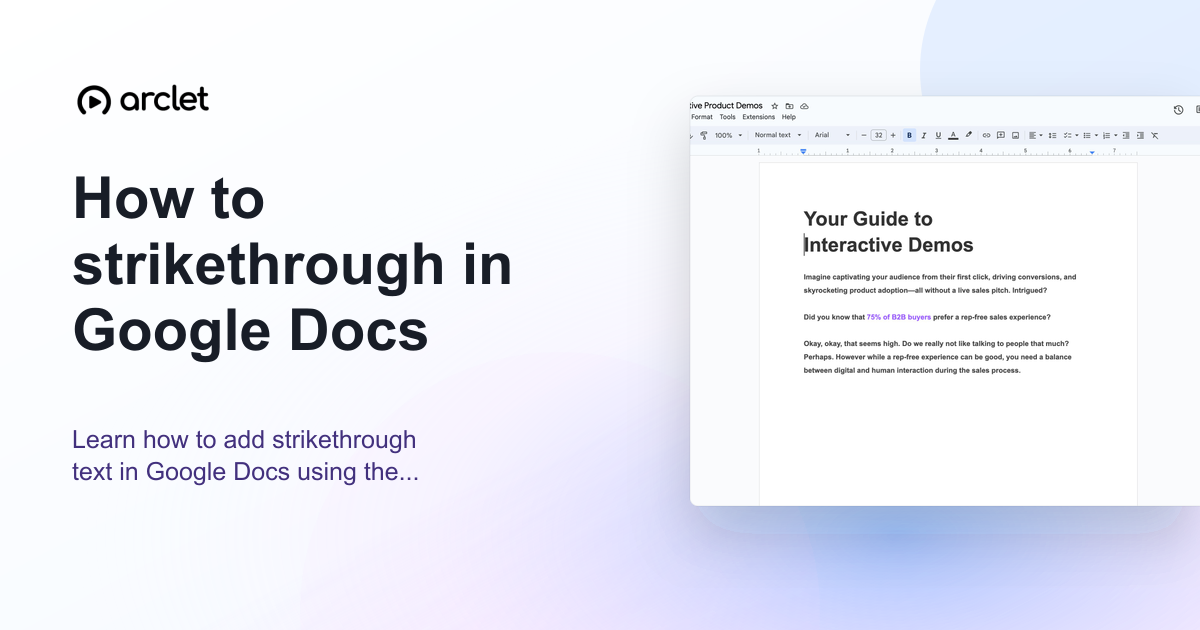
Quick answer
To strikethrough text in Google Docs, select the text you want to format, open the Format menu, choose Text, then click Strikethrough. You can also use the keyboard shortcut Alt+Shift+5 on Windows or Cmd+Shift+X on Mac.
Steps at a glance
- Select the text you want to strikethrough.
- Click Format in the top menu bar.
- Hover over Text to expand the submenu.
- Click Strikethrough.
- The selected text now has a line through it.
Interactive demo
This interactive demo was created free with Arclet in 2 minutes.
Create your own demo →Summary
Strikethrough in Google Docs draws a horizontal line through selected text, commonly used to indicate deleted or completed content. You can apply it through the Format > Text menu or with a keyboard shortcut. The formatting can be removed the same way.
What is Google Docs?
Strikethrough is a typographic style that draws a horizontal line through text to indicate removal, completion, or revision. It is commonly used in to-do documents, track-changes workflows, and editorial drafts.
Step-by-step guide
Step 1
Select the text
Click and drag to highlight the text you want to format with strikethrough. You can select a word, phrase, or multiple lines.
Step 2
Open the Format menu
Click Format in the top menu bar. The Format dropdown opens with typography and layout options.
Step 3
Choose Text > Strikethrough
Hover over Text in the Format menu, then click Strikethrough in the submenu. The formatting is applied immediately.
Why this matters
You're reviewing a shared document and you want to mark a line as outdated or cancelled without deleting it — keeping the original text visible so collaborators can see what changed.
Troubleshooting
The keyboard shortcut is not working
Check that you have text selected before pressing the shortcut. On Windows use Alt+Shift+5. On Mac use Cmd+Shift+X. Some browser extensions can intercept keyboard shortcuts; try disabling them if the shortcut still fails.
Strikethrough does not appear in the Format > Text submenu
Make sure you are using Google Docs in edit mode, not Suggesting or Viewing mode. Switch to Edit mode with the pencil icon in the top-right corner.
Frequently asked questions
What is the keyboard shortcut for strikethrough in Google Docs?
On Windows, press Alt+Shift+5. On Mac, press Cmd+Shift+X. Both shortcuts toggle the strikethrough on and off.
Can I strikethrough in Google Docs on mobile?
Yes. Select the text in the Google Docs app, tap the format toolbar, and choose Strikethrough from the text formatting options.
Does strikethrough work in Google Docs comments?
No. Comment text does not support strikethrough or other rich formatting. It is only available in the main document body.
Related guides
Continue with more step-by-step guides for getting work done.
 How to check word count in Google DocsLearn how to see word count in Google Docs quickly using the Tools menu, keyboard shortcut, or live counter while you write.
 How to curve text in CanvaLearn how to curve text in Canva using the Effects panel curve slider — apply arc, bent, or wave styles to any text element.
Create interactive demos like this one — free, no coding required.
Start for free →