Free toolNo signup · No upload · No watermark
OG image size: make a 1200×630 image
Use 1200×630 for the image people see when your link is shared. Drop in a screenshot and this editor frames it on a canvas that exports at exactly that size, in your browser.
- Paste, drop or pick
- PNG or JPEG at 2×
- Stays in your browser
Try it now
Paste a screenshot. Style it. Export it.
Bring your screenshots to life as an interactive demo, free to get started.
Start for freeHow it works
Make an og:image at 1200×630
Use 1200×630 for the image people see when your link is shared. Drop in a screenshot and this editor frames it on a canvas that exports at exactly that size, in your browser.
Step 1
Add a screenshot of the page or product
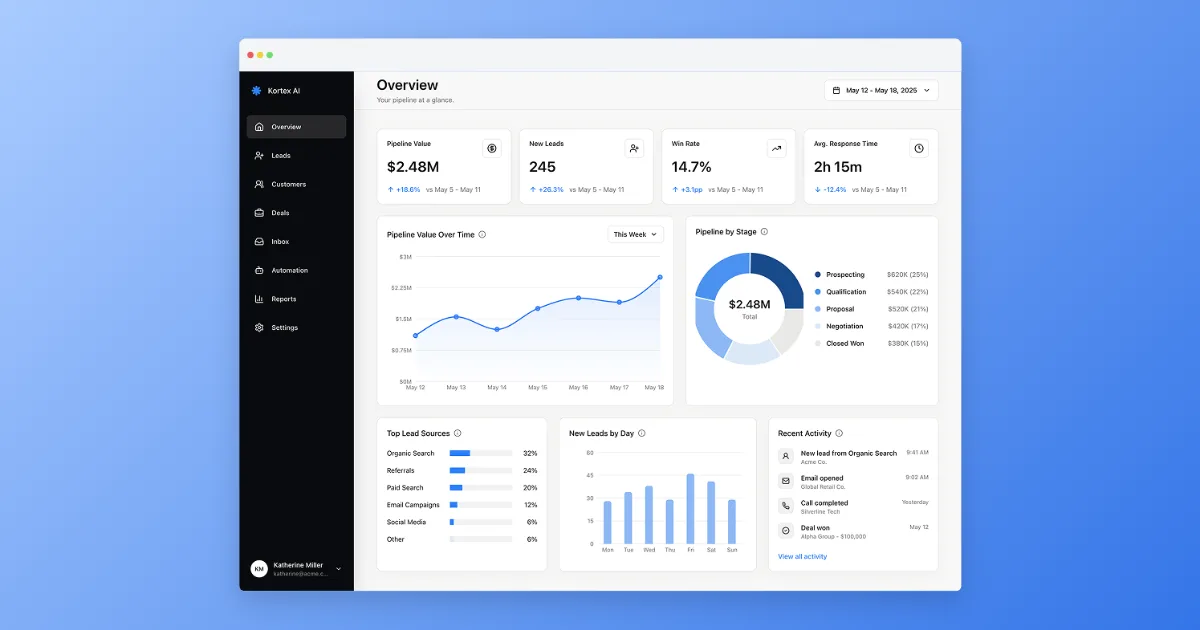
Paste with Ctrl+V (⌘V on a Mac), drop a file, or choose one. The editor opens on the 1200×630 canvas in a light browser window on a blue gradient.
Step 2
Keep the important part in the middle
Platforms crop link images to slightly different shapes, so leave margin around anything you need readable. Raise the padding if text sits near an edge.
Step 3
Export at 1×
Open Export and choose 1×, which gives exactly 1200×630. The default is 2×, which gives 2400×1260. Then point your og:image tag at the file.
Before and after
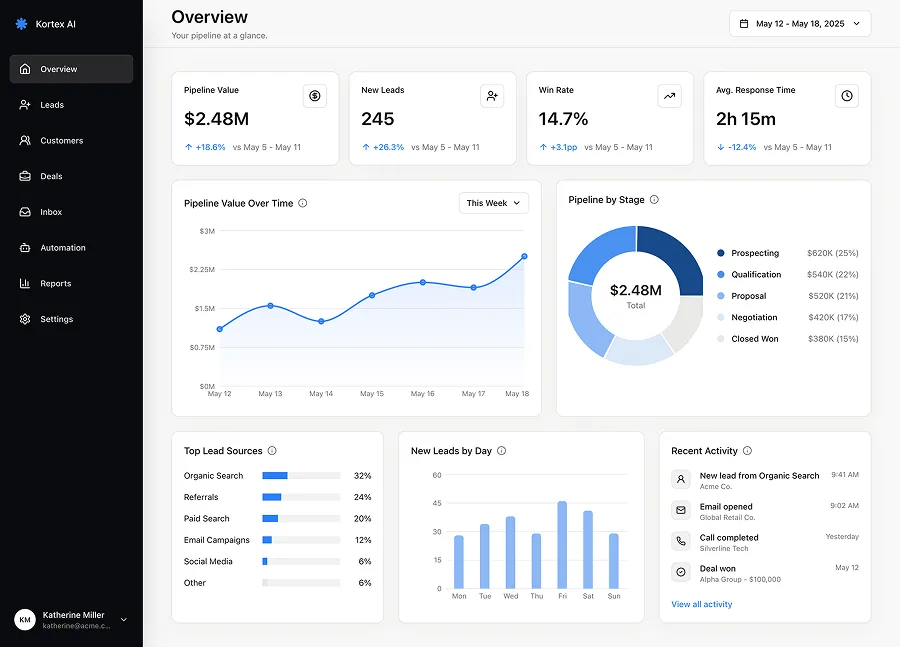
A full dashboard capture becomes a 1200×630 link image with the product in the middle and room around the edges.
OG image size: what the platforms say
The short answer
Make the image 1200×630 pixels. That is the figure Facebook recommends, it clears LinkedIn's stated minimum width, and its shape is close to the 1.91:1 ratio both platforms ask for. One file at that size is enough for most sites.
The Open Graph protocol itself does not set a size. The table below lists what each platform publishes. Every source was checked on 2026-11-16.
| Platform | Size | What the source says | Source and check date |
|---|---|---|---|
| Open Graph protocol | Not specified | og:image holds an image URL. og:image:width and og:image:height declare its size in pixels. No recommended size, ratio or file limit is given. | ogp.me, checked 2026-11-16 |
| 1200 × 630 | At least 1200 × 630 pixels for best display on high resolution devices. Keep close to 1.91:1. Minimum 200 × 200. File must not exceed 8 MB. | Facebook Sharing docs (developers.facebook.com), checked 2026-11-16 | |
| 1200 × 627 | Minimum 1200 × 627 pixels, recommended ratio 1.91:1, maximum 5 MB. Images under 401 pixels wide show as a thumbnail. | LinkedIn Help (answer a521928), checked 2026-11-16 |
Why 1200×630 and not 1200×627
LinkedIn's 1200 × 627 is a minimum, and 1200 × 630 is at least that wide and 3 pixels taller. Facebook asks for 1200 × 630 outright. A single 1200 × 630 file therefore meets both stated figures without a second export.
The ratios differ by a rounding error: 1200 ÷ 630 is 1.905 and 1200 ÷ 627 is 1.914. Both are the 1.91:1 the two platforms name.
Slack and other chat apps
Slack's link unfurling documentation says it reads Open Graph and X Card metadata from the page. It gives no image size, ratio or file limit (docs.slack.dev, checked 2026-11-16). The og:image you make for Facebook and LinkedIn is the one Slack picks up.
Most other chat apps publish no size either. A 1.91:1 image is the common target for link previews, and it is the shape this editor produces. Treat that as widely used practice, not a published rule.
Keep the content in the middle
None of the sources above publishes a safe zone, so this part is our advice rather than a requirement. Feeds and chat apps crop and round link images in different ways. Keep headlines and logos away from the outer edge, and assume a small label may sit over a corner.
Text in the image needs to survive being shown small. If a word is hard to read at 600 pixels wide, which Facebook names as its minimum for larger link images, it will be hard to read in a feed. Prefer one clear screenshot over a collage.
Make the image here
Choose a screenshot of the page you are sharing or of the product it describes. The editor places it on a 1200×630 canvas, adds the browser frame and a gradient, and grows the canvas around the picture instead of cropping it. If your screenshot is much taller than the canvas, use the Crop tool so the part that matters stays large.
Open Export and choose 1× to get exactly 1200×630 pixels. The editor exports PNG or JPEG. A flat screenshot on a gradient is usually smaller as JPEG, which helps if a platform's file limit worries you. Check the size of the file you download against the limits in the table.
Tell sites where the image is
Add an og:image meta tag to the page head with the full URL of the file. You can add og:image:width and og:image:height so a crawler knows the size without downloading the image.
Each new link you want a different image for needs its own file and its own tag. Name the files after the page so you can find them again.
Frequently asked questions
Everything you need to know to get started today.
More free tools
Screenshots show a moment. Demos show the whole flow.
Record a workflow once in your browser and share a demo people can click through.