Blur a screenshot
Drag over anything private, like a customer's name, an email address or an API key, and it's pixelated so it can't be read. The screenshot never leaves your browser.
Bring your screenshots to life as an interactive demo, free to get started.
Start for freeHow it works
How to blur part of a screenshot
Drag over anything private, like a customer's name, an email address or an API key, and it's pixelated so it can't be read. The screenshot never leaves your browser.
Step 1
Add the screenshot
Paste it with Ctrl+V (⌘V on a Mac), drop the file on the editor, or choose it. The blur tool is already selected.
Step 2
Drag over what to hide
Each region is pixelated into 12 px blocks. Draw as many regions as you need, and raise the pixel size for large text so the shapes of letters disappear too.
Step 3
Check it, then download
Zoom in on the result before you share it. Download a PNG or JPEG, or copy the image to paste into a ticket, chat or doc.
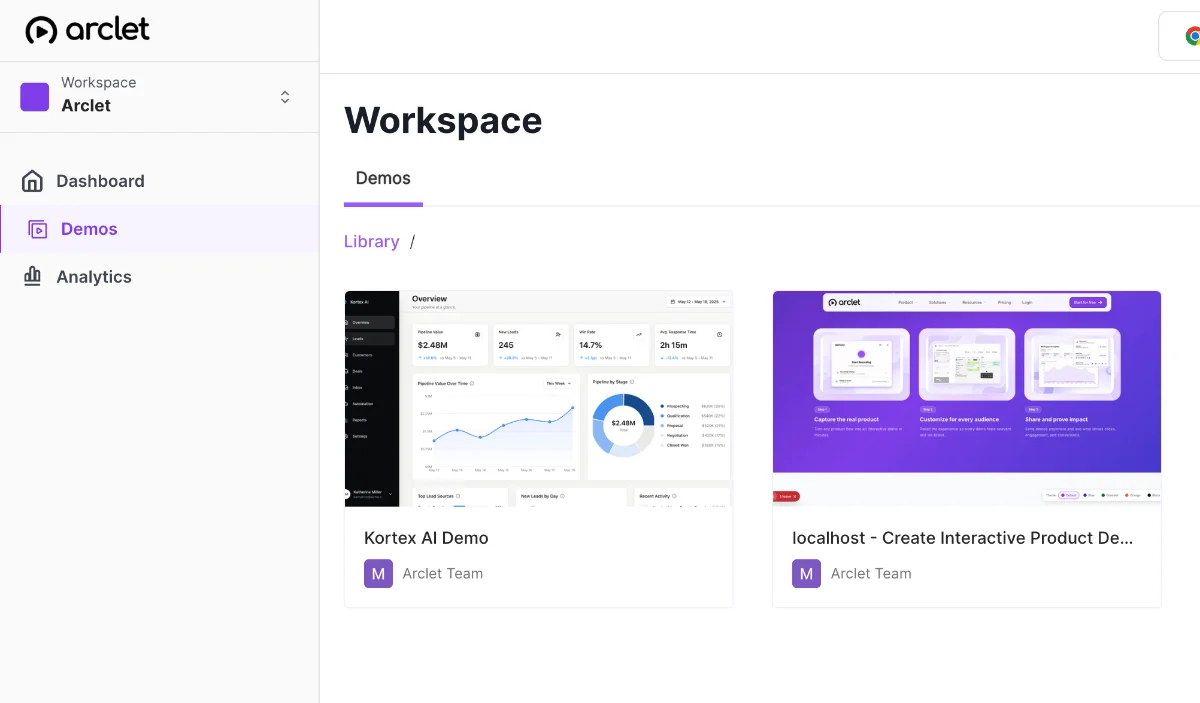
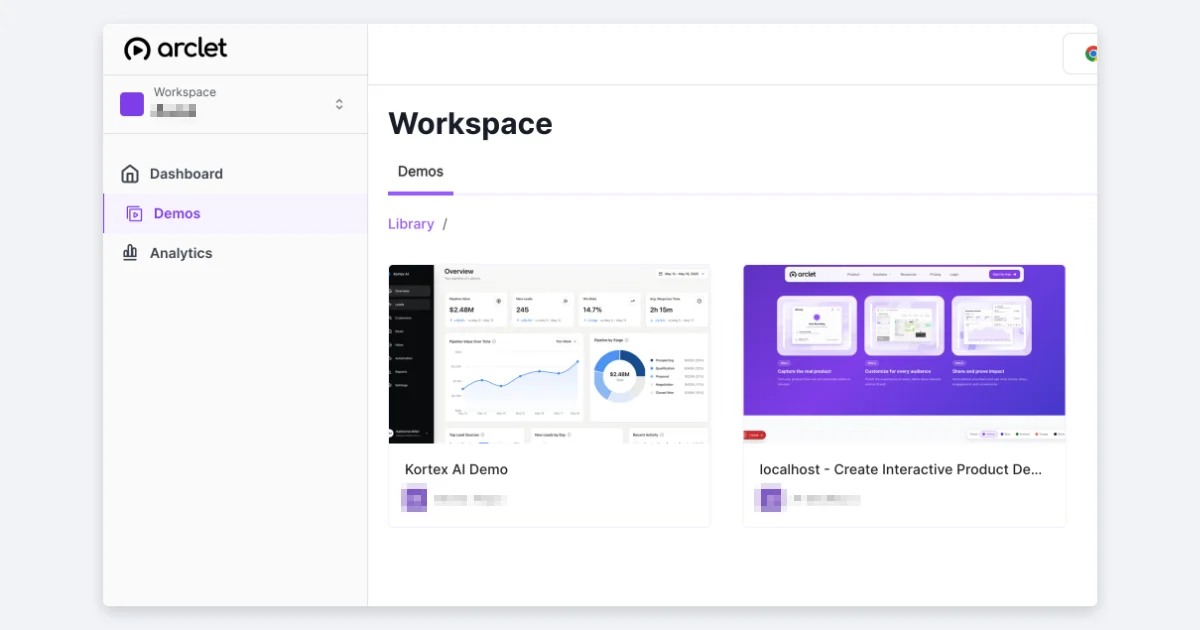
Before and after
Pixelated, not softened: each block is one averaged color, so the original text is not in the file you share.
Frequently asked questions
Everything you need to know to get started today.
Screenshots show a moment. Demos show the whole flow.
Record a workflow once in your browser and share a demo people can click through.