Edit

The recording is a starting point, not the final product.

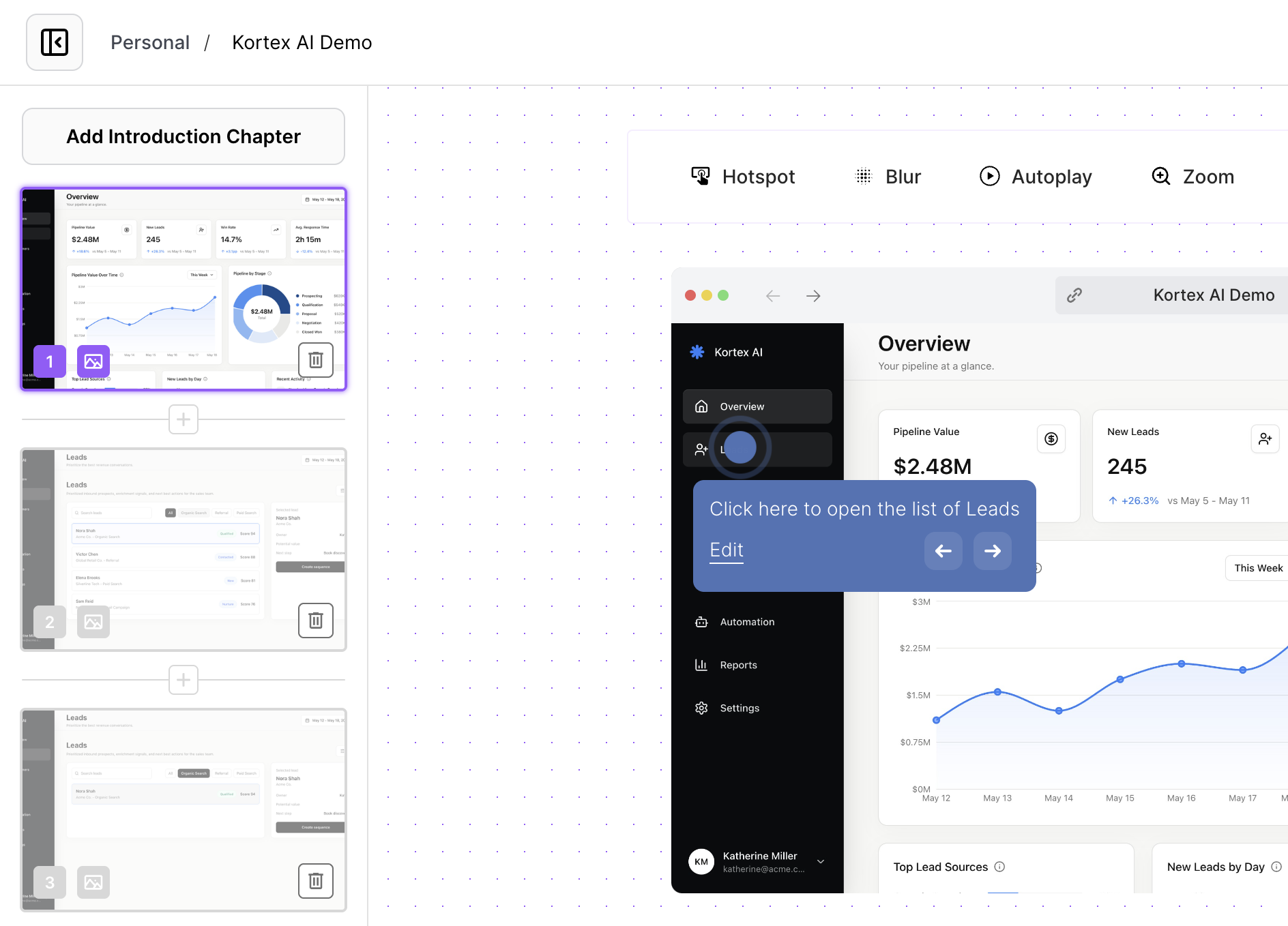
Refine tooltip copy, reorder steps, blur sensitive data, and apply brand colours in the Arclet editor — without re-recording a single screen.

See how editing works in Arclet.

Walk through a demo that shows tooltip editing, step refinement, and brand application.

Copy

Rewrite the guidance without touching the interface.

The editor gives you direct access to the tooltip copy on every step. Change the wording, tone, or instruction at any point after recording. The product screenshots remain exactly as captured — only the guidance changes.

  • Edit copy independently of screenshots
  • Consistent voice across steps
  • Refine after audience feedback
Arclet editor with tooltip copy editing panel open on a step

Privacy

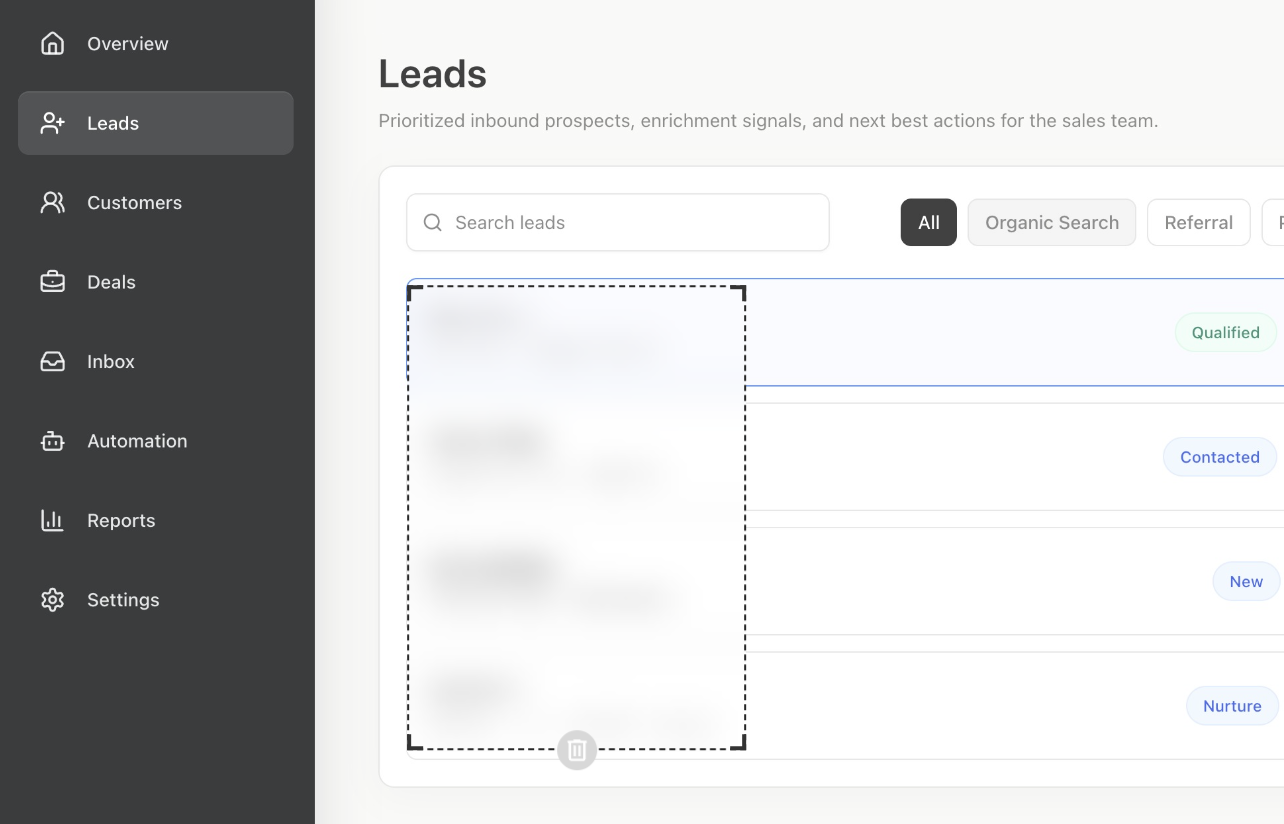
Remove what viewers should not see.

Blur any part of any step to hide internal data, customer information, or private UI states before sharing. The blur is applied to the static screenshot, so the original capture is preserved in the editor.

  • Region-level blur
  • Non-destructive — original preserved
  • Apply before publishing
Arclet editor showing a blurred region applied to a step screenshot

Brand

Apply your brand before the demo leaves the editor.

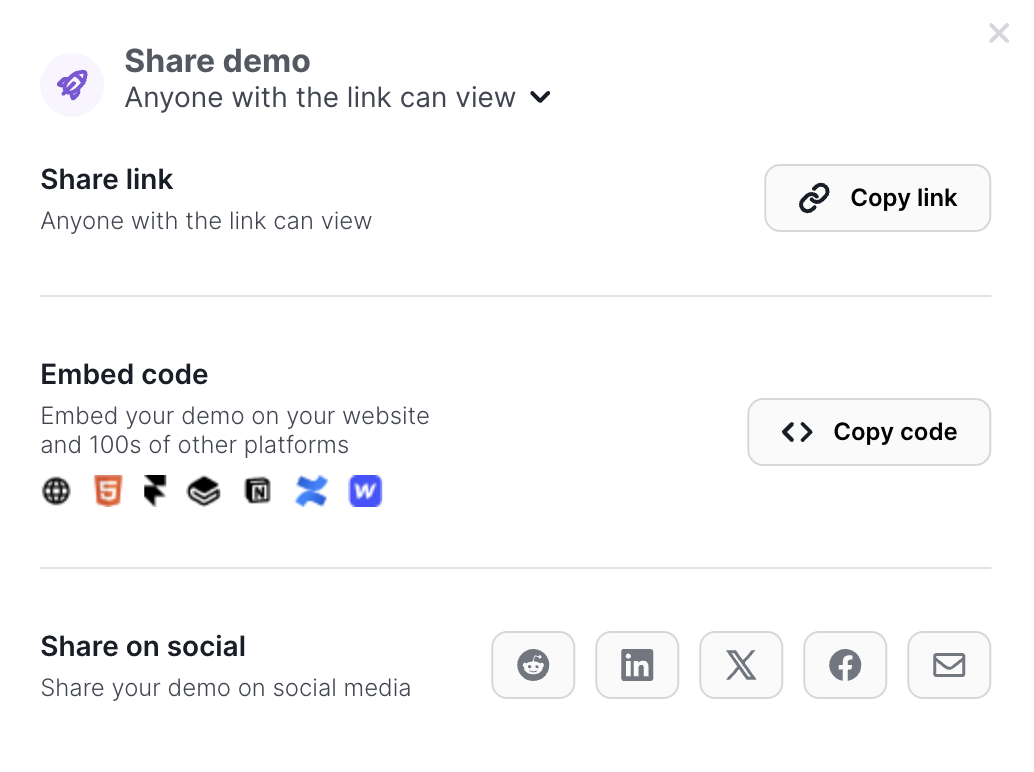
Set your brand colours so the demo player UI matches the rest of your content. Every demo published from your workspace uses the same branded experience — no per-demo adjustments needed after the initial setup.

  • Brand colours at the workspace level
  • Consistent viewer experience
  • Set once, applied everywhere
Arclet demo player with custom brand colours applied

Explore other features.

Your first demo is 5 minutes away.

Start free, record a real workflow, and publish a demo people can click through.

Frequently asked questions

Everything you need to know to get started today.

Yes. The editor lets you update the copy on any step at any time, before or after publishing.
No. Tooltip edits, step reordering, and blur changes are applied on top of the original capture. You can re-record a step if the interface itself has changed.
Yes. Steps can be reordered or removed in the editor. Adding new steps requires a new partial recording.
You select a region on any step screenshot and mark it for blur. The blur is applied in the published player — the original screenshot is preserved in the editor.
Yes. Brand settings apply at the workspace level, so every demo from your workspace uses the same colours.