How to add a header in Google Docs
Add a header in Google Docs from the Insert menu. Pick Page elements, choose Header, type your text, then press Escape to get back to the body.
Quick answer
To add a header in Google Docs, open the Insert menu, point to Page elements, and choose Header. A header area opens at the top of the page with your cursor inside it. Type your header text, such as a company name and document title, then press Escape to return to the body.
Steps at a glance
- Open the Insert menu in the menu bar.
- Point to Page elements.
- Choose Header from the submenu.
- Type your header text in the header area.
- Press Escape to return to the body.
- Check the header text at the top of the page.
Interactive demo
Summary
A header is a reserved area at the top of a page, separate from the body text. In Google Docs you add one from the Insert menu and type straight into it. It is a quick way to put a company name or document title at the top of the page.
Step-by-step guide
Step 1
Open the Insert menu
In the menu bar above your document, click **Insert**. The menu lists items such as Image, Table, Link, and Page elements. Your body text stays as it is.
Step 2
Point to Page elements
Move down the Insert menu and point to **Page elements**. A submenu opens to the right. Keep your pointer moving straight across into it so the submenu stays open.
Step 3
Choose Header
In the submenu, click **Header**. The submenu also lists Footer, Page numbers, and Footnote, so make sure you pick **Header**. The menu shows the shortcut Ctrl+⌘O Ctrl+⌘H next to it.
Step 4
Type your header text
A header area opens at the top of the page with a cursor in it, plus a **Header** label with a **Different first page** checkbox and an **Options** menu. Type your text, for example Acme Co. — Q3 Launch Plan.
Step 5
Press Escape to return to the body
When the header says what you want, press Escape. Your cursor leaves the header area and goes back to the main body of the document.
Step 6
Check the header on the page
Look at the top of the page. Your header text sits there, above the body lines you typed earlier.
Why this matters
You are finishing a plan or report and want the company name and document title sitting at the top of the page, outside the body text. Adding a header takes a few clicks and keeps that label apart from your content.
Frequently asked questions
Where do I find the header settings?
Once the header area is open, a Header label appears with a Different first page checkbox and an Options menu.
How do I get back to the body after typing in the header?
Press Escape. The cursor returns to the main body of the document.
Related guides
Continue with more step-by-step guides for getting work done.
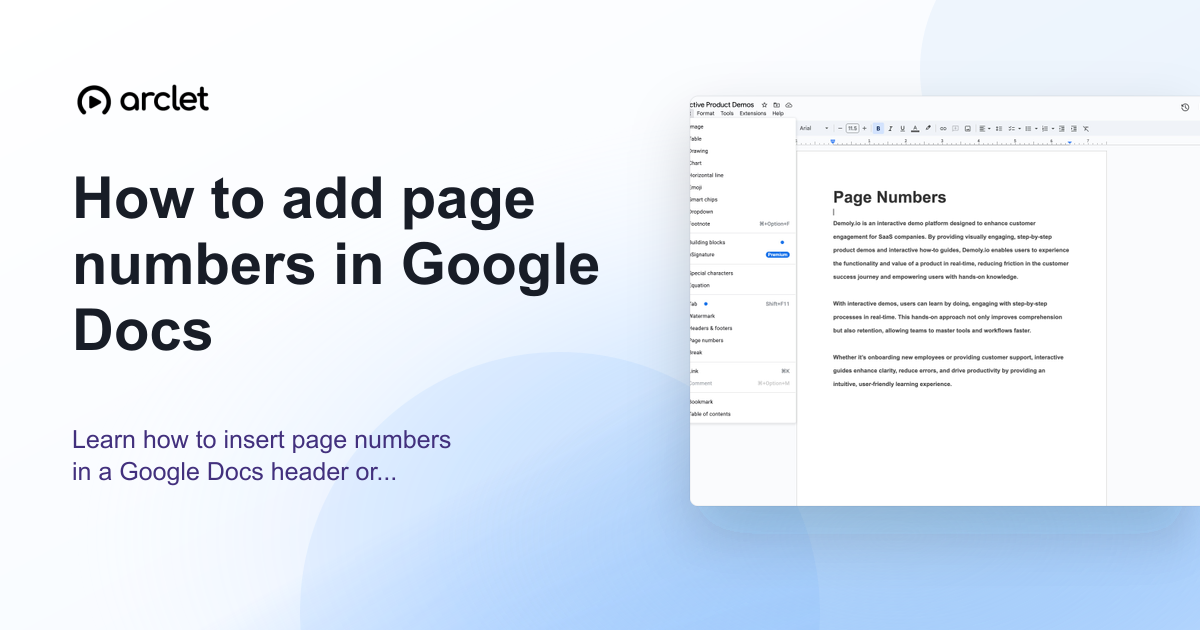 How to add page numbers in Google DocsLearn how to insert page numbers in a Google Docs header or footer, and how to control the starting number and position.
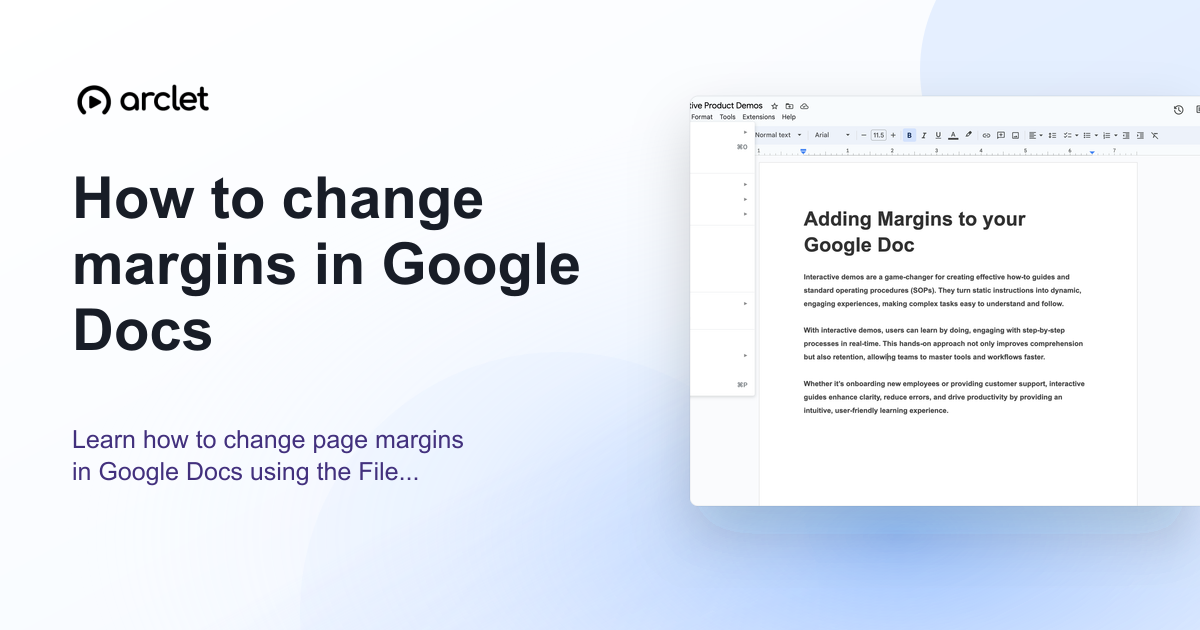 How to change margins in Google DocsLearn how to change page margins in Google Docs using the File menu or the ruler — set custom margins in inches or centimetres.
 How to add a checklist in Google DocsTurn a list of tasks into a Google Docs checklist with the Format menu, then click each checkbox to tick items off as you finish them.
Create interactive demos like this one — free, no coding required.
Start for free →