How to change margins in Google Docs
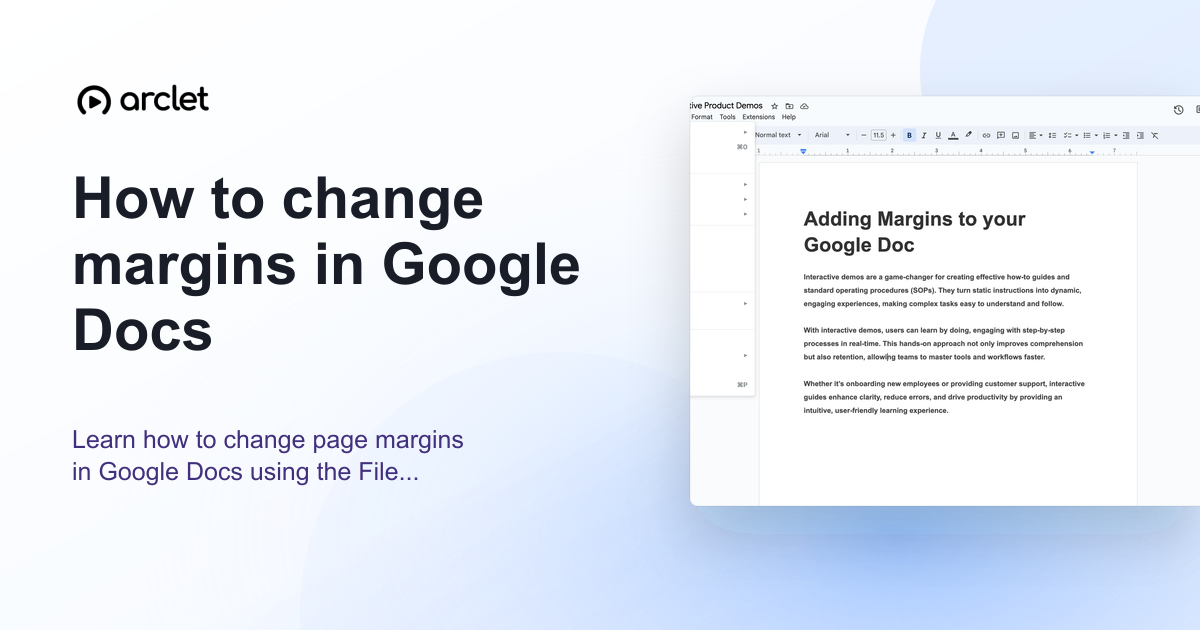
Learn how to change page margins in Google Docs using the File menu or the ruler — set custom margins in inches or centimetres.
Quick answer
To change margins in Google Docs, go to File, then Page setup, and enter your margin values in the Top, Bottom, Left, and Right fields. Click OK to apply. You can also drag the grey margin boundaries on the ruler at the top of the document.
Steps at a glance
- Open your Google Doc.
- Click File in the top menu.
- Select Page setup.
- Enter your preferred margin values in the Top, Bottom, Left, and Right fields.
- Click OK to apply the new margins.
Interactive demo
This interactive demo was created free with Arclet in 2 minutes.
Create your own demo →Summary
Google Docs lets you change page margins through the File > Page setup dialog or by dragging the ruler. The page setup dialog gives you precise control with inch or centimetre values. Margin changes apply to the whole document by default, but you can apply them to a section by selecting text first.
What is Google Docs?
Google Docs uses 1 inch (2.54 cm) margins on all four sides by default, which matches the standard for most academic and business documents. Common alternatives are 0.75 inch or 0.5 inch margins for narrower pages or letter-format designs.
Step-by-step guide
Step 1
Open your Google Doc
Go to docs.google.com and open the document you want to adjust.
Step 2
Click File
In the top menu, click File. A dropdown opens with document settings.
Step 3
Select Page setup
Click Page setup near the bottom of the File menu. The page setup dialog opens.
Step 4
Enter margin values
Update the Top, Bottom, Left, and Right fields with your preferred measurements. The default margins in Google Docs are 1 inch (2.54 cm) on all sides.
Step 5
Click OK
Click OK to apply the margins. The document layout updates immediately.
Why this matters
Your document looks right on screen but the style guide requires 1-inch margins all around, or the content is spilling onto a second page and you need to tighten it. The default margins are in the way.
Troubleshooting
My margins are not changing
Make sure you click OK to confirm the changes. The dialog must be closed for changes to take effect.
I want different margins on the first page only
Google Docs does not have native different-first-page margin support. Consider using a header for the first page or insert a section break and adjust the second section's margins.
Frequently asked questions
What are the default margins in Google Docs?
The default margins in Google Docs are 1 inch (2.54 cm) on all four sides: top, bottom, left, and right.
Can I set margins in centimetres in Google Docs?
Yes. In the Page setup dialog, you can enter values with 'cm' and Google Docs will convert them. Your account locale may also switch the default unit to centimetres.
How do I change margins in Google Docs on mobile?
In the Google Docs mobile app, tap the three-dot menu, select Page setup, and adjust the margin values from there.
Related guides
Continue with more step-by-step guides for getting work done.
 How to check word count in Google DocsLearn how to see word count in Google Docs quickly using the Tools menu, keyboard shortcut, or live counter while you write.
 How to remove a blank page in Google DocsLearn how to remove a blank page in Google Docs by deleting a page break, extra paragraphs, or the space left after a table.
Create interactive demos like this one — free, no coding required.
Start for free →