How to remove a blank page in Google Docs
Learn how to remove a blank page in Google Docs by deleting a page break, extra paragraphs, or the space left after a table.
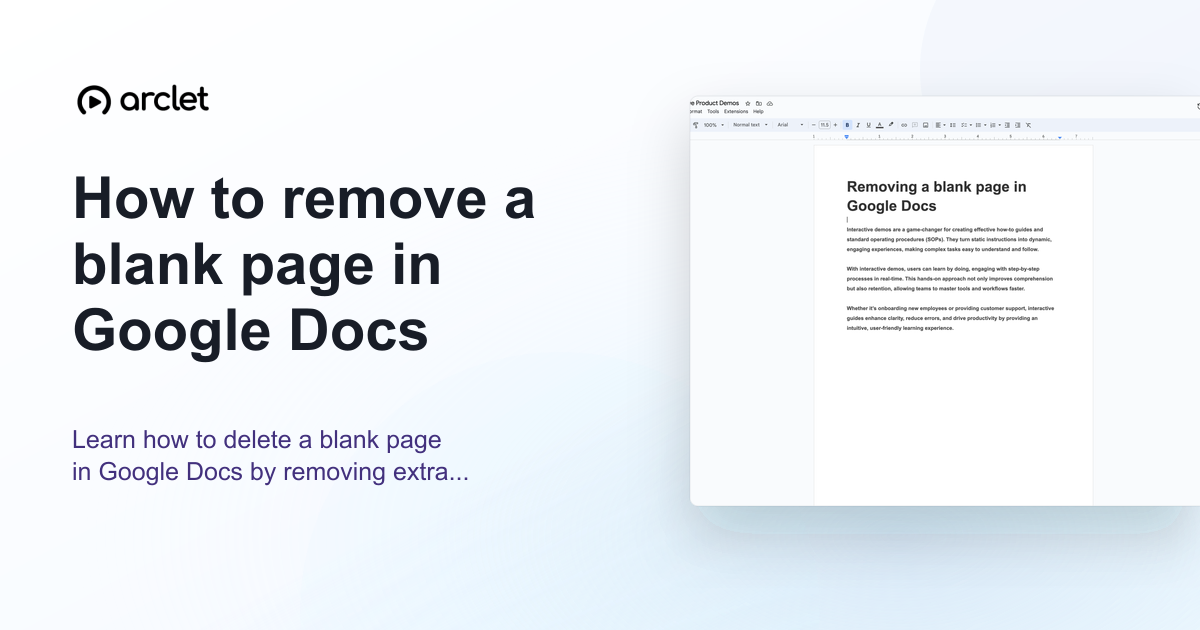
Quick answer
To remove a blank page in Google Docs, click at the end of the content on the page before the blank page, then press Delete or Backspace to remove any extra paragraph breaks or page breaks. If the blank page is caused by a table, remove the empty paragraph after the table instead.
Steps at a glance
- Click at the beginning of the blank page.
- Select all the invisible characters on that page (use Ctrl+A or click and drag).
- Press Delete or Backspace to remove them.
- If the blank page persists, look for a page break and delete it.
- Check View > Show formatting marks to make invisible characters visible.
Interactive demo
This interactive demo was created free with Arclet in 3 minutes.
Create your own demo →Summary
Blank pages in Google Docs are usually caused by extra paragraph breaks, manual page breaks, or a table that pushes content to a new page. The fastest fix is to click on the blank page and press Backspace or Delete. Enabling formatting marks helps you see exactly what is creating the extra space.
What is Google Docs?
Blank pages most often appear when extra paragraph marks are added at the end of a document, when a manual page break has been inserted, or when a table at the end of the document forces a required trailing paragraph onto a new page.
Step-by-step guide
Step 1
Show formatting marks
Go to View and check Show formatting marks (or press Ctrl+Shift+*). This makes paragraph marks and page breaks visible so you can identify what is causing the extra page.
Step 2
Click at the start of the blank page
Click your cursor at the very beginning of the blank page. If you can see paragraph marks (¶), click just before the first one.
Step 3
Select all content on the blank page
Press Shift+End or click and drag to select all the content on the blank page, including invisible paragraph marks.
Step 4
Delete the selected content
Press Delete or Backspace. The blank page should disappear. If a page break symbol is present, make sure it is selected and deleted too.
Why this matters
You're about to share or print a document and there's a blank page at the end — or worse, in the middle — that won't go away no matter how many times you press Backspace.
Troubleshooting
The blank page will not delete
If your document ends with a table, Google Docs adds a mandatory paragraph after the table that cannot be deleted. Reduce the font size of that paragraph to 1pt to make it take up almost no space, or reduce the bottom margin of the page.
A new blank page appears after deleting
Check that you have not left a hidden page break. Enable Show formatting marks and look for a page break marker near the end of your content.
Frequently asked questions
Why does Google Docs add a blank page after a table?
Google Docs requires a paragraph after every table. If your table reaches the end of a page, that mandatory paragraph lands on a new blank page. Reduce its font size to 1pt to minimise the space it takes.
How do I see hidden paragraph marks in Google Docs?
Go to View > Show formatting marks. This reveals paragraph symbols (¶), page breaks, and other hidden characters that may be causing extra pages.
Can I remove a blank page in the middle of a document?
Yes. Click at the beginning of the blank page, select all content including invisible breaks, and press Delete. Check for section breaks or page breaks that may need to be removed separately.
Related guides
Continue with more step-by-step guides for getting work done.
 How to remove a page break in Google DocsLearn how to remove a page break in Google Docs with Backspace or Delete, then keep your text together without an unwanted blank page.
 How to check word count in Google DocsLearn how to see word count in Google Docs quickly using the Tools menu, keyboard shortcut, or live counter while you write.
 How to change margins in Google DocsLearn how to change page margins in Google Docs using the File menu or the ruler — set custom margins in inches or centimetres.
Create interactive demos like this one — free, no coding required.
Start for free →