How to make one page landscape in Google Docs
Learn how to make one page landscape in Google Docs while keeping remaining pages in portrait — using section breaks and page setup.
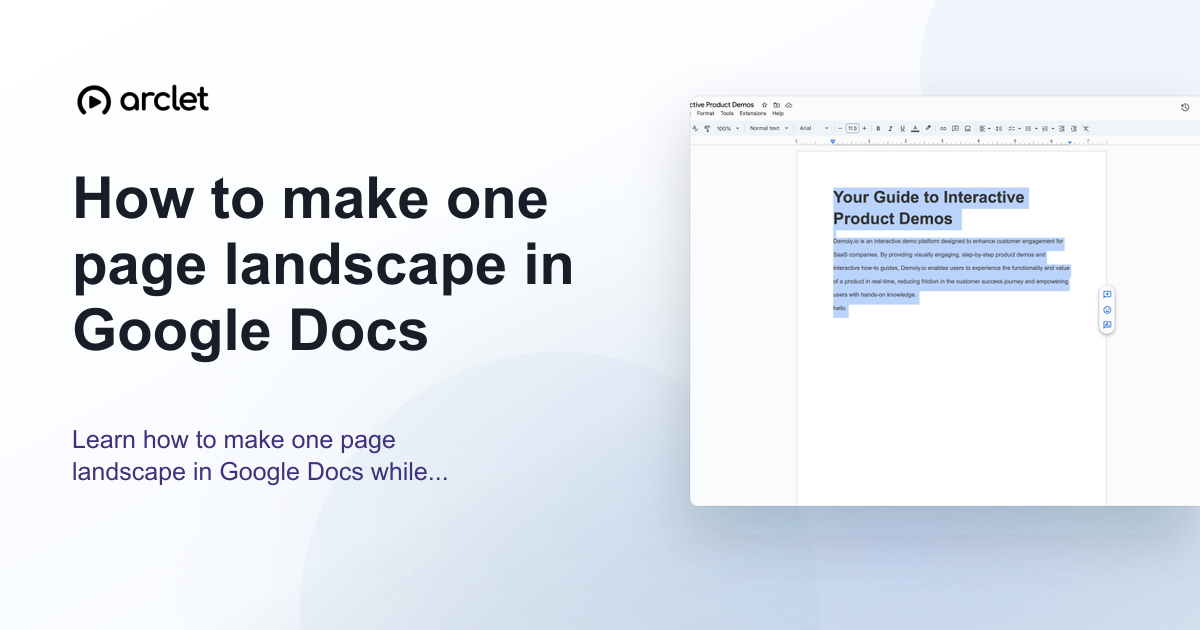
Quick answer
Google Docs does not support mixed orientations natively. To make one page landscape, place the landscape content in a separate section using Insert > Break > Section break, then go to File > Page setup, check Apply to and choose This section, and set the orientation to Landscape.
Steps at a glance
- Place your cursor at the start of the page you want to make landscape.
- Go to Insert > Break > Section break (next page).
- Place your cursor at the end of the landscape content.
- Insert another Section break (next page) to start a new portrait section.
- Click inside the landscape section, go to File > Page setup, set Landscape, and apply to This section.
Interactive demo
This interactive demo was created free with Arclet in 3 minutes.
Create your own demo →Summary
Google Docs applies page orientation per section, not per individual page. To get one landscape page in an otherwise portrait document, you insert section breaks around that content and change the page setup only for that section. The same technique works for multiple landscape pages — just keep them in the same section.
Step-by-step guide
Step 1
Insert a section break before the landscape page
Place your cursor at the beginning of the content you want to display in landscape. Go to Insert > Break > Section break (next page). A new section starts on a fresh page.
Step 2
Add the landscape content
Type or paste the content that should appear in landscape orientation. Keep it within this section.
Step 3
Insert a section break after the landscape content
Place your cursor at the end of the landscape content. Go to Insert > Break > Section break (next page) to return to a new portrait section for the rest of the document.
Step 4
Change the orientation for the landscape section
Click anywhere inside the landscape section. Go to File > Page setup. Set the orientation to Landscape. In the Apply to dropdown, choose This section. Click OK.
Step 5
Verify the surrounding pages are still portrait
Scroll through the document to confirm the preceding and following sections are still in portrait orientation. If not, click inside those sections, open Page setup, set Portrait, and apply to This section.
Why this matters
You've got a wide table or timeline that gets squished in portrait orientation. The rest of the report is portrait — you just need that one page turned sideways so the content is actually readable.
Troubleshooting
The Apply to option only shows Whole document, not This section
Section breaks were not inserted correctly. Delete the orientation change, confirm the section breaks exist by going to View > Show section breaks, then re-apply the page setup.
The landscape page breaks onto two pages
The content is too long for one landscape page. Reduce the font size, margins (File > Page setup > Margins), or split the content across multiple landscape pages in the same section.
Frequently asked questions
Can I make just one page landscape without section breaks?
No. Google Docs requires section breaks to apply different orientations within the same document. Without them, the orientation change applies to the whole document.
Does this work on Google Docs mobile?
Section breaks and per-section page setup are available in the Google Docs web app. The mobile app has limited page setup options — use the desktop browser for this task.
Related guides
Continue with more step-by-step guides for getting work done.
 How to change margins in Google DocsLearn how to change page margins in Google Docs using the File menu or the ruler — set custom margins in inches or centimetres.
 How to add page numbers in Google DocsLearn how to insert page numbers in a Google Docs header or footer, and how to control the starting number and position.
 How to check word count in Google DocsLearn how to see word count in Google Docs quickly using the Tools menu, keyboard shortcut, or live counter while you write.
Create interactive demos like this one — free, no coding required.
Start for free →