How to add page numbers in Google Docs
Learn how to insert page numbers in a Google Docs header or footer, and how to control the starting number and position.
Quick answer
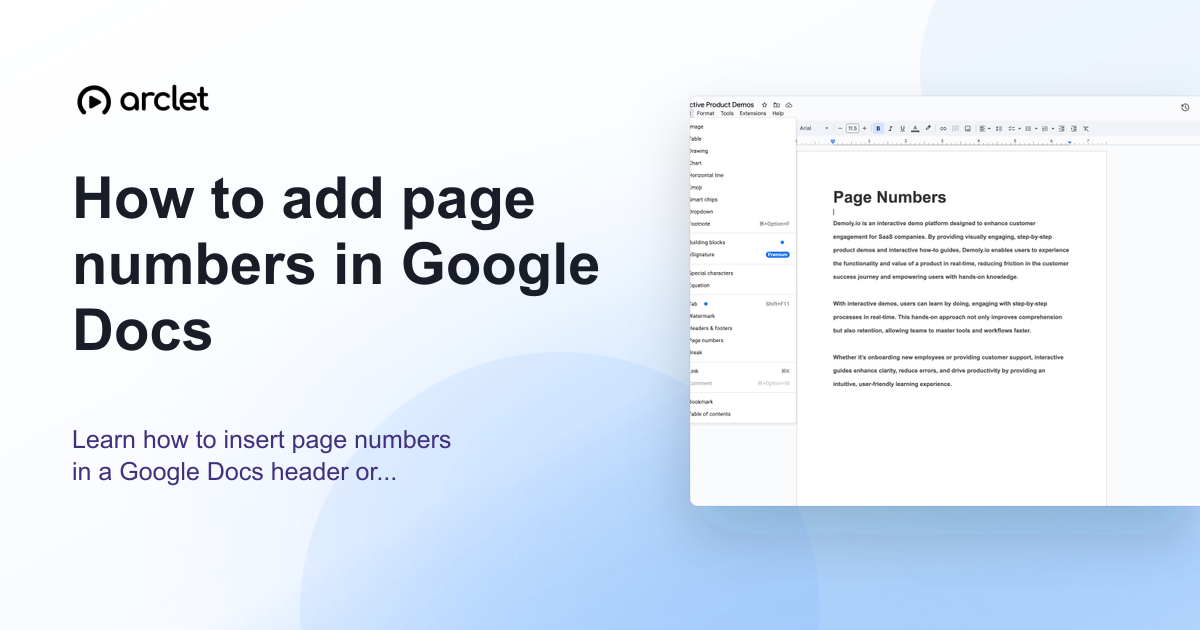
To add page numbers in Google Docs, go to Insert > Page numbers and choose whether to place them in the header or footer, and whether to start counting from page 1 or page 0. The number is inserted automatically and updates as you add or remove pages.
Steps at a glance
- Go to Insert > Page numbers.
- Choose a position: header (top of page) or footer (bottom of page).
- Choose whether the number appears on the first page or starts from the second.
- Click the option to insert — the page number updates on all pages automatically.
- Click outside the header or footer area to return to the document body.
Interactive demo
This interactive demo was created free with Arclet in 2 minutes.
Create your own demo →Summary
Page numbers in Google Docs are dynamic fields that update automatically as the document grows. You can place them in the header or footer, show or hide the number on the title page, and set a custom starting number (useful for documents that are part of a larger set). To remove page numbers, click inside the header or footer and delete the page number field.
Step-by-step guide
Step 1
Open the page numbers menu
Click Insert in the top menu bar, then hover over Page numbers. A submenu appears with icons showing four placement options.
Step 2
Choose header or footer placement
Click one of the four icons. The top two place numbers in the header; the bottom two place them in the footer. The right icons exclude the number from the first page.
Step 3
Verify the page number is inserted
Google Docs inserts the page number field into the header or footer. You can see it on every page. The header or footer area is now active for editing.
Step 4
Set a custom starting number (optional)
Go to Insert > Page numbers > More options. In the dialog, enter a custom starting page number and choose whether to show the number on the first page. Click Apply.
Why this matters
You're about to submit a 20-page essay and you just noticed the instructions say page numbers must appear in the footer, starting from page 1. You've written the whole thing without them.
Troubleshooting
Page numbers appear on every page including the cover page
Go to Insert > Page numbers > More options and uncheck Show on first page. Alternatively, choose the placement icon that shows the number starting from the second page.
Page numbers disappeared after editing the header
You may have accidentally deleted the page number field. Go to Insert > Page numbers and re-insert them.
Frequently asked questions
Can I format the font or size of the page number?
Yes. Double-click the header or footer to enter edit mode, select the page number, and change the font, size, or color using the toolbar just like regular text.
How do I add page numbers in the format 'Page X of Y'?
Go to Insert > Page numbers > More options and enable the Page count option. This inserts both the current page number and the total page count in the chosen format.
How do I remove page numbers from Google Docs?
Double-click the header or footer, select the page number field, and press Delete. Or go to Insert > Page numbers > More options and remove the numbering.
Related guides
Continue with more step-by-step guides for getting work done.
 How to make one page landscape in Google DocsLearn how to make one page landscape in Google Docs while keeping remaining pages in portrait — using section breaks and page setup.
 How to change margins in Google DocsLearn how to change page margins in Google Docs using the File menu or the ruler — set custom margins in inches or centimetres.
 How to check word count in Google DocsLearn how to see word count in Google Docs quickly using the Tools menu, keyboard shortcut, or live counter while you write.
Create interactive demos like this one — free, no coding required.
Start for free →