How to curve text in Canva
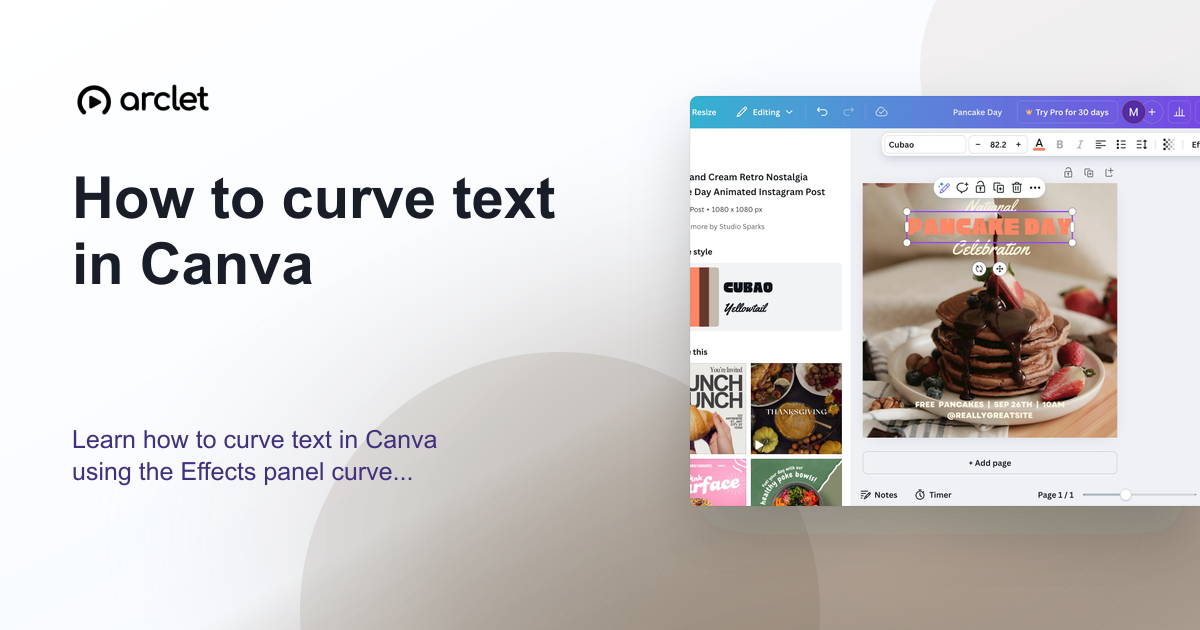
Learn how to curve text in Canva using the Effects panel curve slider — apply arc, bent, or wave styles to any text element.
Quick answer
To curve text in Canva, select your text, open the Effects panel in the toolbar, choose Curve, and adjust the slider to set the arc. Drag the slider left for a downward curve or right for an upward arch.
Steps at a glance
- Open your Canva design and select the text element you want to curve.
- Click Effects in the text toolbar at the top.
- Choose Curve from the effects list.
- Drag the slider to set the curve amount and direction.
- Click outside the text to deselect and preview the result.
Interactive demo
This interactive demo was created free with Arclet in 3 minutes.
Create your own demo →Summary
The Curve effect in Canva bends text along a circular arc. You control the degree and direction using a slider, and the curve is editable at any time — just reselect the text and reopen Effects. The effect works on any text element and can be combined with font, colour, and size changes.
What is Canva?
Canva's text Effects panel includes Curve alongside options like Shadow, Lift, and Hollow. Effects are non-destructive and can be changed or removed at any time without affecting the underlying text content.
Step-by-step guide
Step 1
Select the text element
Click on the text in your Canva design that you want to curve. The text toolbar appears at the top of the editor.
Step 2
Open Effects
In the text toolbar, click Effects. A panel opens on the left showing all available text style effects.
Step 3
Choose Curve
Scroll down in the Effects panel and click Curve. A slider appears below the effect name.
Step 4
Adjust the curve slider
Drag the slider right to curve the text upward into an arch, or drag it left to curve the text downward. The live preview updates as you drag.
Why this matters
You're making a badge, a circular logo treatment, or an event sticker and straight text just doesn't work. It needs to arc around the edge like a stamp or a seal, and you're not sure how Canva handles it.
Troubleshooting
Curve is greyed out or not visible
The Curve effect only appears when a text element is selected. Click directly on the text (not a grouped element) and check the Effects panel again.
The text looks distorted after curving
Reduce the curve amount. Very high values on short text can compress the letters. Try a lower slider value or use a longer text string.
Frequently asked questions
Can curved text be edited later?
Yes. Select the text again, reopen Effects, and adjust or remove the curve. The text content itself is always editable.
Does curving text affect font size or letter spacing?
Curving text visually bends the baseline but does not change font size or spacing. You can adjust those separately after applying the curve.
Can I curve text in Canva on mobile?
Yes. The Curve effect is available in the Canva mobile app. Tap your text, tap Effects, then choose Curve.
Related guides
Continue with more step-by-step guides for getting work done.
 How to print from CanvaLearn how to print from Canva — choose export settings, enable bleed marks for professional results, and order prints directly.
 How to check word count in Google DocsLearn how to see word count in Google Docs quickly using the Tools menu, keyboard shortcut, or live counter while you write.
Create interactive demos like this one — free, no coding required.
Start for free →