How to flip an image in Canva
Flip a photo in Canva with the Flip option in the toolbar. Add a free photo, select it, and choose Flip horizontal to mirror it on your design.
Quick answer
To flip an image in Canva, open a design, add a photo from the Elements tab, and select it on the page. Click Flip in the toolbar above the canvas, then choose Flip horizontal to mirror the image left to right, or Flip vertical to flip it top to bottom.
Steps at a glance
- Open the Elements tab in the side panel.
- Open Photos to browse stock photos.
- Click a photo to add it to the page.
- Click Flip in the toolbar above the canvas.
- Choose Flip horizontal or Flip vertical.
Interactive demo
Summary
Canva lets you mirror any image on your page with one toolbar control. Flipping changes which way a subject faces, which helps when a photo points away from your text or layout.
Step-by-step guide
Step 1
Open the Elements tab
In your design, find the side panel on the left and click Elements. This is where Canva keeps shapes, graphics, and photos you can add to the page.
Step 2
Open Photos
In the Elements panel, click Photos to browse stock photos. You can also use Search elements to look for a specific subject.
Step 3
Add a photo to the page
Click a photo to add it to your page. Pick one without a crown icon so you stay on the free plan. Canva places the photo on the canvas and selects it.
Step 4
Click Flip in the toolbar
With the photo selected, a toolbar appears above the canvas with options such as Edit, Replace, Crop, and Flip. Click Flip to open its menu.
Step 5
Choose Flip horizontal
The Flip menu shows Flip horizontal and Flip vertical. Click Flip horizontal to mirror the photo left to right. Choose Flip vertical instead if you want it flipped top to bottom.
Why this matters
You have a photo where the subject looks off the edge of your page, away from your headline. Flipping it turns the subject back toward your text, so the layout feels balanced without you hunting for a new image.
Frequently asked questions
Which flip options does Canva offer for a photo?
After you click Flip in the toolbar, Canva shows two options: Flip horizontal and Flip vertical.
Do I need to select the photo before flipping it?
Yes. The Flip button sits in the toolbar for the selected element, so click the photo on the page first.
Related guides
Continue with more step-by-step guides for getting work done.
 How to add a background in CanvaAdd a solid background colour to any Canva design: select the page, open the colour picker in the toolbar, pick a swatch, and close the panel.
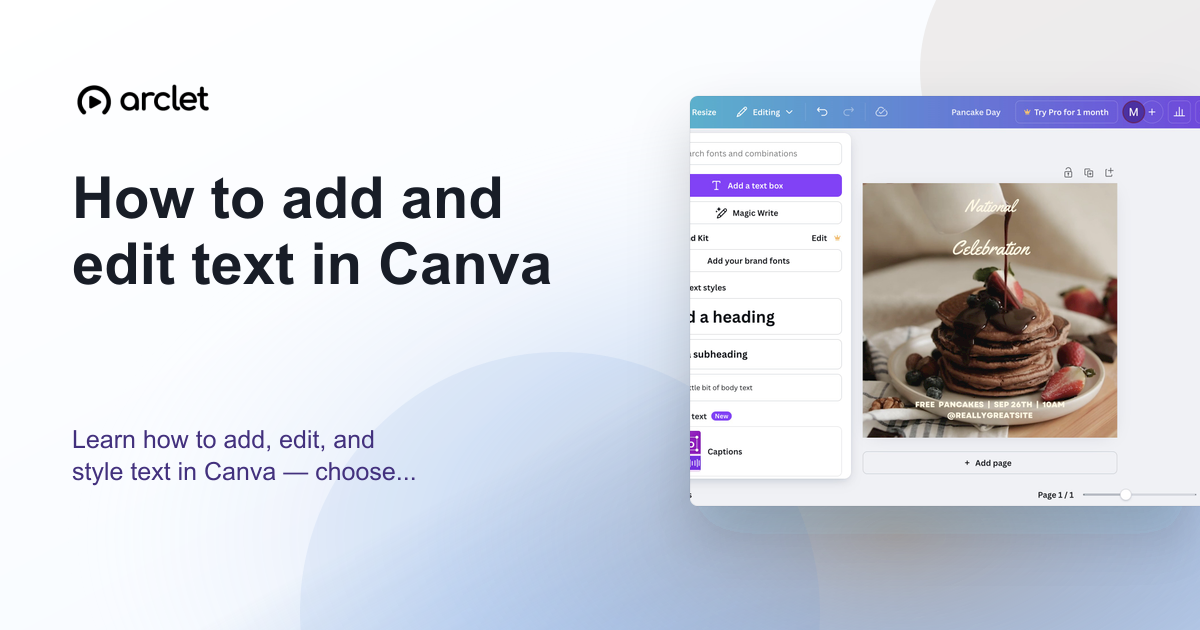 How to add and edit text in CanvaLearn how to add, edit, and style text in Canva — choose fonts, adjust size and spacing, and align text blocks in your design.
 How to add a border to a design in CanvaAdd a border to a Canva design: search Elements for a border, pick a free one, add it to the page, and resize it to frame your design.
 How to group elements in CanvaLearn how to group elements in Canva so a heading and a shape move together as one object, using a selection box and the ⌘ + G shortcut on a free design.
 How to highlight words in CanvaLearn how to highlight words in Canva by selecting text, opening Effects, applying the Background effect, and choosing a highlight colour.
 How to invert colors in CanvaLearn how to invert colors in Canva by adding a photo, opening Edit and Adjust, and turning on the Invert switch to flip the image colours.
Create interactive demos like this one — free, no coding required.
Start for free →