How to add and edit text in Canva
Learn how to add, edit, and style text in Canva — choose fonts, adjust size and spacing, and align text blocks in your design.
Quick answer
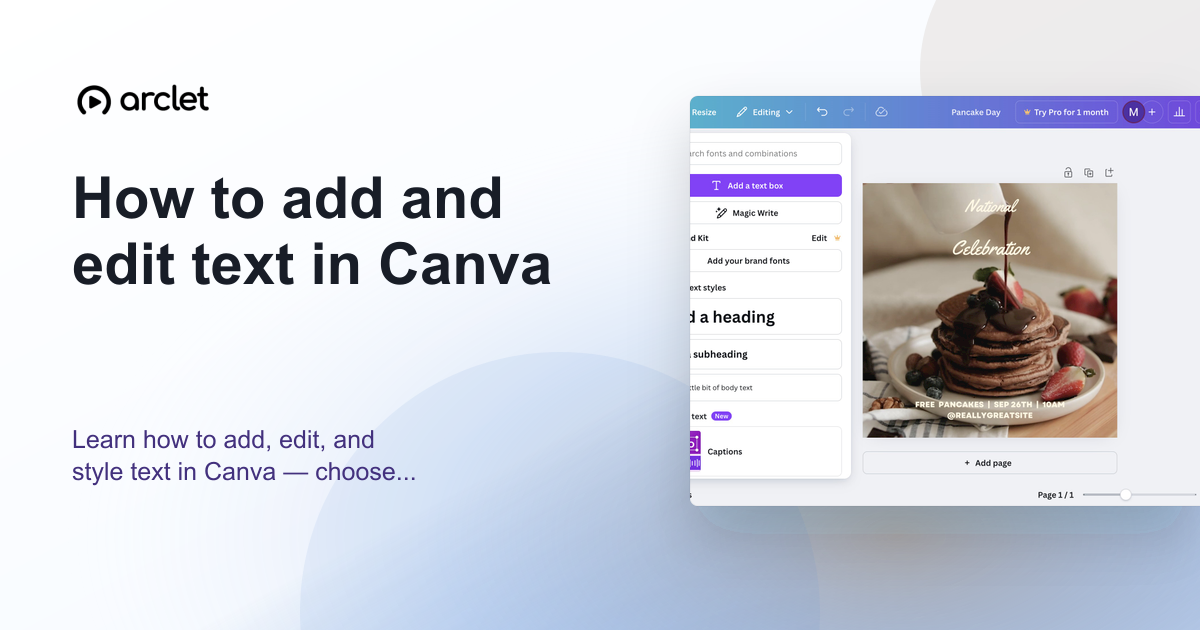
To add text in Canva, click Text in the left sidebar and choose a text style, or double-click anywhere on the canvas. To edit text, double-click the text box and select the text you want to change. The text toolbar at the top lets you adjust font, size, color, and alignment.
Steps at a glance
- Click Text in the left sidebar.
- Choose Add a heading, Add a subheading, or Add a little bit of body text.
- Double-click the text box to enter edit mode and type your content.
- Select text and use the toolbar to change font, size, or color.
- Click outside the text box to deselect when you are done.
Interactive demo
This interactive demo was created free with Arclet in 3 minutes.
Create your own demo →Summary
Adding text in Canva is done through the Text panel in the left sidebar or by double-clicking an empty area of the canvas. Once added, you can format each text box independently — changing font family, size, weight, color, alignment, letter spacing, and line height. Text boxes can be resized by dragging their handles.
Step-by-step guide
Step 1
Open the Text panel
Click Text in the left sidebar of the Canva editor. Three default styles appear: Add a heading, Add a subheading, and Add a little bit of body text. You can also browse font combinations below.
Step 2
Add a text element
Click one of the text style options to add it to the canvas. The text box appears in the center and enters edit mode automatically so you can start typing.
Step 3
Type your content
Type your text directly in the text box. Press Enter to add a new line. Click outside the box to finish editing.
Step 4
Change the font and size
Select the text you want to format and use the toolbar at the top to pick a new font from the dropdown, adjust the size, or toggle bold, italic, or underline.
Step 5
Change the text color
Select the text and click the color swatch in the toolbar. The color picker opens — choose a color from the palette, enter a hex code, or use the eyedropper to sample a color.
Why this matters
You've been handed a Canva template and your manager wants the copy updated before tomorrow's presentation. You can see the text but you're not sure how to click into it, change the font, or move it without breaking the layout.
Troubleshooting
I cannot double-click to edit the text
If the text is inside a group, you need to double-click the group to enter it, then double-click the text box. If the element is locked, right-click and select Unlock before editing.
The font I want is not showing in the dropdown
Canva has hundreds of fonts. Use the search field at the top of the font dropdown to find a specific font by name. Free plan users have access to most fonts; some are restricted to Pro.
Frequently asked questions
Can I upload my own fonts to Canva?
Yes, with a Canva Pro, Teams, or Enterprise account. Go to Brand Kit and upload a font file in TTF, OTF, or WOFF format. Uploaded fonts then appear in your font dropdown.
How do I resize a text box without changing the font size?
Click the text box to select it, then drag one of the resize handles on the sides or corners. The font size stays the same unless you manually change it in the toolbar.
Can I copy text formatting from one text box to another?
Canva does not have a native format painter. To reuse formatting, note the font, size, color, and weight, then apply the same settings to the other text box.
Related guides
Continue with more step-by-step guides for getting work done.
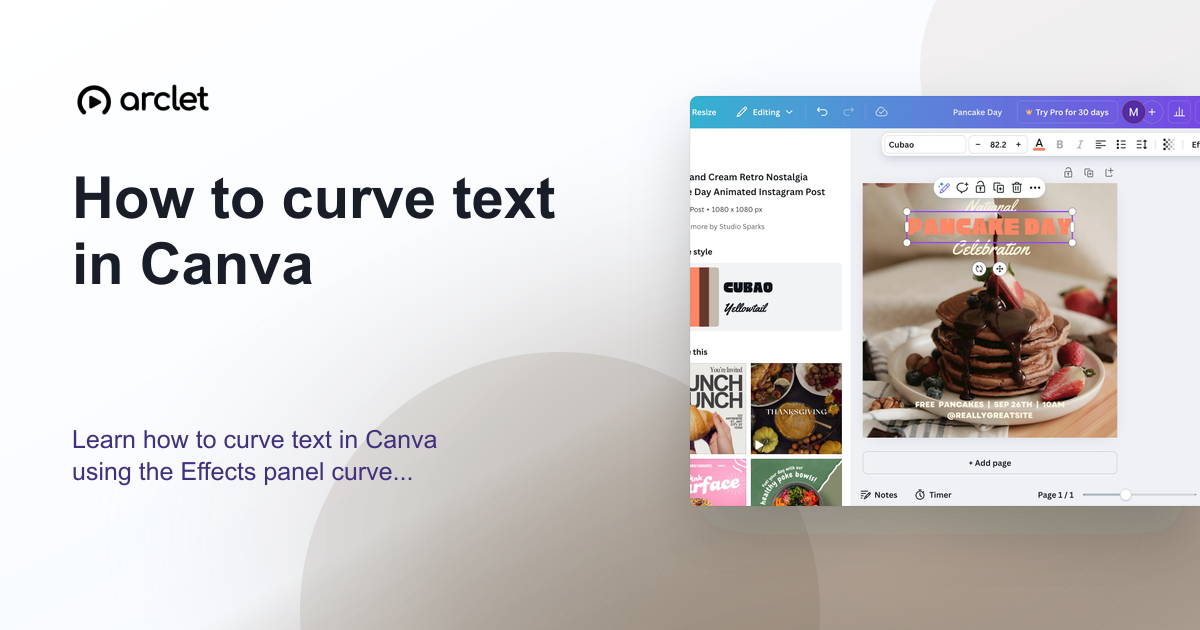 How to curve text in CanvaLearn how to curve text in Canva using the Effects panel curve slider — apply arc, bent, or wave styles to any text element.
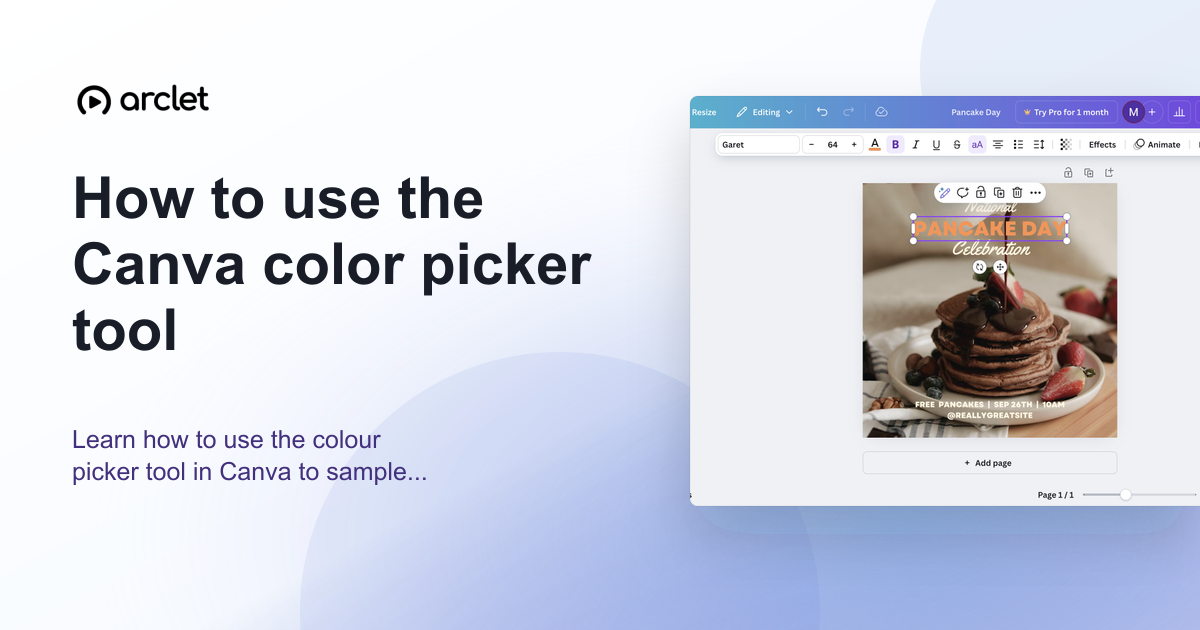 How to use the Canva color picker toolLearn how to use the colour picker tool in Canva to sample exact colours from images, match brand colours, and build a palette.
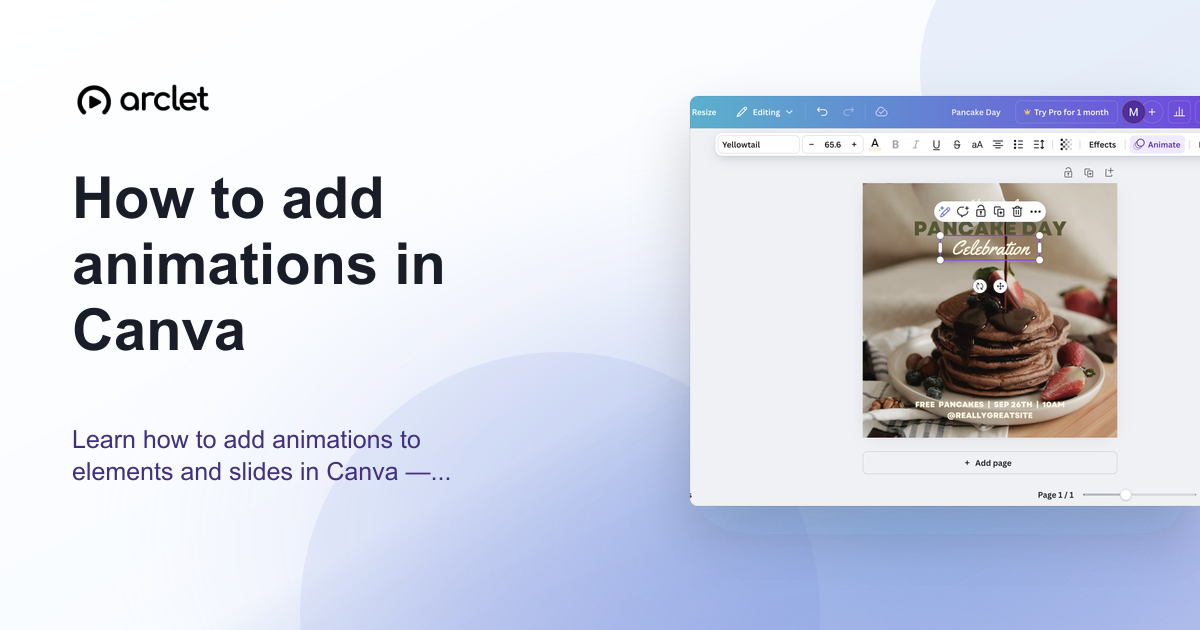 How to add animations in CanvaLearn how to add animations to elements and slides in Canva — apply entrance, exit, and continuous motion effects in a few clicks.
Create interactive demos like this one — free, no coding required.
Start for free →