How to print from Canva
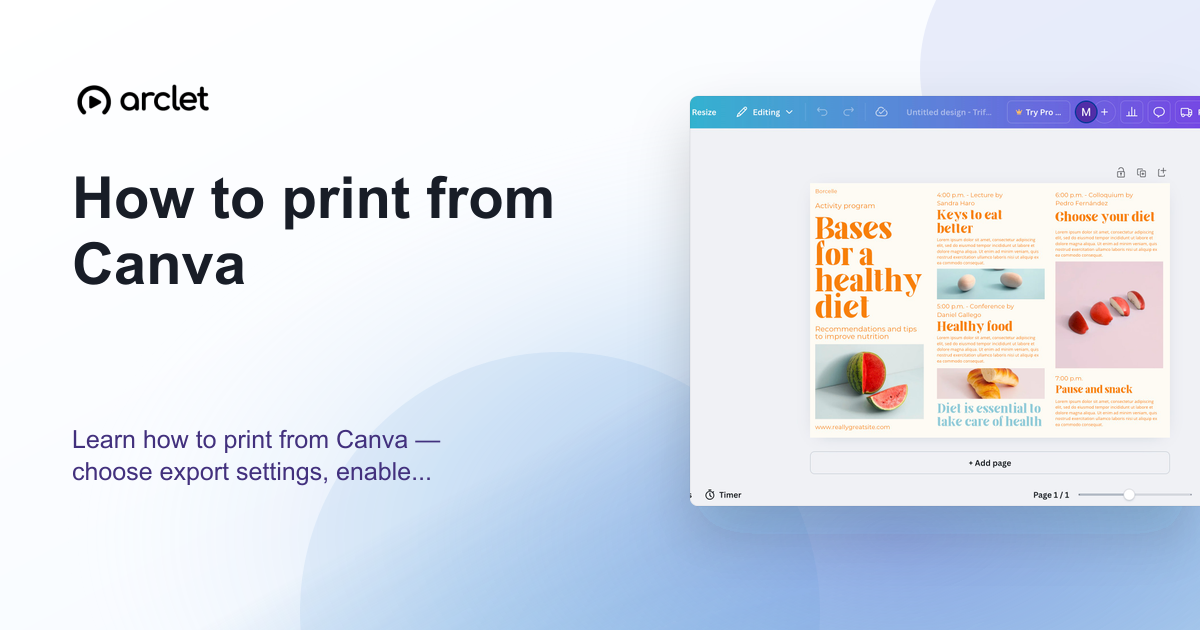
Learn how to print from Canva — choose export settings, enable bleed marks for professional results, and order prints directly.
Quick answer
To print from Canva, open your design, click Share, then select Print. Choose your paper size, finish, and quantity, then either order through Canva Print or download a print-ready PDF to send to your own printer.
Steps at a glance
- Open the Canva design you want to print.
- Click Share in the top-right corner.
- Select Print or Download as Print-ready PDF.
- Choose paper size, finish, and quantity if ordering through Canva.
- Click Continue to confirm your order, or save the PDF for local printing.
Interactive demo
This interactive demo was created free with Arclet in 4 minutes.
Create your own demo →Summary
Canva gives you two printing paths: order directly through Canva Print, or download a print-ready PDF and use your own printer or print shop. Both options start from the Share menu. For best results, enable bleed marks when downloading the PDF and check that your design extends to the bleed boundary.
What is Canva?
Canva Print is Canva's built-in print-on-demand service. It ships directly to your address and supports flyers, posters, business cards, and more. Alternatively, Canva's PDF Print export is compatible with any print shop that accepts PDF files.
Step-by-step guide
Step 1
Open your Canva design
Go to canva.com and open the design you want to print. Make sure all text and images are inside the safe zone if you plan to trim the edges.
Step 2
Click Share
In the top-right corner of the editor, click the Share button. A dropdown menu appears with options for sharing, downloading, and printing.
Step 3
Select Print or Download as PDF
Choose Print to order through Canva Print, or choose Download and set the format to PDF Print for a file you can send to your own printer.
Step 4
Configure print settings
If ordering through Canva Print, select the paper size, finish (matte or glossy), and quantity. If downloading, enable crop marks and bleed for a professional result.
Step 5
Continue or save your PDF
Click Continue to proceed to checkout if ordering through Canva, or click Download to save your print-ready PDF file.
Why this matters
You've designed your event flyers in Canva and now you need 50 copies. You're not sure whether to download a PDF, order through Canva's print service, or just hit print — and whether any of those will actually look right on paper.
Troubleshooting
The Print option is missing from the Share menu
Print through Canva is only available on the web app, not the mobile app. Open your design in a desktop browser and check the Share menu again.
My design looks pixelated when printed
Download as PDF Print instead of PNG or JPG. PDFs preserve vector elements at any size. Also check that any uploaded images are at least 300 DPI at the print size.
There is a white border around the printed design
Enable crop marks and bleed when downloading the PDF. This adds a border your printer can trim, so the design reaches the edge of the paper.
Frequently asked questions
Can you print directly from Canva?
Yes. Canva has a built-in Print option in the Share menu that lets you order prints delivered to your door. You can also download a print-ready PDF and print it yourself.
How do I get a bleed-ready PDF from Canva?
Click Share, choose Download, set the file type to PDF Print, and enable the crop marks and bleed option before clicking Download.
Does Canva print support custom sizes?
Canva Print offers a range of standard sizes. For custom dimensions, download the PDF and use a local or online print shop that accepts custom sizes.
Is Canva Print available on the free plan?
Yes, Canva Print is available to all users including free plan users. You pay for the print order itself, not the feature.
Related guides
Continue with more step-by-step guides for getting work done.
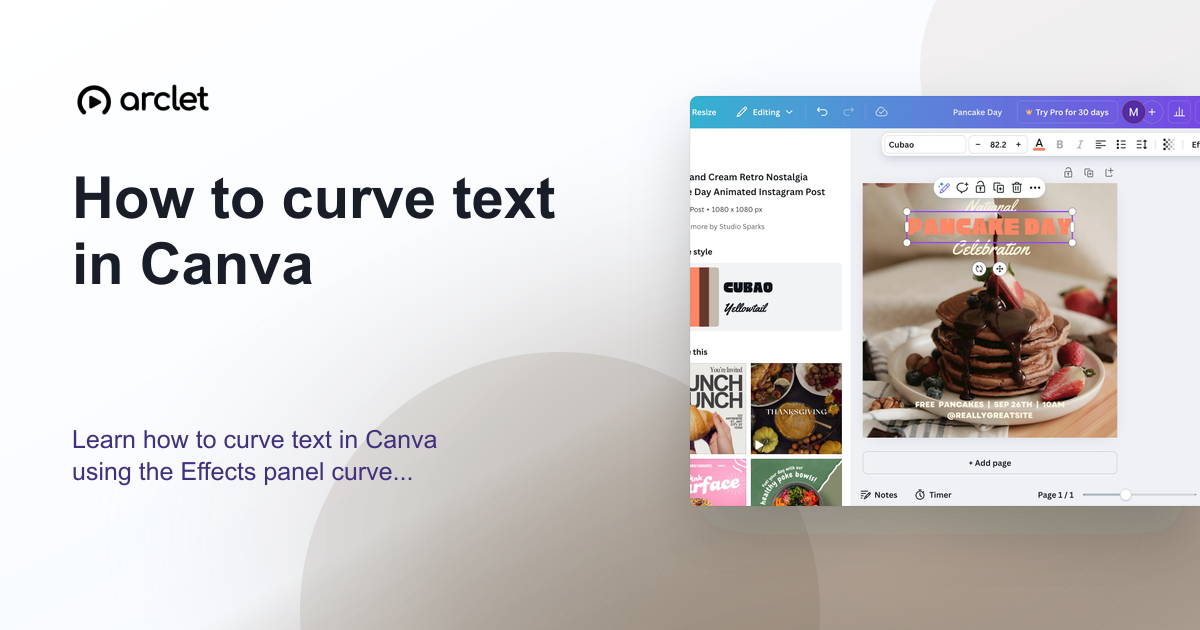 How to curve text in CanvaLearn how to curve text in Canva using the Effects panel curve slider — apply arc, bent, or wave styles to any text element.
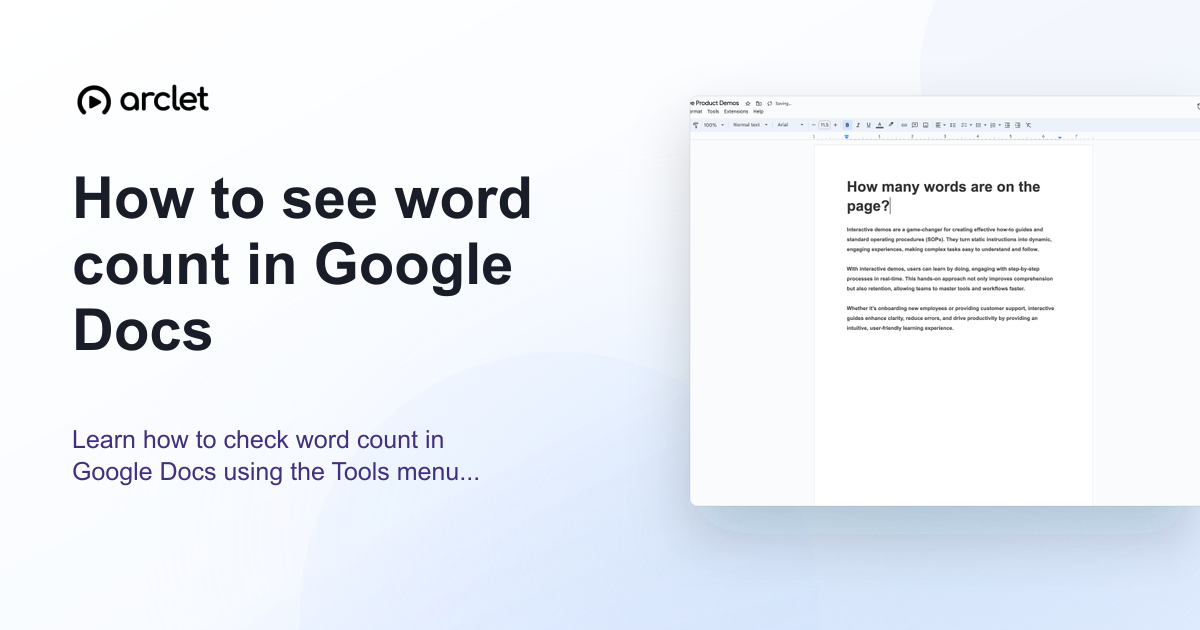 How to check word count in Google DocsLearn how to see word count in Google Docs quickly using the Tools menu, keyboard shortcut, or live counter while you write.
Create interactive demos like this one — free, no coding required.
Start for free →