How to save a design in Canva
Save a Canva design to your account: name it in the Design title box, press ⌘ + S or Ctrl + S to confirm All changes saved, then return to Home.
Quick answer
Canva saves your design to your account automatically, so you rarely need to do anything. Type a clear name in the Design title box, then press ⌘ + S (Mac) or Ctrl + S (Windows) and check that All changes saved appears in the top bar. Click Home to leave the editor.
Steps at a glance
- Open the design you want to keep in the editor.
- Click the Design title box in the top bar.
- Type a clear name for the design.
- Press ⌘ + S (Mac) or Ctrl + S (Windows).
- Check that All changes saved shows in the top bar.
- Click Home to leave the editor.
Interactive demo
Summary
Canva stores your design in your account as you edit it, so saving is mostly a matter of naming the design and confirming the status. This keeps your work easy to find later.
Step-by-step guide
Step 1
Name your design
Click the Design title box in the top bar and type a clear name, such as Spring promo post. A name you recognise makes the design easy to find later.
Step 2
Press the save shortcut
Press ⌘ + S (Mac) or Ctrl + S (Windows). Canva shows All changes saved in the top bar, which confirms your work is stored in your account.
Step 3
Go back to Home
Click Home to leave the editor. Your design stays in your account, ready to open again whenever you need it.
Why this matters
You have just finished a post and want to be sure it will still be there tomorrow. Naming the design and confirming the save status now means you can find it again quickly instead of hunting through untitled designs.
Frequently asked questions
Do I need to save a Canva design manually?
No. Canva saves your changes automatically as you work, and All changes saved appears in the top bar when everything is stored.
Which shortcut saves a design?
Press ⌘ + S on Mac or Ctrl + S on Windows. Canva then shows All changes saved in the top bar.
Related guides
Continue with more step-by-step guides for getting work done.
 How to add text to a design in CanvaAdd text to a Canva design: open a blank design, use the Text panel to insert a heading, type your own words, and style them with the toolbar.
 How to add a background in CanvaAdd a solid background colour to any Canva design: select the page, open the colour picker in the toolbar, pick a swatch, and close the panel.
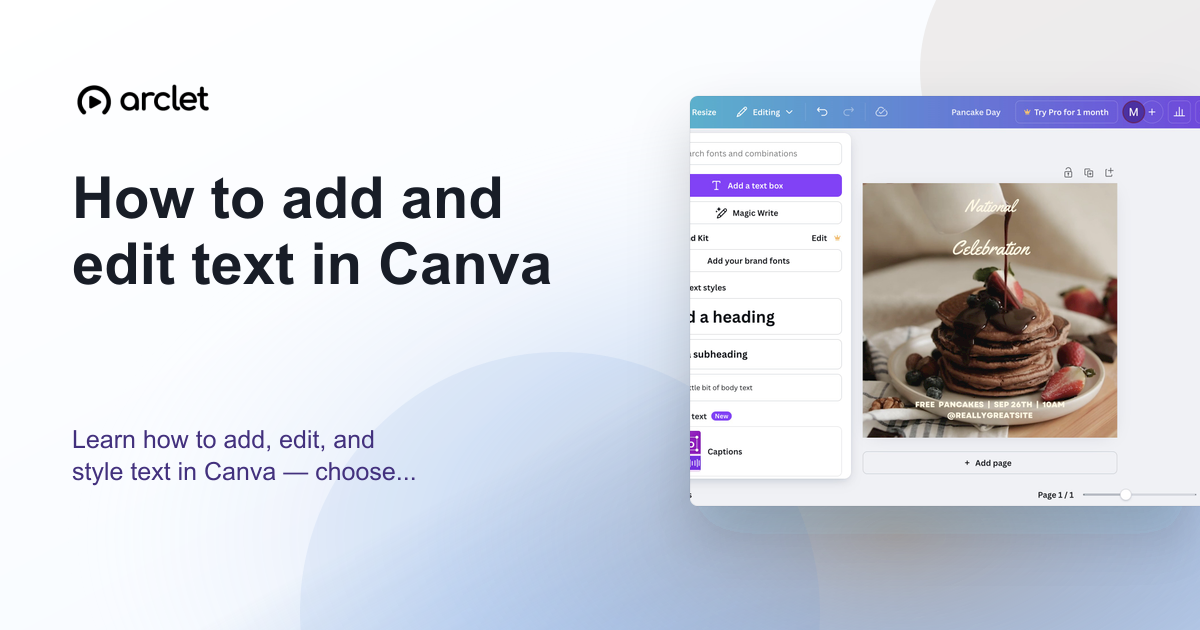 How to add and edit text in CanvaLearn how to add, edit, and style text in Canva — choose fonts, adjust size and spacing, and align text blocks in your design.
 How to show the ruler in CanvaShow rulers in a Canva design with Shift + R, then drag guides from the top and left rulers onto your page to line up elements precisely.
 How to use Magic Design in CanvaDescribe a design to Canva AI in plain words, answer or skip its follow-up questions, and open the finished Instagram post in the editor.
 How to add a border to a design in CanvaAdd a border to a Canva design: search Elements for a border, pick a free one, add it to the page, and resize it to frame your design.
Create interactive demos like this one — free, no coding required.
Start for free →