How to add text to a design in Canva
Add text to a Canva design: open a blank design, use the Text panel to insert a heading, type your own words, and style them with the toolbar.
Quick answer
Open a blank design from Create a design, then choose the Text tab in the side panel. Click Add a heading to place a text box on the page, type your own words into it, and use the toolbar above the canvas, such as Italics, to change how the text looks.
Steps at a glance
- Click Create a design on the Canva home page
- Open a blank design to reach the editor
- Select the Text tab in the side panel
- Click Add a heading to place a text box
- Type your own words in the text box
- Use the toolbar, such as Italics, to style it
Interactive demo
Summary
Text is the quickest way to give a Canva design a message. The Text panel places a ready-made text box on the page, and the toolbar lets you restyle it without leaving the editor.
Step-by-step guide
Step 1
Open Create a design
On the Canva home page, click Create a design in the top navigation. A panel opens with design sizes, including Instagram Post (4:5). Pick a size to open a new blank design in the editor.
Step 2
Open the Text panel
In the editor, the side panel sits on the left. Click the Text tab to switch from templates to the text tools. The page itself stays blank until you add something.
Step 3
Add a heading to the page
In the Text panel, under the default text styles, click Add a heading. A heading text box appears on the page and the toolbar above the canvas shows the text controls.
Step 4
Type your text
The new text box is ready for typing. Replace the placeholder with your own words. The toolbar shows Font size, Bold, Italics and Underline while the text is selected.
Step 5
Style the text
With the text selected, click Italics in the toolbar to slant it. The same toolbar controls the font size and other text settings, so you can adjust the heading until it fits the design.
Why this matters
You have a blank social post and need a headline on it before you can share it. Adding and styling a text box takes under a minute and turns an empty page into something that says what you mean.
Frequently asked questions
Can I use a different text style than the heading?
Yes. The Text panel also lists Add a subheading and Add a little bit of body text under the default text styles.
Do I need to save my design after adding text?
The editor showed All changes saved at the top, so Canva saves the design automatically as you work.
Related guides
Continue with more step-by-step guides for getting work done.
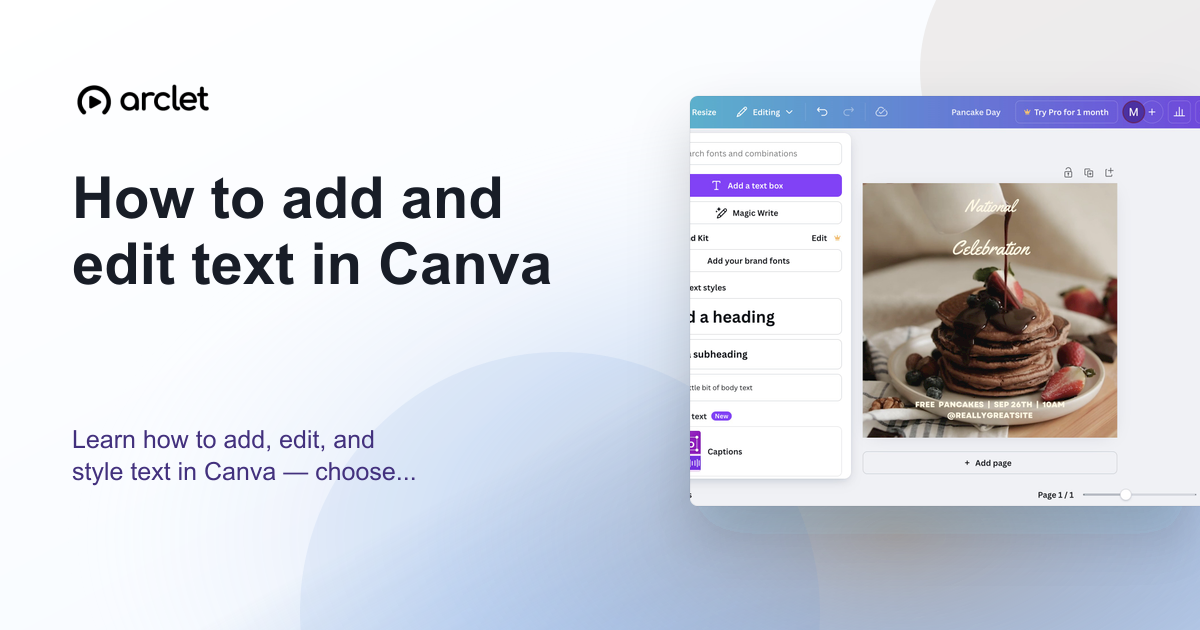 How to add and edit text in CanvaLearn how to add, edit, and style text in Canva — choose fonts, adjust size and spacing, and align text blocks in your design.
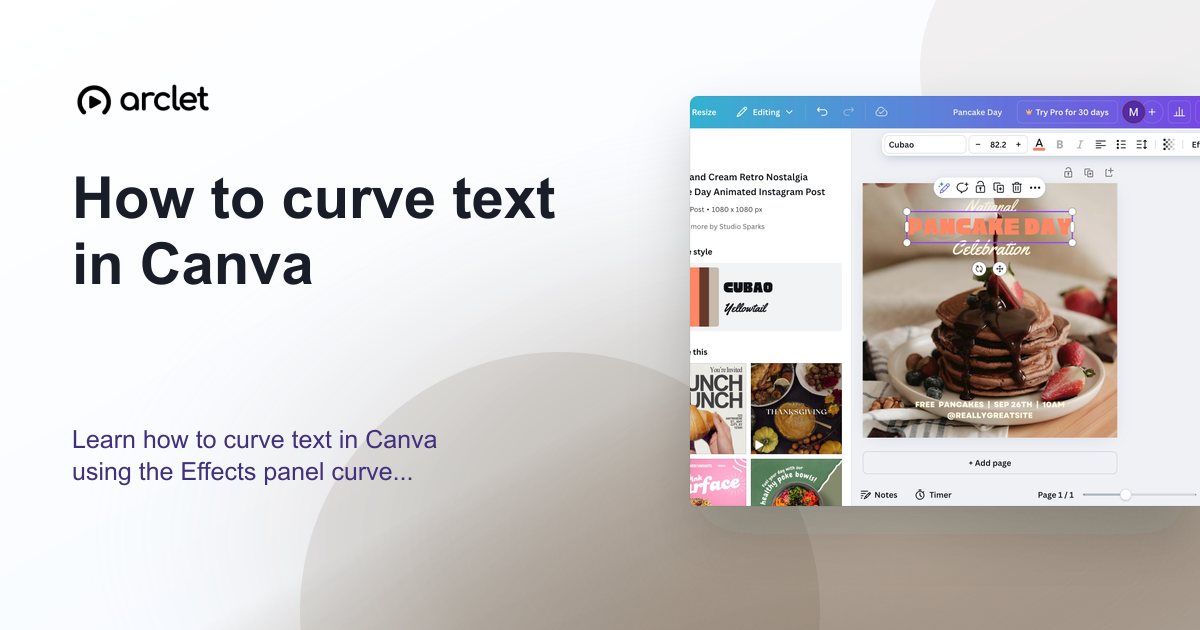 How to curve text in CanvaLearn how to curve text in Canva using the Effects panel curve slider — apply arc, bent, or wave styles to any text element.
 How to add a background in CanvaAdd a solid background colour to any Canva design: select the page, open the colour picker in the toolbar, pick a swatch, and close the panel.
 How to change image color in CanvaChange the color of an image in Canva by adding a photo, opening Edit, then using the Adjust panel to lower or raise the Saturation slider.
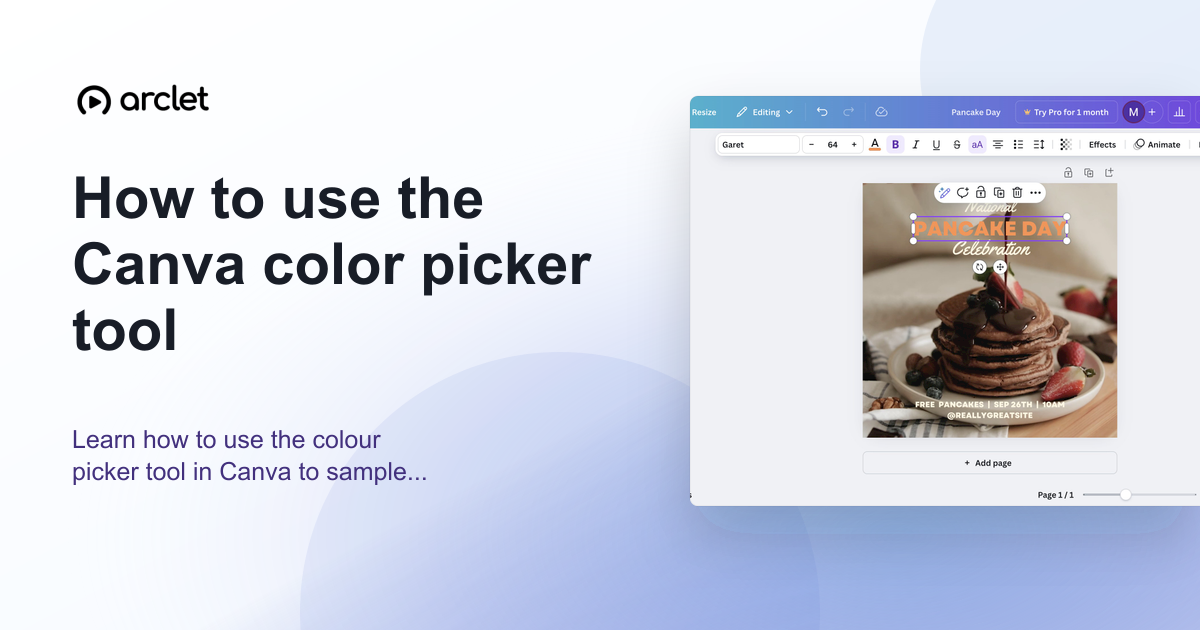 How to use Canva color picker and eyedropperCanva's color picker opens from any element's color swatch, with a hex field and an eyedropper that samples colors from your design. Interactive demo included.
 How to create a graphic in CanvaCreate a graphic in Canva: start from Create a design, choose a category, open the editor, and add your first heading with the Text panel.
Create interactive demos like this one — free, no coding required.
Start for free →