How to convert CSV to Google Sheets
Learn how to convert a CSV file to Google Sheets format, preserve your column structure, and save it as a native Sheets file.
Quick answer
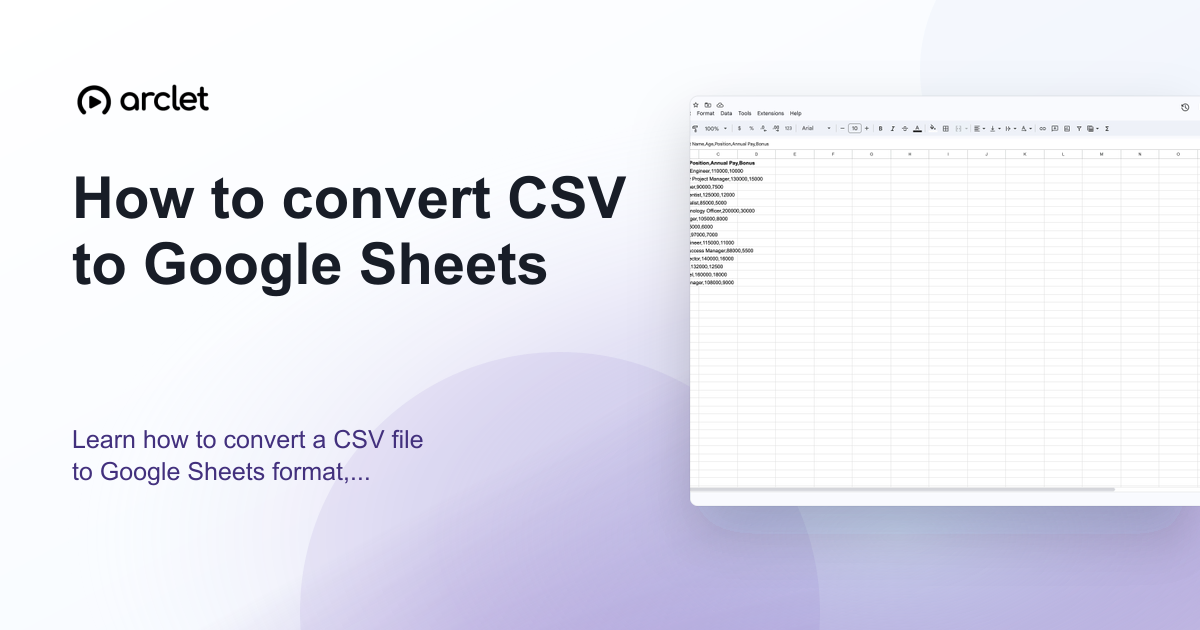
To convert a CSV to Google Sheets, upload the CSV to Google Drive, open it, and click Open with Google Sheets. Then go to File > Save as Google Sheets to save a permanent Sheets copy. The original CSV remains unchanged in Drive.
Steps at a glance
- Upload the CSV to Google Drive.
- Double-click the file and click Open with Google Sheets.
- The CSV opens as an editable spreadsheet.
- Go to File > Save as Google Sheets.
- A new .gsheet file is created in Drive and the CSV is preserved separately.
Interactive demo
This interactive demo was created free with Arclet in 2 minutes.
Create your own demo →Summary
Converting a CSV to Google Sheets gives you access to formulas, charts, conditional formatting, and collaboration features that are not available in plain CSV files. The conversion process is lossless — all text and number values from the CSV are preserved. You can convert back to CSV at any time via File > Download > Comma-separated values.
Step-by-step guide
Step 1
Upload the CSV to Google Drive
Navigate to drive.google.com. Click New > File upload or drag the CSV file into the Drive window.
Step 2
Open the CSV with Google Sheets
Double-click the CSV file in Drive. A preview opens. Click Open with Google Sheets at the top. The file opens as a spreadsheet with each column split at the commas.
Step 3
Save as Google Sheets
Go to File > Save as Google Sheets. A new file with the .gsheet format is created in the same Drive folder. This is the converted Sheets file you can now share and edit fully.
Step 4
Export back to CSV if needed
To download the spreadsheet as a CSV again, go to File > Download > Comma-separated values (.csv). Only the currently active sheet is exported.
Why this matters
You've exported data from your CRM, email platform, or analytics tool and it came back as a .csv file. You need to get it into a spreadsheet where you can filter, sort, and run formulas on it.
Troubleshooting
The converted file still shows .csv in the name
Until you choose File > Save as Google Sheets, the file is being viewed but not converted. Run the save step to create a proper Sheets file.
Numbers are stored as text after conversion
This happens when the CSV has numbers formatted with quotes or unusual separators. Select the affected column, go to Data > Data cleanup > Convert text to numbers to fix it.
Frequently asked questions
Does the CSV update automatically if the Google Sheets file changes?
No. The CSV and the converted Sheets file are separate files. Changes to one do not affect the other.
Can I convert multiple CSV files to Sheets at once?
Not natively. You would need to upload and convert each file individually, or use Google Apps Script to automate batch conversion.
Related guides
Continue with more step-by-step guides for getting work done.
 How to open a CSV file in Google SheetsLearn how to open a CSV file in Google Sheets from Drive or by importing it — preserve formatting and keep your column structure.
 How to sort alphabetically in Google SheetsLearn how to sort a column alphabetically from A to Z or Z to A in Google Sheets using the Data menu and column header filters.
 How to sort a table in Google SheetsLearn how to sort a table in Google Sheets by one or more columns, keep headers in place, and preserve row data correctly.
Create interactive demos like this one — free, no coding required.
Start for free →