How to open a CSV file in Google Sheets
Learn how to open a CSV file in Google Sheets from Drive or by importing it — preserve formatting and keep your column structure.
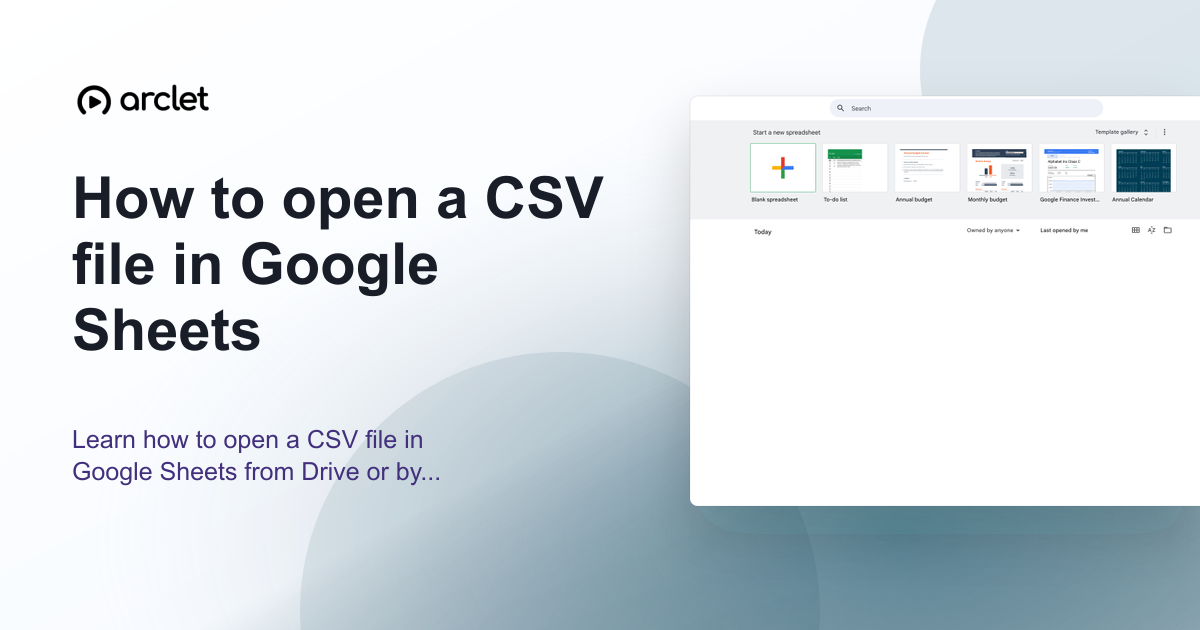
Quick answer
To open a CSV file in Google Sheets, upload it to Google Drive, then double-click it. Google Drive shows a preview — click Open with Google Sheets to convert it. Alternatively, open a sheet and go to File > Import to bring the CSV data into an existing spreadsheet.
Steps at a glance
- Upload the CSV file to Google Drive.
- Double-click the CSV file in Drive to open the preview.
- Click Open with Google Sheets at the top of the preview.
- Google Sheets opens the file with columns split by comma automatically.
- Go to File > Save as Google Sheets if you want to keep editing it.
- For an existing spreadsheet, use File > Import and choose the import location.
Interactive demo
This interactive demo was created free with Arclet in 2 minutes.
Create your own demo →Summary
There are two ways to open a CSV in Google Sheets: open it directly from Google Drive (which creates a new spreadsheet), or use File > Import inside an existing sheet (which gives you control over how data is placed). The import route lets you choose delimiter, placement, and whether to convert numbers and dates automatically.
Step-by-step guide
Step 1
Upload the CSV to Google Drive
Go to drive.google.com and drag the CSV file into the Drive window, or click New > File upload and select the file.
Step 2
Open the CSV preview
Double-click the CSV file in Drive. A text preview opens showing the raw comma-separated content.
Step 3
Open with Google Sheets
Click Open with Google Sheets at the top of the preview. Google Sheets opens the file as a spreadsheet with columns split at each comma.
Step 4
Import into an existing sheet (alternative)
If you want to add CSV data to an existing spreadsheet, go to File > Import and upload or locate the CSV. Choose current sheet, new sheet, or replace spreadsheet, confirm the separator type, then click Import data.
Why this matters
Someone sent you a .csv file and when you try to open it, it looks like a wall of comma-separated text in a notepad window. You need it in a proper spreadsheet format so you can actually work with the data.
Troubleshooting
The CSV opens in Google Docs instead of Google Sheets
Right-click the CSV file in Drive and choose Open with > Google Sheets to override the default app for this file.
All data appears in one column instead of separate columns
The CSV may use a semicolon or tab as a delimiter instead of a comma. Use File > Import, upload the file, and change the Separator type to match the file's delimiter.
The import replaced data I wanted to keep
Use File > Version history > See version history to restore the earlier sheet. On the next import, choose Insert new sheet instead of Replace spreadsheet or Replace current sheet.
Frequently asked questions
Does opening a CSV in Google Sheets change the original file?
No. Google Sheets creates a new Google Sheets file from the CSV. The original CSV file in Drive remains unchanged.
Can I open a large CSV file in Google Sheets?
Google Sheets supports up to 10 million cells per spreadsheet. Very large CSVs that exceed this limit cannot be fully imported. For large datasets, consider splitting the file before importing.
Related guides
Continue with more step-by-step guides for getting work done.
 How to convert CSV to Google SheetsLearn how to convert a CSV file to Google Sheets format, preserve your column structure, and save it as a native Sheets file.
 How to sort alphabetically in Google SheetsLearn how to sort a column alphabetically from A to Z or Z to A in Google Sheets using the Data menu and column header filters.
 How to search in Google SheetsLearn how to search for text, numbers, or formulas in Google Sheets using Ctrl+F to find matches and Ctrl+H to replace them.
Create interactive demos like this one — free, no coding required.
Start for free →