How to search in Google Sheets
Learn how to search for text, numbers, or formulas in Google Sheets using Ctrl+F to find matches and Ctrl+H to replace them.
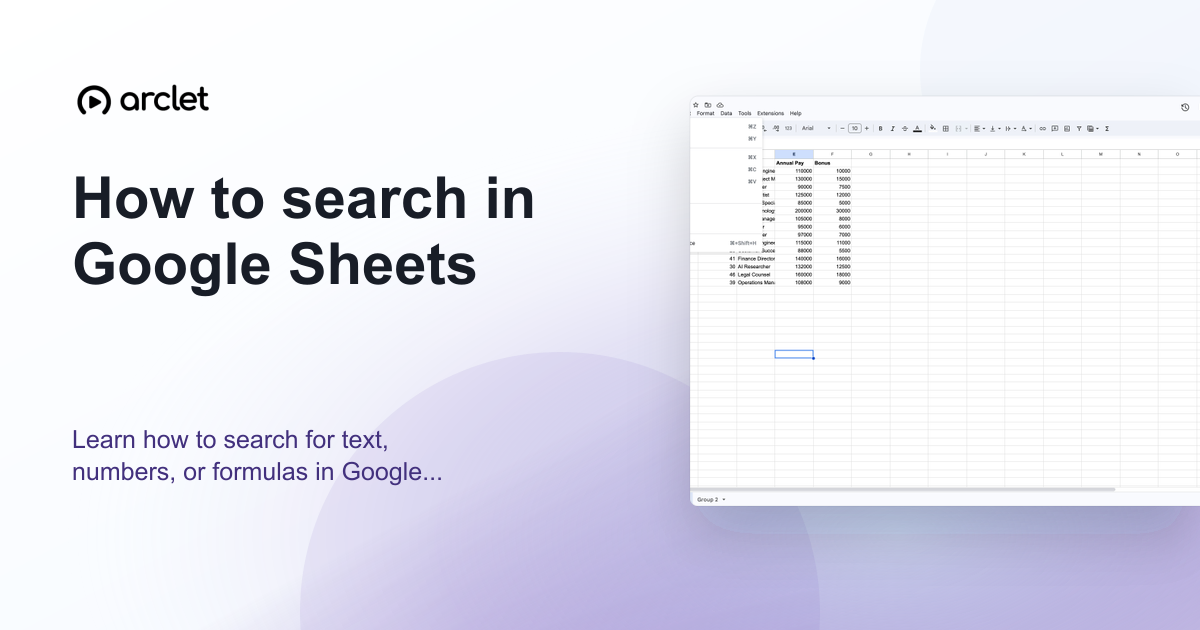
Quick answer
To search in Google Sheets, press Ctrl+F (Cmd+F on Mac) to open the search bar and type your query. The matching cells are highlighted. For more options including replace, use Ctrl+H (Cmd+H) to open Find and Replace.
Steps at a glance
- Press Ctrl+F (or Cmd+F on Mac) to open the search bar.
- Type the text or number you want to find.
- Press Enter to jump to the next match.
- Press the up/down arrows in the search bar to move between matches.
- Press Escape to close the search bar when done.
Interactive demo
This interactive demo was created free with Arclet in 2 minutes.
Create your own demo →Summary
Google Sheets has two search modes: the quick search bar (Ctrl+F) for finding and navigating matches, and Find and Replace (Ctrl+H) for finding and modifying content. Both support searching across sheets, matching case, matching entire cells, and searching within formulas.
Step-by-step guide
Step 1
Open the search bar
Press Ctrl+F on Windows or Cmd+F on Mac. A search bar appears in the top-right corner of the sheet.
Step 2
Type your search term
Type the text, number, or part of a formula you want to find. Matching cells are highlighted on the sheet as you type.
Step 3
Navigate between matches
Press Enter or click the down arrow in the search bar to jump to the next match. Press Shift+Enter or the up arrow to go to the previous match. The count shows how many matches were found.
Step 4
Search across all sheets
To search every sheet in the workbook, open Find and Replace with Ctrl+H. Check the Search option and switch from This sheet to All sheets.
Why this matters
You're looking for a specific row in a spreadsheet with hundreds of entries — a customer name, a product SKU, or a transaction — and scrolling through everything to find it isn't an option.
Troubleshooting
Search is not finding text I can see on screen
Check if the text is inside a formula rather than a displayed value. In Find and Replace, check Also search within formulas to include formula text in the search.
Matches are not highlighted
Make sure you are searching in the active sheet. If the match is on a different sheet, the search will jump there automatically — check if the sheet tab changed.
Frequently asked questions
Can I search for a specific format in Google Sheets?
The standard search does not filter by cell format. To find cells with a specific format, use Format > Conditional formatting to highlight them, or filter by color using Data > Create a filter.
Is the Google Sheets search case-sensitive?
The default search is case-insensitive. To match case exactly, open Find and Replace and check Match case before searching.
Related guides
Continue with more step-by-step guides for getting work done.
 How to sort alphabetically in Google SheetsLearn how to sort a column alphabetically from A to Z or Z to A in Google Sheets using the Data menu and column header filters.
 How to sort a table in Google SheetsLearn how to sort a table in Google Sheets by one or more columns, keep headers in place, and preserve row data correctly.
 How to check word count in Google DocsLearn how to see word count in Google Docs quickly using the Tools menu, keyboard shortcut, or live counter while you write.
Create interactive demos like this one — free, no coding required.
Start for free →