How to sort alphabetically in Google Sheets
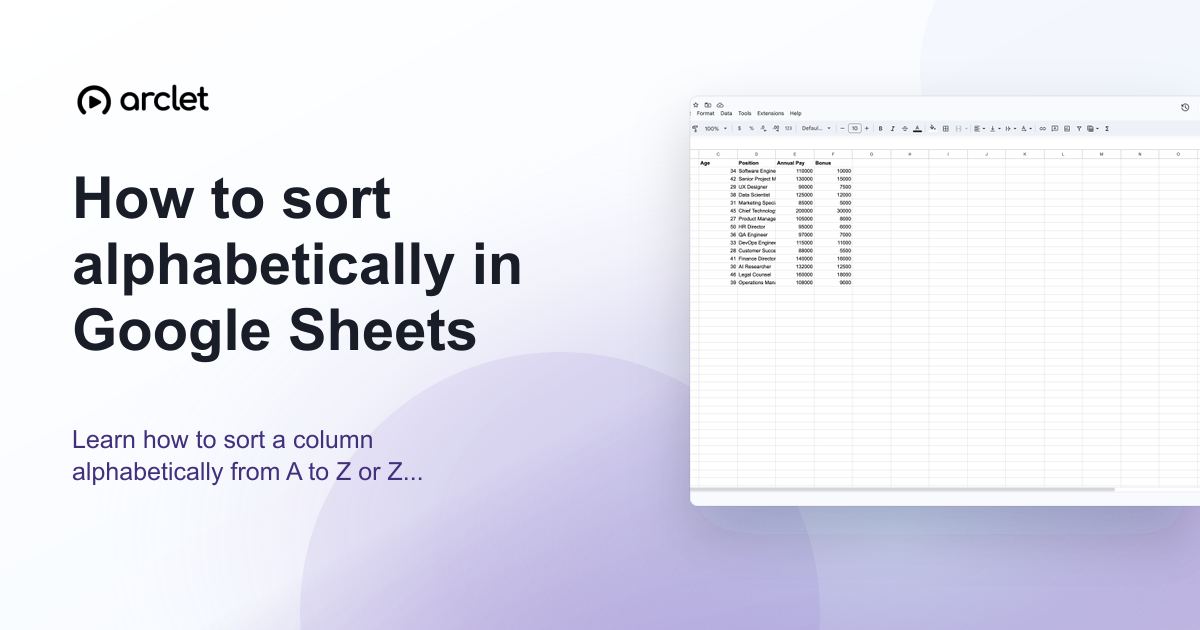
Learn how to sort a column alphabetically from A to Z or Z to A in Google Sheets using the Data menu and column header filters.
Quick answer
To sort alphabetically in Google Sheets, click any cell in the column you want to sort, open the Data menu, and choose Sort sheet by column A–Z or Sort range by column A–Z. For Z–A order, choose the descending option.
Steps at a glance
- Click any cell in the column you want to sort.
- Open the Data menu.
- Choose Sort sheet by column [letter] A→Z for ascending order.
- Or choose Sort sheet by column [letter] Z→A for descending order.
- The entire sheet reorders based on that column.
Interactive demo
This interactive demo was created free with Arclet in 2 minutes.
Create your own demo →Summary
Google Sheets offers two sorting scopes: Sort sheet (reorders all rows based on one column) and Sort range (reorders only the selected cells). Both support A–Z and Z–A order. If your data has a header row, use Sort range and check Data has header row to keep the header in place.
Step-by-step guide
Step 1
Select a cell in the column to sort
Click any cell in the column whose values you want to sort alphabetically. You do not need to select the entire column.
Step 2
Open the Data menu
Click Data in the top menu bar. The sorting options appear at the top of the dropdown.
Step 3
Choose sort order
Click Sort sheet by column [letter] A→Z to sort in ascending alphabetical order, or Z→A for descending. The sheet reorders immediately.
Step 4
Sort a range only (optional)
To sort only a specific range without reordering the rest of the sheet, select the cells, then choose Data > Sort range. A dialog lets you pick the column and order and protect the header row.
Why this matters
You've built a list — a product catalog, a contact sheet, a task list — and it's in whatever order things were entered. You need it alphabetical before you send it to anyone.
Troubleshooting
The sort is mixing up rows with data from other columns
You sorted a range instead of the full sheet. Use Sort sheet from the Data menu so all columns move together when rows are reordered.
Numbers are sorting as text (e.g., 10 comes before 2)
The column is formatted as plain text. Select the column, go to Format > Number > Number to convert it, then sort again.
Frequently asked questions
Does sorting in Google Sheets change the data permanently?
Yes, sorting rearranges the actual cell data. Use Ctrl+Z (Cmd+Z) to undo a sort immediately after if needed.
Can I sort by multiple columns at once?
Yes. Use Data > Sort range, then click Add another sort column to add secondary and tertiary sort keys.
Related guides
Continue with more step-by-step guides for getting work done.
 How to sort a table in Google SheetsLearn how to sort a table in Google Sheets by one or more columns, keep headers in place, and preserve row data correctly.
 How to search in Google SheetsLearn how to search for text, numbers, or formulas in Google Sheets using Ctrl+F to find matches and Ctrl+H to replace them.
 How to open a CSV file in Google SheetsLearn how to open a CSV file in Google Sheets from Drive or by importing it — preserve formatting and keep your column structure.
Create interactive demos like this one — free, no coding required.
Start for free →