How to add a textbox to Google Docs
Learn how to insert a text box in Google Docs using the Drawing tool and position it independently of the document flow.
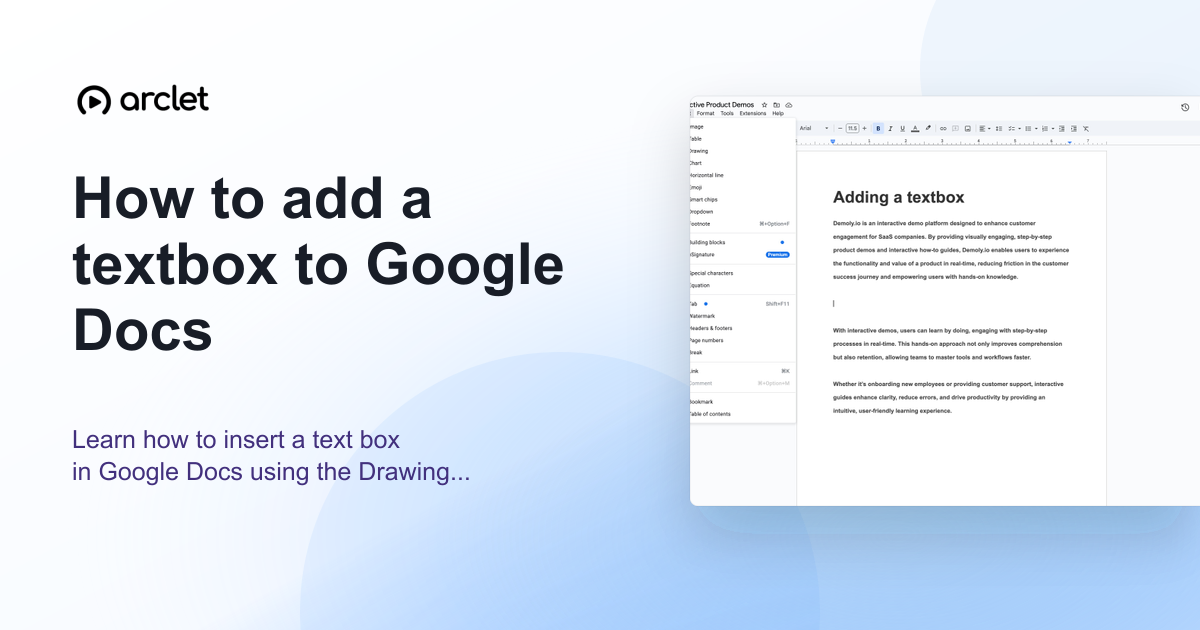
Quick answer
To add a text box in Google Docs, go to Insert > Drawing > New, click the text box icon in the Drawing toolbar, draw a box on the canvas, type your text, and click Save and Close. The text box is inserted as an image-like object you can move and resize.
Steps at a glance
- Go to Insert > Drawing > New.
- Click the Text box icon in the Drawing toolbar (looks like a T with a box).
- Click and drag on the drawing canvas to draw the text box.
- Type your text inside the box.
- Click Save and Close to insert the text box into the document.
Interactive demo
This interactive demo was created free with Arclet in 3 minutes.
Create your own demo →Summary
Text boxes in Google Docs are created through the built-in Drawing editor. Once inserted, a text box behaves like a floating image — you can move it freely by dragging, resize it by dragging the handles, and wrap text around it. To edit the text box later, double-click it to reopen the Drawing editor.
Step-by-step guide
Step 1
Open the Drawing editor
Click Insert in the top menu, then choose Drawing > New. The Google Docs Drawing editor opens in a new dialog window.
Step 2
Select the Text box tool
In the Drawing editor toolbar, click the text box icon (a T inside a rectangle). Your cursor changes to a crosshair.
Step 3
Draw the text box
Click and drag on the canvas to draw the text box at the size you want. Release the mouse to finish drawing. The cursor moves inside the box.
Step 4
Type your text
Type the text you want inside the box. Use the Drawing toolbar to change the font, size, color, alignment, or text style.
Step 5
Save and close
Click Save and Close in the top-right corner of the Drawing editor. The text box is inserted into the document as a floating element. Drag it to reposition it.
Why this matters
You're laying out a report and you need a pull quote or sidebar note that sits beside the main text, not in line with it. Normal paragraphs flow top to bottom, which isn't what you need.
Troubleshooting
The text box is stuck in line with the text and I cannot move it freely
Click the text box to select it, then click the wrap options that appear below it and choose In front of text or Behind text. This lets you drag it anywhere on the page.
I cannot find Drawing in the Insert menu
Drawing is only available in the Google Docs web app — not in the mobile app. Open your document in a desktop browser.
Frequently asked questions
Can I edit a text box after inserting it?
Yes. Double-click the text box in your document to reopen the Drawing editor where you can change the text, font, size, color, or border.
Can I add a border to the text box?
Yes. In the Drawing editor, select the text box, then use the border color and border weight controls in the toolbar to add and style the border.
Is there a way to add a text box without using Drawing?
Not directly in Google Docs. The Drawing tool is the built-in method for floating text boxes. Alternatively, use a single-cell table (Insert > Table > 1×1) for a simpler, inline text box.
Related guides
Continue with more step-by-step guides for getting work done.
 How to change margins in Google DocsLearn how to change page margins in Google Docs using the File menu or the ruler — set custom margins in inches or centimetres.
 How to add page numbers in Google DocsLearn how to insert page numbers in a Google Docs header or footer, and how to control the starting number and position.
 How to make one page landscape in Google DocsLearn how to make one page landscape in Google Docs while keeping remaining pages in portrait — using section breaks and page setup.
Create interactive demos like this one — free, no coding required.
Start for free →