How to download a Google Doc as a PDF
Download a Google Doc as a PDF from the File menu in a few clicks. Share a fixed-layout copy of your document without sending an editable file.
Quick answer
To download a Google Doc as a PDF, open the document, select File in the menu bar, point to Download, and choose PDF Document (.pdf). Google Docs exports the document as a PDF file. The same Download menu also lists other formats, such as Microsoft Word (.docx) and Plain Text (.txt).
Steps at a glance
- Open the Google Doc you want to export
- Select File in the menu bar
- Point to Download in the File menu
- Choose PDF Document (.pdf) from the submenu
- Open the exported PDF from your downloads
Interactive demo
Summary
Google Docs can export any document as a PDF straight from the File menu. A PDF keeps the layout the same on every device, which makes it a good format for sharing finished work.
Step-by-step guide
Step 1
Start with your finished document
Open the Google Doc you want to export and check that the text is final. The document opens in editing mode with the menu bar across the top, from File to Help.
Step 2
Open the File menu
Select **File** in the menu bar, just under the document title. A long menu opens with options such as New, Open, Make a copy, Share, and Download.
Step 3
Point to Download
In the File menu, move your pointer onto **Download**. A submenu of export formats opens to the right of it, so keep your pointer moving straight across into the submenu.
Step 4
Choose PDF Document
Select **PDF Document (.pdf)** from the submenu. The other formats listed alongside it include Microsoft Word (.docx), OpenDocument Format (.odt), Plain Text (.txt), and Rich Text Format (.rtf). Choosing the PDF option starts the export.
Why this matters
You have finished a report or update and need to send it to someone who should read it, not edit it. Exporting a PDF gives you one file that looks the same for every reader.
Frequently asked questions
Where is the PDF option in Google Docs?
It is under File, then Download, listed as PDF Document (.pdf).
Which other formats can I download a Google Doc in?
The Download submenu also lists Microsoft Word (.docx), OpenDocument Format (.odt), Plain Text (.txt), Rich Text Format (.rtf), Web Page (.html, zipped), EPUB Publication (.epub), and Markdown (.md).
Related guides
Continue with more step-by-step guides for getting work done.
 How to make a copy of a Google DocMake a copy of a Google Doc from the File menu: rename it in the Copy document dialog, confirm, and keep working in the new duplicate.
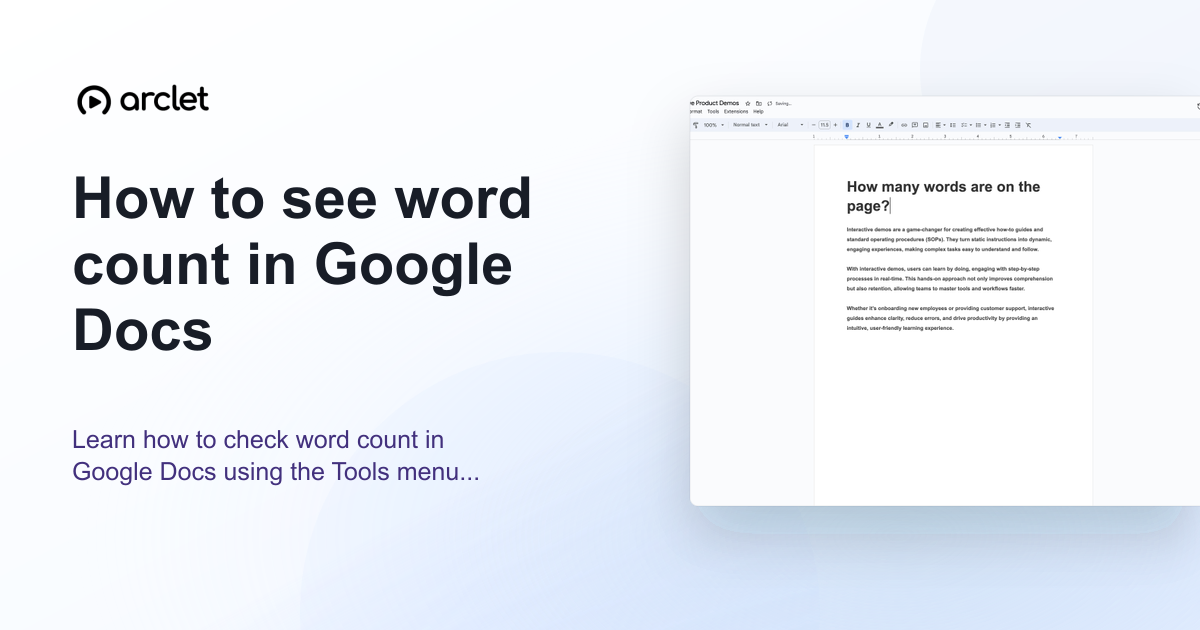 How to check word count in Google DocsLearn how to see word count in Google Docs quickly using the Tools menu, keyboard shortcut, or live counter while you write.
 How to add a checklist in Google DocsTurn a list of tasks into a Google Docs checklist with the Format menu, then click each checkbox to tick items off as you finish them.
Create interactive demos like this one — free, no coding required.
Start for free →