How to create an agile board in Miro
Learn how to set up a Scrum or Kanban agile board in Miro using free templates, custom columns, and team sharing.

Quick answer
To create an agile board in Miro, open your dashboard, click Create new board, then select an Agile template like Scrum or Kanban from the template library. Rename the board, invite teammates for collaboration, and customize columns, swimlanes, and sticky notes to match your team's workflow before sharing it.
Steps at a glance
- Open your Miro dashboard and click Create new board
- Search the template library for an Agile or Scrum template
- Rename the board and set sharing permissions
- Add swimlanes, columns, and sticky notes for your backlog
- Invite teammates and assign edit or view access
- Import existing backlog items or export your finished board
Summary
Miro's agile board templates give Scrum, Kanban, and Lean teams a ready-made structure for backlogs, sprints, and workflow tracking. Instead of building columns and cards from scratch, you can pull a pre-built layout and adapt it to your process in minutes.
Step-by-step guide
Step 1
Open your Miro dashboard
Log in to Miro and land on your team dashboard, where you'll see existing boards and a Create new board button in the top-left area. If you haven't set up a workspace yet, review how to /guides/miro/create-a-board for the basic setup before adding agile-specific structure.
Step 2
Search the template library for an agile template
Click Create new board, then select From template to open the template library. Type 'agile', 'Scrum', or 'Kanban' into the search bar to filter results, and pick a template that matches your framework — most free-plan users have access to standard Scrum and Kanban board layouts.
Step 3
Rename the board and set permissions
Double-click the board title at the top of the screen to rename it something your team will recognize, like 'Sprint 14 Board.' Click the Share button in the top-right corner to set the board's visibility — choose invite-only access if you want to restrict who can view or edit it.
Step 4
Customize columns and swimlanes
Most agile templates come with default columns like Backlog, To Do, In Progress, and Done. Drag column borders to resize them, duplicate a column if you need an extra stage like Code Review, and add horizontal swimlanes to separate work by team or epic.
Step 5
Add sticky notes for backlog items
Click the sticky note icon in the left toolbar or press N on your keyboard to add cards for each task or user story. For a full walkthrough of formatting and color-coding these cards, see how to /guides/miro/add-sticky-notes so your backlog stays organized as it grows.
Step 6
Invite your team to collaborate
Click Share board again and enter teammate email addresses, or generate a shareable link with editor or viewer permissions. Everyone with edit access can move cards, add comments, and update statuses in real time as the sprint progresses.
Step 7
Import backlog data or export the board
If you're migrating from a spreadsheet, use the Import option in the board menu to bring in CSV data as sticky notes. Once your board is set up, export it as a PDF or image from the same menu, or turn it into a /guides/miro/create-a-presentation for stakeholder updates.
Why this matters
You're kicking off a new sprint and your team needs a shared visual space to track backlog items, work in progress, and completed tasks. Setting up an agile board correctly means everyone can update statuses in real time instead of relying on scattered spreadsheets or standalone status calls.
Frequently asked questions
Is creating an agile board free in Miro?
Yes, free-plan accounts can create agile boards using standard Scrum and Kanban templates, add sticky notes, and invite a limited number of collaborators. Some advanced templates and unlimited board storage require a paid plan.
Can I switch an existing board to an agile layout?
You can't convert a board's core template after creation, but you can copy an agile template's frame and columns onto an existing board, then move your existing content into the new structure manually.
How do I keep my agile board private to my team?
Click Share on the board and set the access level to invite-only rather than 'Anyone with the link.' This restricts viewing and editing to people you specifically add by email.
Can I turn my agile board into a sprint retrospective later?
Yes, many teams create a separate retrospective board once a sprint ends. Check the guide on how to /guides/miro/create-a-retrospective for a template built specifically for that review process.
Related guides
Continue with more step-by-step guides for getting work done.
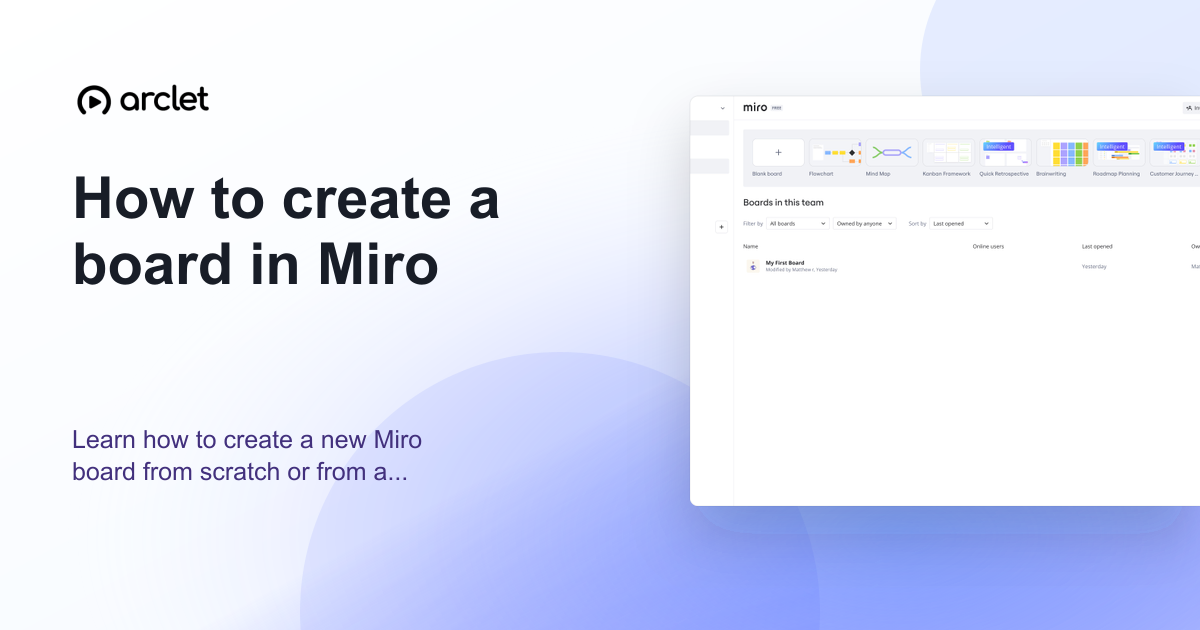 How to create a board in MiroLearn how to create a new Miro board from scratch or from a template — name it, choose a team, and start collaborating instantly.
 How to add sticky notes in MiroLearn how to add, customize, and organize sticky notes in Miro for brainstorming, retrospectives, and visual planning sessions.
 How to create a retrospective board in MiroLearn how to set up a retrospective board in Miro using templates, sticky notes, voting, and timers to run effective team retros.
Create interactive demos like this one — free, no coding required.
Start for free →