Miro How-to Guides
Step-by-step Miro guides covering board creation, management, and recovery. Follow interactive walkthroughs and create your own product demos.
Use these Miro guides to set a board up, map a process on it, and get the right people into it without opening the whole workspace. Start with the task closest to what you're building, then follow the related guides to template the board, tighten sharing, and turn a repeatable Miro workflow into a clear Arclet demo.
Miro guides
Create and manage boards
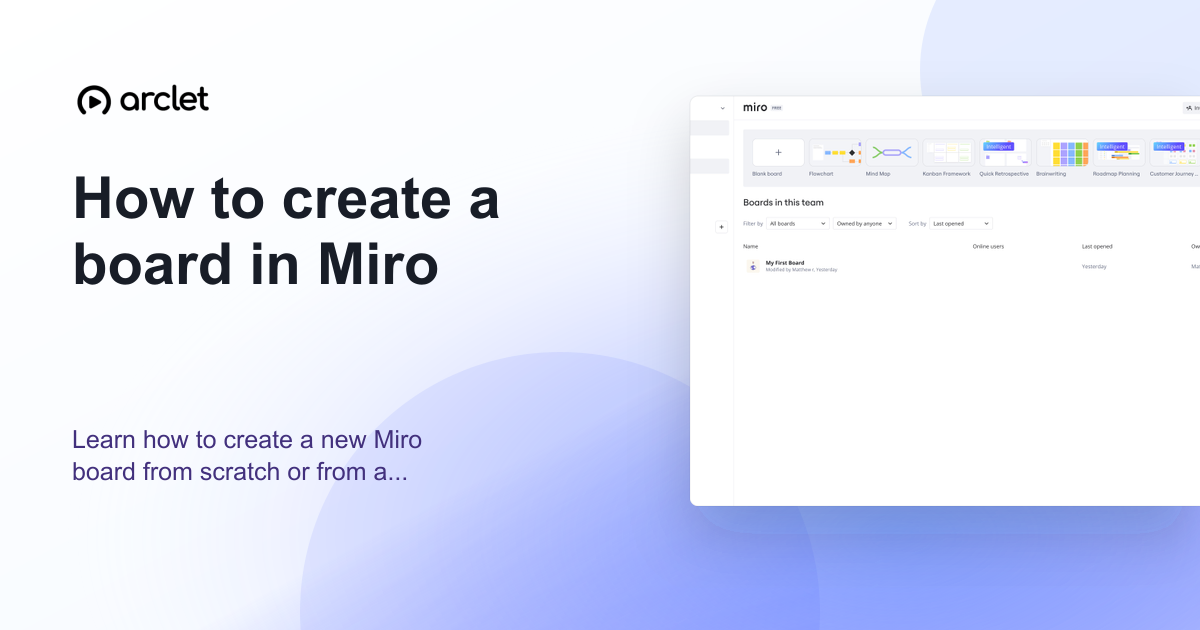
How to create a board in Miro
Learn how to create a new Miro board from scratch or from a template — name it, choose a team, and start collaborating instantly.
How to use templates in Miro
Learn how to find, preview, customize, and save Miro templates to speed up brainstorming, planning, and team workflows for any project.
How to copy a Miro board
Learn how to duplicate a Miro board in a few clicks, including where to find copy settings and how to move copies between teams.
How to change board background color in Miro
Learn how to change your Miro board's background color in a few clicks to improve clarity, focus, and visual organization.
How to delete a board in Miro
Learn how to delete a Miro board permanently or archive it to free up your board limit without permanently losing the content.
How to restore a Miro board
Learn how to restore a deleted or archived Miro board from the trash or archive panel and recover any board you no longer see.
Map ideas and processes
How to create a flowchart in Miro
Learn how to build a flowchart in Miro using shapes, connectors, and text labels to map out processes, decisions, and workflows.
How to create a mind map in Miro
Learn how to build a mind map in Miro using the built-in template, branch nodes, and formatting tools to organize ideas visually.
How to create a user journey map in Miro
Learn how to create a user journey map in Miro with ready-made templates, stages, emotions, sticky notes, and shareable collaborative boards.
How to create an agile board in Miro
Learn how to set up a Scrum or Kanban agile board in Miro using free templates, custom columns, and team sharing.
How to create a retrospective board in Miro
Learn how to set up a retrospective board in Miro using templates, sticky notes, voting, and timers to run effective team retros.
How to import draw.io diagrams into Miro
Learn how to bring draw.io diagrams into Miro by exporting and importing files, plus how to rebuild them for full editing.

How to use Miro AI Assist
Learn how to use Miro AI Assist to generate sticky notes, diagrams, mind maps, and summaries directly on your board.
Work with sticky notes and objects
How to add sticky notes in Miro
Learn how to add, customize, and organize sticky notes in Miro for brainstorming, retrospectives, and visual planning sessions.

How to add flows to sticky notes in Miro
Learn how to connect sticky notes with flow lines in Miro to map relationships, sequences, and dependencies during any session.
How to align objects in Miro
Learn how to align objects in Miro using multi-select, the alignment toolbar, snapping guides, and Quick Arrange for clean, professional boards.
How to group objects in Miro
Learn how to group objects in Miro so you can move, resize, and organize sticky notes, shapes, images, and text together as a single unit on your board.
How to lock elements on a Miro board
Learn how to lock shapes, sticky notes, frames, and other elements on a Miro board to prevent accidental moves, edits, or deletions.
How to upload a file to a Miro whiteboard
Learn how to upload files, images, and documents to your Miro whiteboard using drag-and-drop, URL import, or the toolbar upload option.
How to add an image to a Miro board
Learn how to upload, paste, drag, or AI-generate images on a Miro board, then resize and position them for your project.
How to add a video to a Miro board
Learn how to embed or upload a video on a Miro board, including link embedding, file uploads, resizing, and sharing with teammates.
How to add a table in Miro
Learn how to add, resize, and format a table in Miro using the built-in Tables app on any free board.
How to draw on a Miro board
Learn how to sketch freehand lines, shapes, and annotations on a Miro board using the Pen tool, plus tips for editing and sharing drawings.
How to integrate Google Images in Miro
Learn how to install and use the Google Images app in Miro to search and drag images onto your board without switching tabs.
How to flip an image in Miro
Learn how to mirror or flip an image in Miro with the drag-handle technique, since there's no dedicated flip button on the free plan.
Frame, arrange, and navigate a board
How to add a frame in Miro
Learn how to add, resize, and organize frames in Miro to structure boards, group content, and prep sections for presentations.
How to hide frames in Miro
Learn how to hide frames in Miro to declutter your board, focus on active work, and manage frame visibility for you and your team.
How to use grid layout in Miro
Learn how to turn on the background grid and use the Grid widget in Miro to organize content and align objects precisely.
How to zoom in and out on a Miro board
Learn every way to zoom in and out on a Miro board, including toolbar controls, keyboard shortcuts, and trackpad gestures.
Collaborate in real time
How to add a comment in Miro
Learn how to add, reply to, and manage comments on a Miro board to give feedback and collaborate with your team in real time.
How to use cursor chat in Miro
Learn how to send quick, disappearing messages next to your cursor in Miro so teammates see your input live during collaboration.
How to use voting in Miro
Learn how to set up, run, and analyze a voting session in Miro to help your team prioritize ideas and make faster decisions.
How to add a timer in Miro
Learn how to add and run a countdown timer on your Miro board to keep meetings, workshops, and retrospectives on schedule.
Share and present a board
How to share a Miro board
Learn how to share a Miro board with teammates or external guests, set permission levels, and control access using shareable links or invites.
How to invite collaborators to a Miro board
Learn how to invite collaborators to a Miro board using email invites or share links, and set the right permission level for each teammate.
How to set invite-only access in Miro
Learn how to restrict a Miro board to invite-only access so only people you explicitly add can view or edit its content.
How to create a presentation in Miro
Learn how to turn a Miro board into a slide-style presentation using frames, and present them directly from your browser.
How to use presenter mode in Miro
Learn how to launch Miro's Interactive Presentation Mode, arrange frames into a slideshow, and guide viewers through your board live.
How to use Talktrack in Miro
Learn how to record, edit, and share a Talktrack in Miro to walk teammates through your board with narrated video.
How to embed a Miro board
Learn how to embed one Miro board inside another using a simple link paste, plus tips on permissions and resizing embedded cards.
How to export a Miro board
Learn how to export a Miro board to PDF, image, or CSV format using the built-in export menu available on Miro's free plan, with format and scope tips.
How to integrate Miro with Jira
Learn how to connect Miro with Jira to sync issues, turn sticky notes into tickets, and keep boards and projects aligned.
Frequently asked questions
Is Miro free?
Miro has a free plan that allows up to 3 editable boards. Paid plans (Starter, Business, Enterprise) remove the board limit and add advanced features like private boards, smart diagramming, and SSO.
Can I use Miro without an account?
You can view shared Miro boards without an account, but you need to sign up to create or edit boards.