How to use templates in Miro
Learn how to find, preview, customize, and save Miro templates to speed up brainstorming, planning, and team workflows for any project.
Quick answer
To use a Miro template, click + (Create new) at the top of the dashboard sidebar and choose Explore templates. Search or filter by category, preview a design, then click Use template to add it to a new board where you can customize shapes, text, and layout instantly.
Steps at a glance
- On the dashboard, click + (Create new), then Explore templates
- Browse categories or search for a specific template type
- Preview the template by clicking its thumbnail
- Click "Use template" to create a new board from it
- Customize the board's shapes, text, and stickies
- Share the board or invite teammates to collaborate
- Save your own layout as a template (paid plans)
Interactive demo
Summary
Miro's template library gives you hundreds of pre-built board layouts for brainstorming, agile workflows, strategy, and planning, so you never start from a blank canvas. You can browse, preview, and drop any template into a new board, then edit it freely or save your own version for future projects.
Step-by-step guide
Step 1
Open the template library
From your Miro dashboard, click the + (Create new) button at the top of the left sidebar and choose "Explore templates." This opens the template picker, with use cases like Meetings & workshops, Ideation & brainstorming, Agile workflows, and Strategy & planning.
Step 2
Search or filter by category
Use the search bar at the top of the template picker to type keywords such as "retrospective" or "flowchart," or click a use case on the left to narrow results. Community-made templates live under Miroverse, also in the left menu.
Step 3
Preview and select a template
Click any template thumbnail to open a larger preview showing its layout, sections, and included elements before you commit. Once you find one that fits your project—like a mind map or user journey map—click "Use template" to continue.
Step 4
Create your board from the template
After clicking "Use template," Miro opens a new board pre-populated with the template's frames, sticky notes, and guidance text. Rename the board by clicking the title field at the top left so your team can find it easily later, similar to when you create a board from scratch.
Step 5
Customize the content
Edit the template by adding your own sticky notes, moving shapes, deleting unused frames, or resizing sections to match your workflow. You can adapt the structure while keeping the built-in guidance as a reference.
Step 6
Invite collaborators and set sharing permissions
Click the "Share" button in the top right corner to invite teammates by email or generate a shareable link. Choose whether collaborators can edit or only comment, and decide if the board should stay invite-only or be open to anyone with the link, matching your team's privacy needs.
Step 7
Save your customized board as a new template
If you want to reuse your layout later, select the board content, right-click it, and choose "Save as template." Saving custom templates needs a paid plan; on the Free plan the option shows an upgrade badge. Saved templates appear under your team's templates in the template picker.
Why this matters
You're staring at a blank board and need a retrospective, roadmap, or brainstorm session running in minutes, not hours. Using a template gives you a proven structure instantly, so you can focus on facilitating your team's discussion instead of designing frames, sections, and sticky note layouts from scratch.
Frequently asked questions
Are Miro templates free to use?
Yes, you can browse the template library and create boards from templates on the free plan. Some templates note that they include paid features, which only work if your plan includes them.
Can I combine multiple templates on one board?
Yes, you can add several templates to the same board by dragging their frames together or copying specific sections from one template into another.
Where do custom and community templates appear?
Templates you save appear under your team's templates in the template picker's left menu (saving custom templates needs a paid plan). Community-made designs from Miroverse have their own entry in the same menu.
Do templates support real-time team collaboration?
Yes, once you create a board from a template you can invite collaborators to edit or comment simultaneously, making it easy to run workshops together.
Related guides
Continue with more step-by-step guides for getting work done.
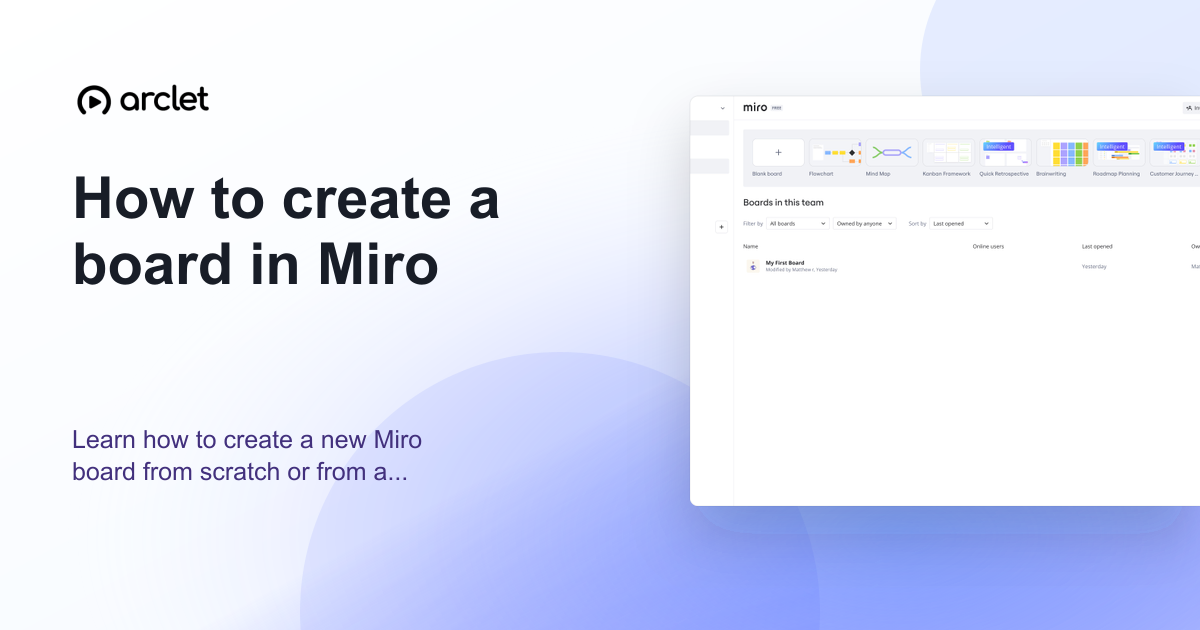 How to create a board in MiroLearn how to create a new Miro board from scratch or from a template — name it, choose a team, and start collaborating instantly.
 How to invite collaborators to a Miro boardLearn how to invite collaborators to a Miro board using email invites or share links, and set the right permission level for each teammate.
 How to share a Miro boardLearn how to share a Miro board with teammates or external guests, set permission levels, and control access using shareable links or invites.
Create interactive demos like this one — free, no coding required.
Start for free →