How to create a board in Miro
Learn how to create a new Miro board from scratch or from a template — name it, choose a team, and start collaborating instantly.
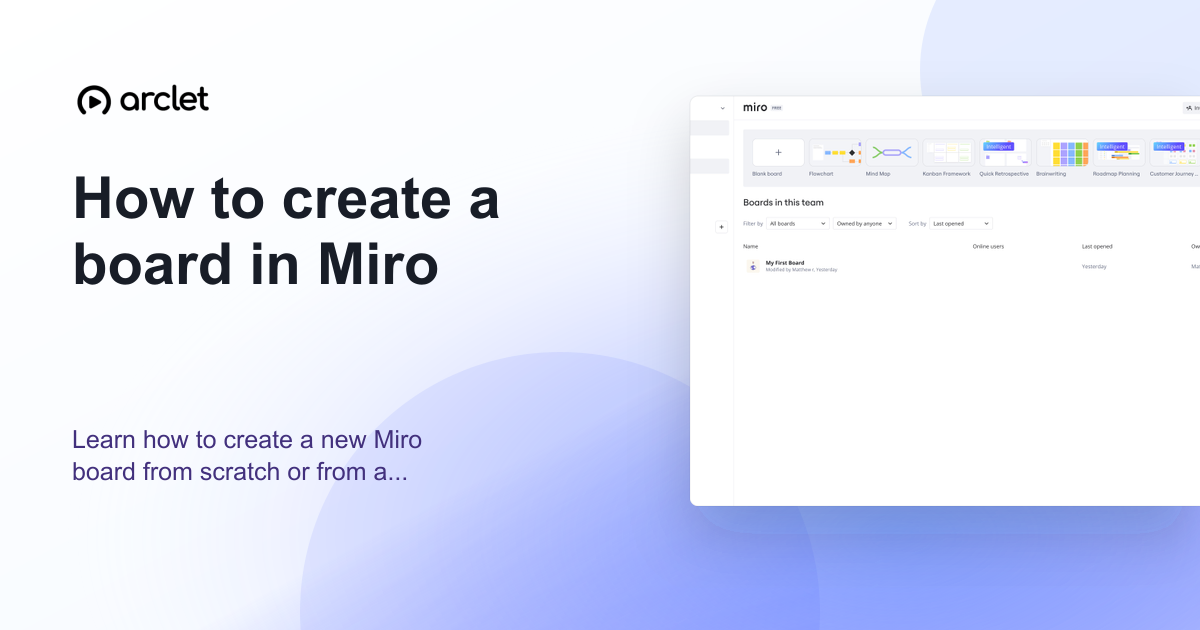
Quick answer
To create a board in Miro, click the + New board button on the Miro dashboard. You can start with a blank board or choose a template. Give the board a name, select the team to add it to, and click Create.
Steps at a glance
- Go to your Miro dashboard.
- Click + New board.
- Choose a blank board or select a template.
- Name the board and select the team.
- Click Create.
Interactive demo
This interactive demo was created free with Arclet in 2 minutes.
Create your own demo →Summary
A Miro board is an infinite canvas for visual collaboration. You can create one from scratch for free-form work, or start from one of hundreds of templates including flowcharts, retrospectives, mind maps, and sprint planners. Boards are stored in teams and can be shared with collaborators by link or invitation.
Step-by-step guide
Step 1
Go to the Miro dashboard
Navigate to miro.com and sign in. Your dashboard shows recent boards and team workspaces.
Step 2
Click New board
Click the + New board button in the top-right area of the dashboard, or click the + tile in the board grid. A dialog opens.
Step 3
Choose blank or template
Select Blank board to start with an empty canvas, or browse templates to find a starting structure. Click a template to preview it.
Step 4
Name the board and set the team
Type a name for the board. If you have multiple teams, select the team this board should belong to. Click Create.
Step 5
Start building
The board opens in the editor. Use the toolbar on the left to add sticky notes, shapes, connectors, text, images, and more.
Why this matters
Your team has a brainstorm, retro, or planning session starting in a few minutes and you need a shared canvas ready before people join the call. You're in Miro but not sure where to start.
Troubleshooting
The New board button is greyed out
On the Miro free plan, you can only have 3 editable boards. If you have reached the limit, you need to archive or delete an existing board, or upgrade to a paid plan to create more.
I created a board in the wrong team
Open the board, click the board name at the top, and choose Move board to move it to a different team.
Frequently asked questions
How many boards can I create for free?
The Miro free plan allows up to 3 editable boards per team. Archived boards do not count toward the limit.
Can I create a board from a template someone shared with me?
Yes. If you have a link to a Miro template, open it and click Use template to create a new board based on that template.
Related guides
Continue with more step-by-step guides for getting work done.
 How to restore a Miro boardLearn how to restore a deleted or archived Miro board from the trash or archive panel and recover any board you no longer see.
 How to delete a board in MiroLearn how to delete a Miro board permanently or archive it to free up your board limit without permanently losing the content.
Create interactive demos like this one — free, no coding required.
Start for free →