How to add a video to a Canva design
Add a free stock video to your Canva design from the Elements tab, then trim the clip with the toolbar so only the part you want plays in your page.
Quick answer
Open the Elements tab, choose Videos, and click a video without a crown to add it to your page. Free videos need no upgrade. Then select the video and use the toolbar to adjust it. Click Trim, review the clip length, and click Done to finish trimming before you move on.
Steps at a glance
- Open a design and click the Elements tab
- Click Videos to browse stock clips
- Click a video without a crown to add it
- Click the Trim button in the toolbar
- Click Done to finish trimming
- Check the clip on your page
Interactive demo
Summary
Canva's Elements tab includes a library of stock videos you can drop straight onto a page. Once a clip is on the page, the toolbar gives you controls such as trimming, so the video fits the design.
Step-by-step guide
Step 1
Open the Elements tab
In your design, click Elements in the side panel on the left. The panel switches from templates to graphics, photos and other items you can add to the page.
Step 2
Open Videos
In the Elements panel, find the browse categories and click Videos. Canva lists stock clips in rows such as Recommended for you and Trending, each tile showing its length.
Step 3
Pick a free video
Choose a clip that has no crown badge, since crowns mark Pro content. Click the tile once and Canva adds the video to your page and selects it.
Step 4
Trim the video
With the video selected, look at the toolbar above the page. It shows controls such as Replace, Speed and Flip. Click Trim a 7 seconds video to open the trim bar.
Step 5
Finish trimming
The trim bar shows the clip as a strip of frames with a start edge and an end edge. Drag an edge to shorten the clip, then click Done to close the bar. The video stops playing and shows a play button.
Why this matters
You are building a social post or slide and a still image feels flat. A short looping clip adds motion and holds attention. Knowing how to add and trim one means you can finish the page without leaving the editor.
Frequently asked questions
Can I add a video on a free account?
Yes. Clips without a crown badge can be added without upgrading.
How do I change how long the video plays?
Select the video and click the trim button in the toolbar, which shows the clip length. Drag the start or end edge, then click Done.
Related guides
Continue with more step-by-step guides for getting work done.
 How to add audio to a Canva presentationAdd a free audio track to a Canva design: open the Elements tab, choose Audio, pick a track and select it on the timeline to adjust it.
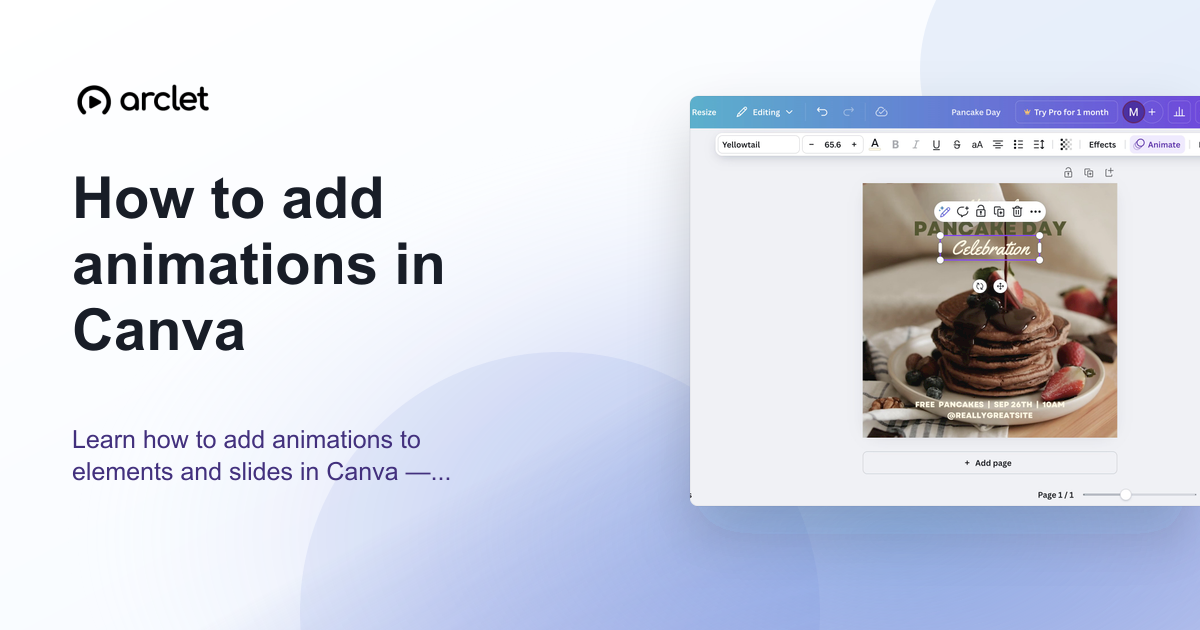 How to add animations in CanvaAnimate elements or whole pages in Canva: select, click Animate, pick an entrance, exit or continuous effect, then set speed. Includes an interactive demo.
 How to add a background in CanvaAdd a solid background colour to any Canva design: select the page, open the colour picker in the toolbar, pick a swatch, and close the panel.
 How to add and edit text in CanvaLearn how to add, edit, and style text in Canva — choose fonts, adjust size and spacing, and align text blocks in your design.
 How to add shapes in CanvaAdd a free shape to your Canva design from the Elements tab, then change its colour from the toolbar and resize it with the corner handles on the canvas.
 How to add a table in CanvaAdd a table to a Canva design from the Elements tab, type text into a cell, then use the cell menu to add a row. Free, step-by-step guide.
Create interactive demos like this one — free, no coding required.
Start for free →