How to use Gemini for meeting summaries
Paste a meeting transcript into Gemini and get a clear list of decisions plus action items with owners and due dates, in a few clicks on the free plan.
Quick answer
Open Gemini, click the prompt box, and paste your meeting transcript with a request to list decisions and action items. Select Send message and Gemini replies in seconds with a decisions list and a table of action items showing the owner and due date for each task.
Steps at a glance
- Open Gemini and click the prompt box
- Paste the transcript and ask for decisions and action items
- Select Send message
- Wait for Gemini to reply
- Read the decisions and the action item table
Interactive demo
Summary
Gemini can turn a raw meeting transcript into a short summary. You paste the text, say what you want pulled out, and get decisions and owner-assigned action items back. It saves you from rereading notes and chasing people for next steps.
Step-by-step guide
Step 1
Click the prompt box and paste your transcript
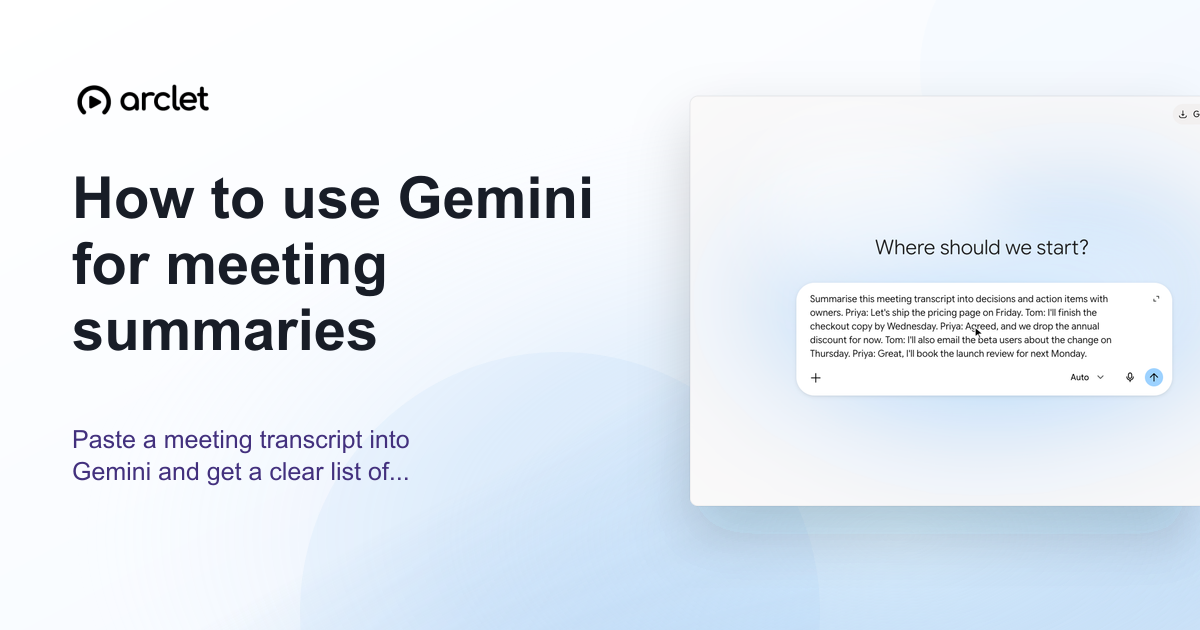
Open Gemini and click the prompt box, which shows the placeholder Where should we start? above it. Type a request such as asking for decisions and action items with owners, then paste your meeting transcript after it. Keep the transcript to the key discussion so the reply stays focused.
Step 2
Send the request
Select Send message at the right end of the prompt box. Gemini starts working on the summary straight away and the conversation opens with your pasted text at the top.
Step 3
Read the summary Gemini returns
When the reply finishes, scroll to the Decisions list and the Action Items table. The table has Owner, Action Item, and Due Date columns, so you can see who is doing what and when. Use Good response to rate the answer, and check the details against your own notes because Gemini can make mistakes.
Why this matters
You finish a meeting with a wall of transcript and a team waiting to hear who owns what. Pasting it into Gemini gives you the decisions and a table of owners and due dates, ready to share before everyone moves on.
Frequently asked questions
Can Gemini pull out action items and owners from a transcript?
Yes. When asked for decisions and action items, Gemini returned a Decisions list and an Action Items table with Owner, Action Item, and Due Date columns.
Does Gemini always get the summary right?
No. Gemini shows a note under the reply that it isn't human and can make mistakes, so double-check the result against your meeting notes before you share it.
Related guides
Continue with more step-by-step guides for getting work done.
 How to use Gemini to summarize documentsPaste a document into Gemini, ask for a short summary, send the prompt, and copy the result. Step-by-step guide to summarizing text with Gemini.
 How to use Gemini for summarizing meeting notesPaste raw meeting notes into Gemini to get decisions, action items with owners and open questions, then turn the action items into a follow-up email.
 How to analyze videos with GeminiAnalyze a video with Gemini by pasting its YouTube link into the prompt box, sending your question, and reading the summary and key points it returns.
 How to use Gemini for researchLearn how to use Gemini for research: ask a focused question, get a table with sources, then follow up to dig deeper and verify the answer.
 How to use Gemini for SEO content writingLearn how to use Gemini for SEO content writing: generate a keyword-focused outline with a title and meta description, then draft the introduction.
 How to use Gemini for writingLearn how to use Gemini for writing: type a drafting prompt, ask for a shorter and more casual rewrite, then copy the finished text in minutes.
Create interactive demos like this one — free, no coding required.
Start for free →