How to duplicate a page in Notion
Learn how to duplicate a page in Notion using the ••• menu, the sidebar right-click menu, or the ⌘D / Ctrl+D shortcut.
Quick answer
Open the page you want to copy, click the ••• menu in the top-right corner, and select Duplicate. Notion creates a copy titled '[Page Name] (1)' and opens it, listed just above the original in the sidebar. You can also right-click any page in the sidebar and choose Duplicate for the same result.
Steps at a glance
- Open the page you want to duplicate
- Click the ••• menu in the top-right corner
- Select Duplicate from the dropdown menu
- Rename the copy to remove the '(1)' suffix
- Or right-click the page in the sidebar and choose Duplicate
Interactive demo
Summary
Duplicating a page in Notion lets you create an exact copy of any page, including all its sub-pages and content, without rebuilding it from scratch. This is useful for reusing layouts, building templates, or saving a version of a page before making major edits.
Step-by-step guide
Step 1
Open the Page You Want to Copy
Navigate to the page in your sidebar and click it to open the full view. Make sure you're on the exact page you want duplicated, since this action will copy the page along with every sub-page and block nested inside it.
Step 2
Click the ••• Menu in the Top-Right Corner
At the top of the open page, click the three-dot ••• icon next to the Share button. This opens a menu with page-level actions like Copy link, Duplicate, Move to, and Version history.
Step 3
Select Duplicate
Choose Duplicate from the dropdown list. Notion instantly creates a full copy of the page, opening the copy and listing it just above the original in the same parent location within your sidebar. Keyboard shortcut: ⌘ + D on Mac or Ctrl + D on Windows.
Step 4
Rename Your Duplicated Page
The new copy opens with '(1)' added to the end of the title. Click the title text at the top of the page and type a new name so you can tell it apart from the source page.
Step 5
Duplicate a Page from the Sidebar
As a shortcut, right-click any page name directly in the left sidebar instead of opening it first. Select Duplicate from the context menu, and Notion creates the copy in place without ever opening the page itself.
Why this matters
You've spent an hour building the perfect project tracker and now need the same layout for three new clients. Instead of recreating every database and section by hand, duplicating the page gives you an identical starting point in seconds, so you can rename it and get straight to work.
Frequently asked questions
Does duplicating a page also copy its sub-pages?
Yes. Duplicating a page copies its content, including nested blocks, so the copy keeps the original's structure.
Can I duplicate a page directly into a different workspace?
Duplicate first, then use Move to in the ••• Actions menu to relocate the copy.
Is there a keyboard shortcut for duplicating a page?
Yes. Press ⌘ + D on Mac or Ctrl + D on Windows, or choose Duplicate from the ••• menu or the sidebar right-click menu.
What happens when I duplicate a database page?
Duplicating a page that holds a database copies the database with it.
Related guides
Continue with more step-by-step guides for getting work done.
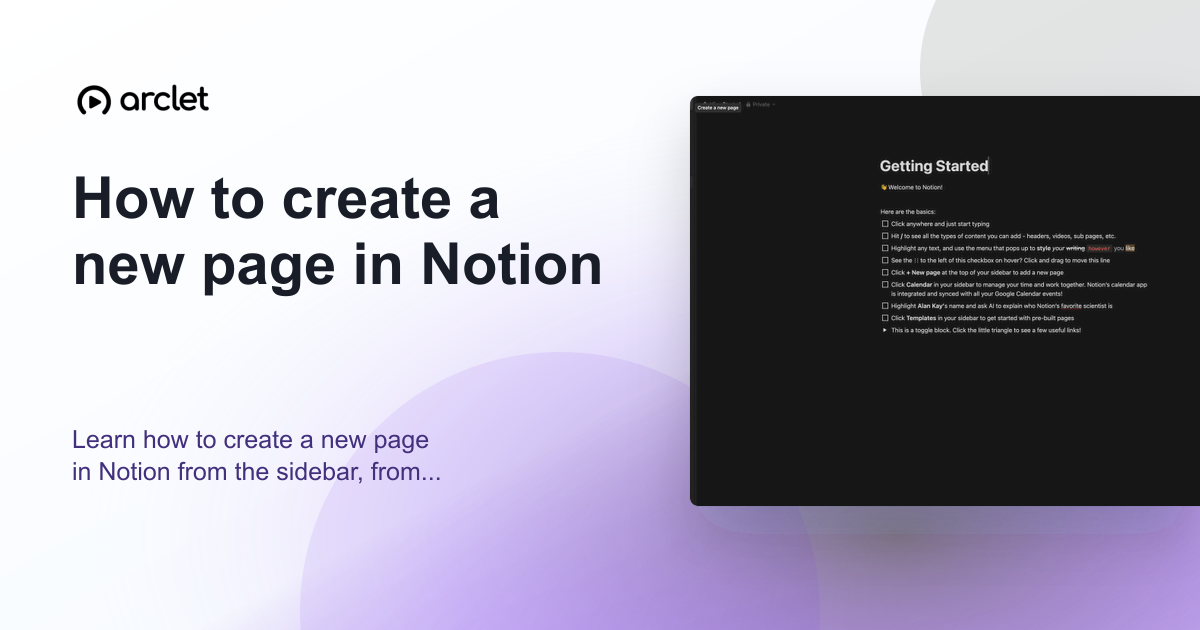 How to create a new page in NotionLearn how to create a new page in Notion from the sidebar, from a template, or as a sub-page nested inside an existing page.
 How to add templates in NotionLearn how to find, preview, and add Notion templates to your workspace, plus how to customize and set them as database defaults.
 How to share a Notion pageLearn how to share a Notion page with teammates, set permission levels, copy a link, or publish it publicly on the web.
Create interactive demos like this one — free, no coding required.
Start for free →