How to add section titles in SurveyMonkey
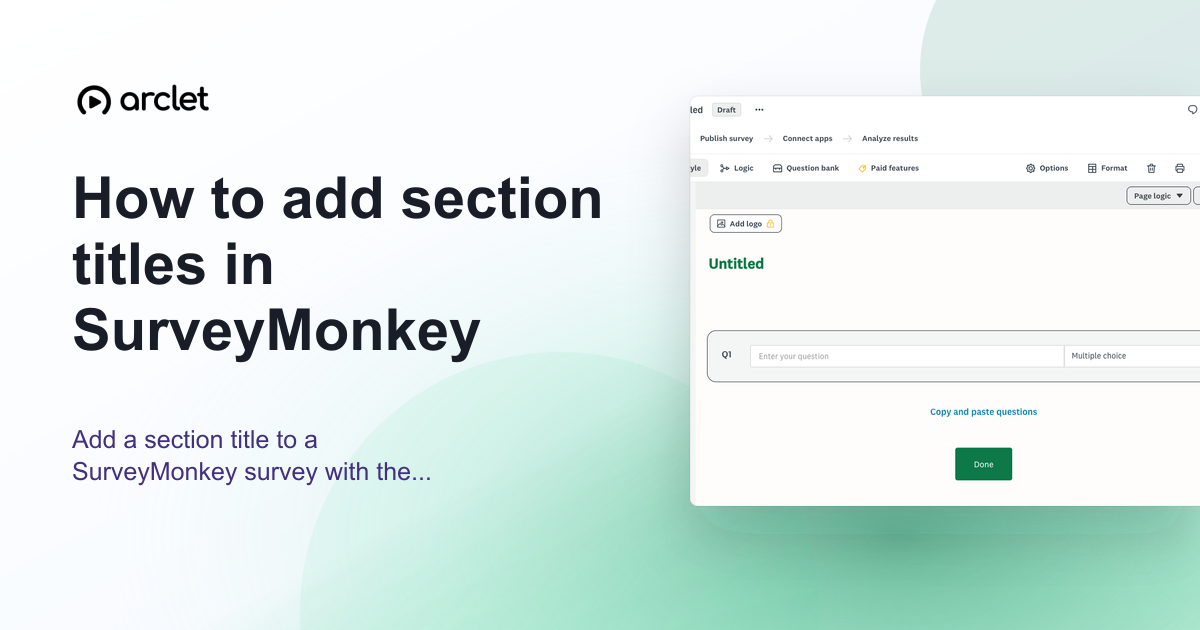
Add a section title to a SurveyMonkey survey with the Text block. Open Build, choose Text, type your heading and save it to group your questions.
Quick answer
To add a section title in SurveyMonkey, open your survey in the editor, choose Build, then select Text. Type the heading you want into the Enter your text box, such as About you, and select Save. The text block sits in your survey as a heading that separates groups of questions.
Steps at a glance
- Open your survey in the editor.
- Select Build to open the menu.
- Choose Text from the list.
- Type your section title in the text box.
- Select Save to keep the title.
Interactive demo
Summary
SurveyMonkey has no dedicated section-title control, but its Text block does the job on the free plan. It adds a line of text between questions, so long surveys read as clear groups instead of one wall of questions.
Step-by-step guide
Step 1
Open the Build menu
Open your survey in the editor. Select Build in the toolbar to see the list of question types and content blocks you can add.
Step 2
Choose Text
Select Text in the Build list. This adds a text block instead of a question, so respondents see a heading rather than something to answer.
Step 3
Type your section title
Click the Enter your text box and type the heading for this group of questions, for example About you. Keep it short so it reads as a title.
Step 4
Save the section title
Select Save to keep the block. The heading now appears in your survey, and you can add the questions for that section below it.
Why this matters
You are building a survey with questions on several topics, and respondents lose track of where they are. A short heading above each group tells them what comes next and makes the survey feel shorter.
Frequently asked questions
Is there a separate section title control?
Not in the Build list shown here. The Text block is the option that lets you add a heading between questions.
Does the Text block need a paid plan?
No. It was available from the Build menu on a free account in this capture.
Related guides
Continue with more step-by-step guides for getting work done.
 How to add a new page in SurveyMonkeyAdd a new page to a draft survey in SurveyMonkey: open it in the Design survey tab, select New page, and start a question on the new page.
 How to add a text box in SurveyMonkeyAdd a text box question to a SurveyMonkey survey: open the Build menu, choose Single text box, type your question and save it in the editor.
 How to activate a survey in SurveyMonkeyLearn how to activate a SurveyMonkey survey by opening the Publish survey step, copying your survey link, and heading to Analyze results.
 How to allow multiple responses in SurveyMonkeyLearn how to let people take your SurveyMonkey survey more than once from one device by changing the Multiple responses setting on a Web Link collector.
 How to change the language in SurveyMonkeyChange the language your SurveyMonkey survey shows respondents: open Options, pick a Default survey language, and check that the buttons are translated.
 How to change the name of a survey in SurveyMonkeyRename a SurveyMonkey survey from the editor: open the draft, click the name in the header, type a new title in Survey title and save it.
Create interactive demos like this one — free, no coding required.
Start for free →