How to change a SurveyMonkey survey to quiz mode
Turn a SurveyMonkey survey into a quiz from the Options panel. Enable quiz mode, then choose how results and correct answers are shown to people.
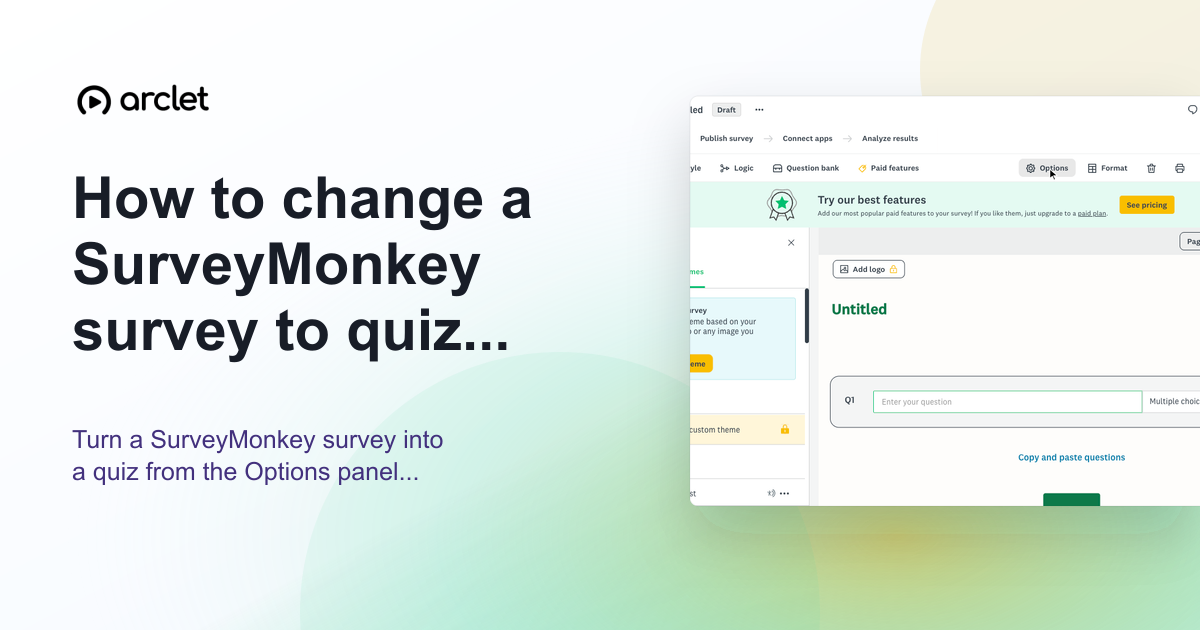
Quick answer
Open your survey in the editor, click Options in the toolbar, then choose Quiz. Switch on Enable quiz mode. SurveyMonkey then ticks Display quiz results and Show correct answers to incorrect responses by default, and you can add Show quiz feedback at end if you want respondents to see feedback.
Steps at a glance
- Open your survey in the editor.
- Click Options in the toolbar.
- Choose Quiz from the Options list.
- Switch on Enable quiz mode.
- Review the quiz result checkboxes.
Interactive demo
Summary
Quiz mode turns a regular survey into a scored quiz. It is available on the free Basic plan, and you control it from the Options panel in the survey editor.
Step-by-step guide
Step 1
Open Options
Open your survey in the editor. Click Options in the toolbar above the survey to open the Options panel on the left.
Step 2
Open Quiz settings
In the Options list, find the Quiz row, which currently reads Off. Click it to open the quiz settings.
Step 3
Turn on quiz mode
Click the Enable quiz mode switch. The result options below it become active, with Display quiz results and Show correct answers to incorrect responses ticked by default.
Step 4
Review the quiz result settings
Check Display quiz results and the other boxes in the panel. Tick Show quiz feedback at end if you want respondents to see feedback when they finish.
Why this matters
You are building a short knowledge check, such as a product training test, and you want respondents to see how they did. Quiz mode scores the answers and shows results, so you do not have to mark responses by hand.
Frequently asked questions
Is quiz mode free?
Yes. In this capture, turning on Enable quiz mode worked on the free Basic plan with no upgrade prompt.
How do I score individual questions?
Once quiz mode is on, each question's settings show a Score this question option you can use to mark that question.
Related guides
Continue with more step-by-step guides for getting work done.
 How to create a survey in SurveyMonkeyCreate a survey in SurveyMonkey from scratch: name it, type your first question, and save it. A step-by-step guide for the free plan editor.
 How to add multiple choice in SurveyMonkeyAdd a multiple choice question to a new SurveyMonkey survey: confirm the question type, type the question and answers, and save it to the draft.
 How to activate a survey in SurveyMonkeyLearn how to activate a SurveyMonkey survey by opening the Publish survey step, copying your survey link, and heading to Analyze results.
 How to close a survey in SurveyMonkeyStop new responses to a SurveyMonkey survey by closing its collector: open Send survey, pick the web link, and confirm Close collector in a few clicks.
 How to copy a survey in SurveyMonkeyCopy an existing survey in SurveyMonkey from your survey list with Make a copy, then open the new draft in the editor to review it and edit.
 How to create a poll in SurveyMonkeyCreate a poll in SurveyMonkey from scratch: write your question, save it, publish the survey and copy the link to share it with respondents.
Create interactive demos like this one — free, no coding required.
Start for free →