How to create a SurveyMonkey survey with email address required
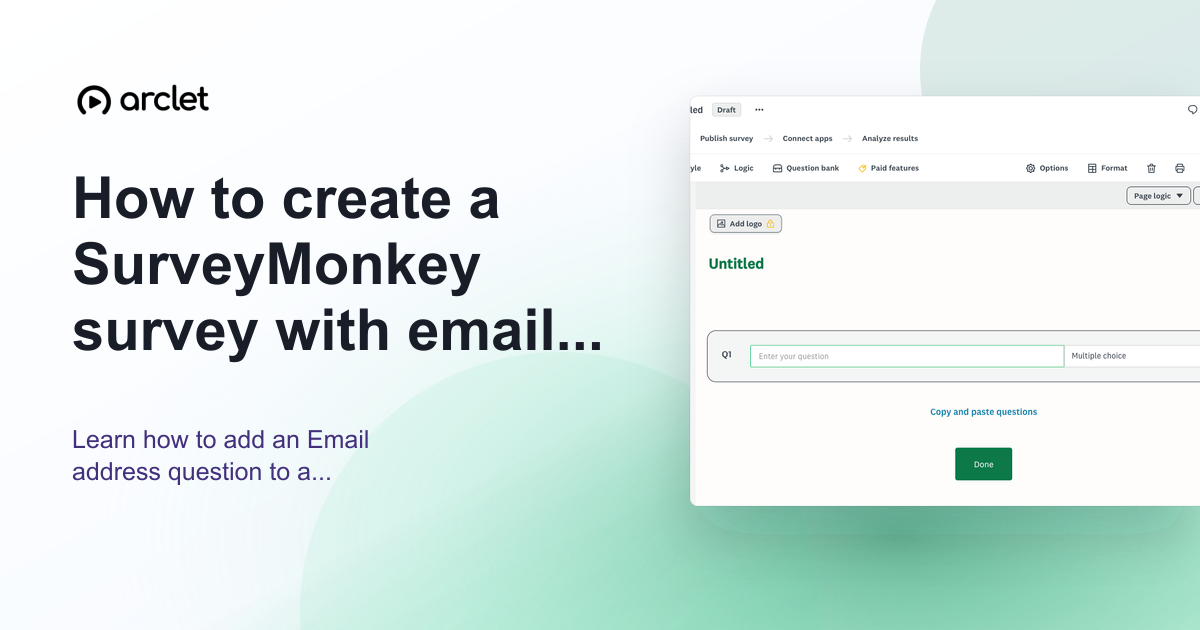
Learn how to add an Email address question to a SurveyMonkey survey and mark it as required, so every respondent must enter an email to continue.
Quick answer
To require an email address in SurveyMonkey, open a new survey, choose Build, then View more, and pick the Email address question type. Open its Options tab, tick Require an answer to this question, and select Save. Respondents then cannot skip the email field before submitting.
Steps at a glance
- Open the Build menu in the survey editor.
- Select View more to see all question types.
- Choose the Email address question type.
- Open the Options tab on the question.
- Tick Require an answer to this question.
- Select Save to keep the question.
Interactive demo
Summary
SurveyMonkey has a dedicated Email address question type with a Required setting in its Options tab. Marking it required means respondents cannot move on without entering an email, which keeps your follow-up list complete.
Step-by-step guide
Step 1
Open the Build menu
In your new survey, select Build in the toolbar. A short list of common question types opens under the button.
Step 2
Show all question types
The short list does not include contact fields. Select View more at the bottom of the list to open the full set of question types.
Step 3
Choose the Email address type
In the Choose a question type window, find the Forms section and select Email address. The editor adds it as the first question.
Step 4
Open the question options
With the question open for editing, switch from the Edit tab to Options. This tab holds the answer rules for the question.
Step 5
Require an answer
Tick Require an answer to this question. A message field appears that reads "This question requires an answer." This is what respondents see if they leave the field empty.
Step 6
Save the question
Select Save to keep the question. Your survey now asks for an email address and does not let respondents skip it.
Why this matters
You are running a sign-up or feedback survey and need a way to reply to every respondent. Making the email field required means no one slips through without contact details, so your follow-up list is complete.
Frequently asked questions
Can I change the message respondents see when they skip the email field?
Yes. After you tick Require an answer to this question, a text box with the error message appears below it, and you can edit that text.
Does the Options tab have other email settings?
Yes. It also lists Verify email address format, which shows an error message if the address is invalid. It is a separate checkbox from the required setting.
Related guides
Continue with more step-by-step guides for getting work done.
 How to create a survey in SurveyMonkeyCreate a survey in SurveyMonkey from scratch: name it, type your first question, and save it. A step-by-step guide for the free plan editor.
 How to add a text box in SurveyMonkeyAdd a text box question to a SurveyMonkey survey: open the Build menu, choose Single text box, type your question and save it in the editor.
 How to activate a survey in SurveyMonkeyLearn how to activate a SurveyMonkey survey by opening the Publish survey step, copying your survey link, and heading to Analyze results.
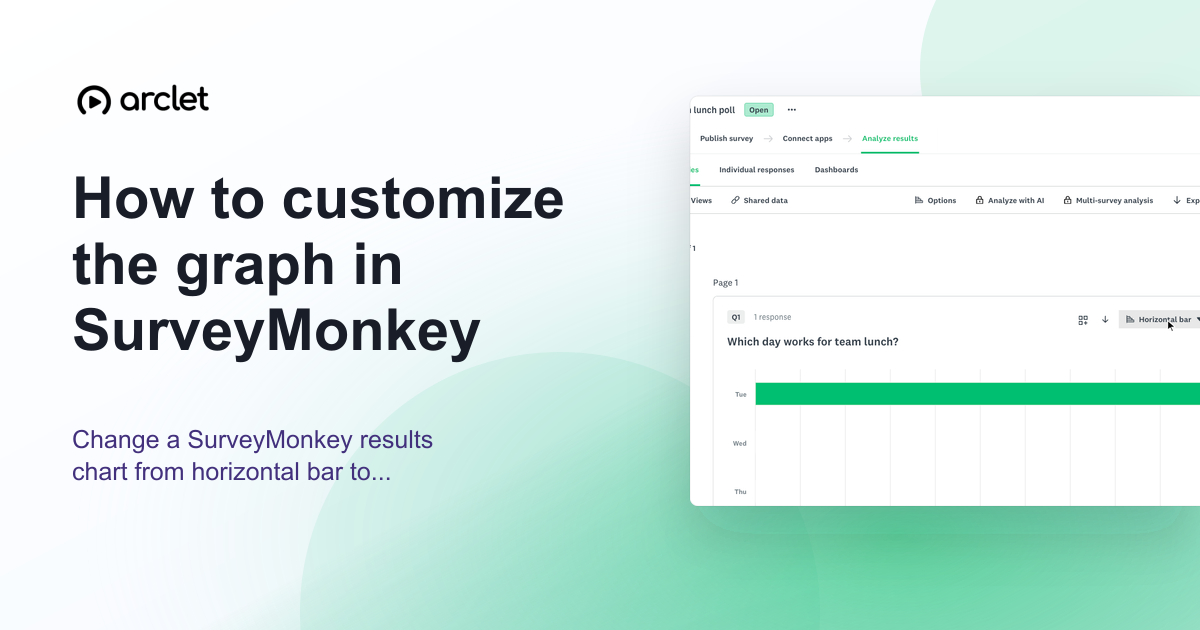 How to customize the graph in SurveyMonkeyChange a SurveyMonkey results chart from horizontal bar to another type and switch on data labels, all from the Question summaries tab on a free plan.
 How to delete a page in SurveyMonkeyDelete an empty page from a SurveyMonkey survey in the editor: open the page's More actions menu, choose Delete page, and confirm that only P1 remains.
 How to delete a survey in SurveyMonkeyDelete a SurveyMonkey survey from your dashboard: open the row menu, choose Delete, and confirm the warning. Covers what the dialog shows first.
Create interactive demos like this one — free, no coding required.
Start for free →