How to duplicate a SurveyMonkey survey
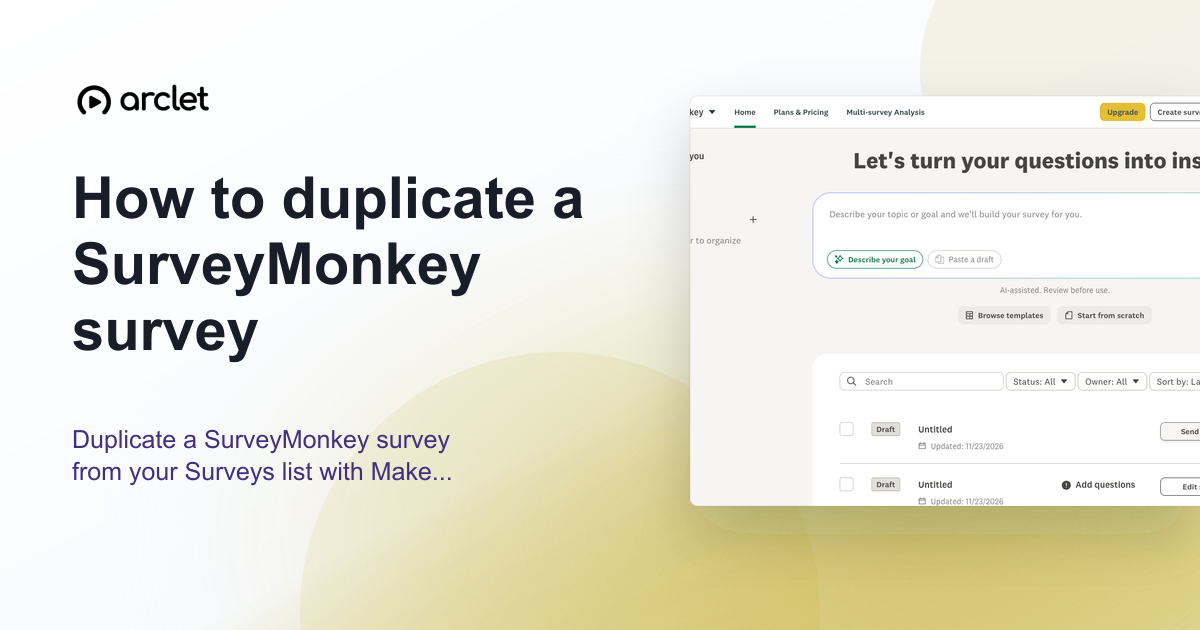
Duplicate a SurveyMonkey survey from your Surveys list with Make a copy, then open the draft copy in the editor and edit it freely.
Quick answer
To duplicate a SurveyMonkey survey, open the Open menu on the survey's row in your Surveys list and choose Make a copy. SurveyMonkey creates a draft named Copy of followed by the original title and opens it in the editor, so you can change the questions without touching the original survey.
Steps at a glance
- Go to your Surveys list on the home page
- Click Open menu on the survey you want to copy
- Choose Make a copy
- Wait for the editor to open
- Confirm the title starts with Copy of
- Edit the draft copy as needed
Interactive demo
Summary
Make a copy duplicates an existing survey, questions included, into a new draft. It is the fastest way to reuse a survey layout for a new audience or event without rebuilding it from scratch.
Step-by-step guide
Step 1
Open the survey menu
From the SurveyMonkey home page, find the survey you want to duplicate in your Surveys list. Click Open menu on that survey's row to see its actions.
Step 2
Choose Make a copy
In the menu, click Make a copy. The menu also lists options such as Preview survey, Send survey and Delete, so check you are clicking the right item. SurveyMonkey shows a loading indicator while it builds the copy.
Step 3
Check the copy in the editor
The editor opens with the new survey. Its title reads Copy of Untitled with a Draft label, and the questions from the original, such as the first question, are already in place. The original survey stays in your list unchanged.
Why this matters
You ran one event survey and now need the same questions for the next event. Copying keeps the original and its history intact while giving you a fresh draft to adjust, instead of rebuilding every question by hand.
Frequently asked questions
Does copying a survey change the original?
No. The original stays in your Surveys list and the copy opens as a separate draft.
Is Make a copy available on a free plan?
Yes. Make a copy appeared in the survey menu without a paid-feature marker, unlike the Share option beside it.
Related guides
Continue with more step-by-step guides for getting work done.
 How to copy a survey in SurveyMonkeyCopy an existing survey in SurveyMonkey from your survey list with Make a copy, then open the new draft in the editor to review it and edit.
 How to change the name of a survey in SurveyMonkeyRename a SurveyMonkey survey from the editor: open the draft, click the name in the header, type a new title in Survey title and save it.
 How to delete a survey in SurveyMonkeyDelete a SurveyMonkey survey from your dashboard: open the row menu, choose Delete, and confirm the warning. Covers what the dialog shows first.
 How to edit a live survey in SurveyMonkeyEdit a survey that is already collecting responses in SurveyMonkey: open it in the editor, reword a question, and save the change without rebuilding.
 How to embed a SurveyMonkey survey in a websiteEmbed a SurveyMonkey survey in your website: open Send survey, add a Website collector, pick an embed type and copy the embed code to paste.
 How to get a web link for a SurveyMonkey surveyGet a shareable web link for a SurveyMonkey survey from the Surveys list, then copy it to paste into an email, a website, or a social media post.
Create interactive demos like this one — free, no coding required.
Start for free →