How to make a landscape template in Canva
Create a custom 1920 x 1080 px landscape design in Canva, then apply a free landscape template to the new page, all on the free plan with no Resize needed.
Quick answer
Open Create a design from the Canva home page, choose Custom size, and enter a width of 1920 and a height of 1080. Click Create new design, then open a free template from the Templates tab in the editor and apply a page to the blank landscape canvas.
Steps at a glance
- Click Create a design on the Canva home page
- Choose Custom size in the dialog
- Enter 1920 as the width and 1080 as the height
- Click Create new design
- Open a template from the Templates tab
- Apply a template page to your landscape canvas
Interactive demo
Summary
A custom-size design lets you set a landscape canvas exactly as wide as you need. Applying a template then gives you a ready-made layout at that size. This works on the free plan without using Resize.
Step-by-step guide
Step 1
Open Create a design
On the Canva home page, click Create a design in the left menu. A dialog opens with design categories and popular sizes.
Step 2
Choose Custom size
In the dialog's left list, click Custom size. A form with Width, Height, and Units fields appears.
Step 3
Enter the width
Click the Width field and type 1920. Leave the units on px.
Step 4
Enter the height
Click the Height field and type 1080. A Matching formats list appears, and the width is wider than the height, so the page is landscape.
Step 5
Create the new design
Click Create new design. Canva opens the editor with a blank page named "Untitled design - 1920px × 1080px".
Step 6
Open a landscape template
In the Templates tab of the side panel, click a template that shows no crown. Its details open, showing the size as 1920 x 1080 px.
Step 7
Apply the template to the page
Click the first page of the template in the side panel. Canva applies it to your blank landscape page. Skip Apply all 11 pages if you only want one page.
Why this matters
You need a wide 16:9 layout for a presentation slide or a banner, and none of the preset sizes fit. Starting from a custom landscape size and a template gives you a designed page to edit instead of a blank canvas.
Frequently asked questions
Do I need Resize to make a landscape design?
No. Setting the width and height in Custom size creates the landscape page directly, so you do not need to resize afterwards.
Can I use any template on a landscape page?
Choose one with no crown icon. The template used here is free and its details show 1920 x 1080 px, the same size as the new design.
Related guides
Continue with more step-by-step guides for getting work done.
 How to create a presentation in CanvaCreate a new presentation in Canva from the home page, add a title to the first slide with a heading, and add a second slide to your deck.
 How to save a design in CanvaSave a Canva design to your account: name it in the Design title box, press ⌘ + S or Ctrl + S to confirm All changes saved, then return to Home.
 How to add a background in CanvaAdd a solid background colour to any Canva design: select the page, open the colour picker in the toolbar, pick a swatch, and close the panel.
 How to make a photo transparent in CanvaMake a photo transparent in Canva: select the image, open the Transparency control in the toolbar, and lower the slider until it fades as far as you like.
 How to make a picture a circle in CanvaTurn any picture into a circle in Canva by adding a circle frame from the Elements tab and replacing its placeholder with a free photo from Photos.
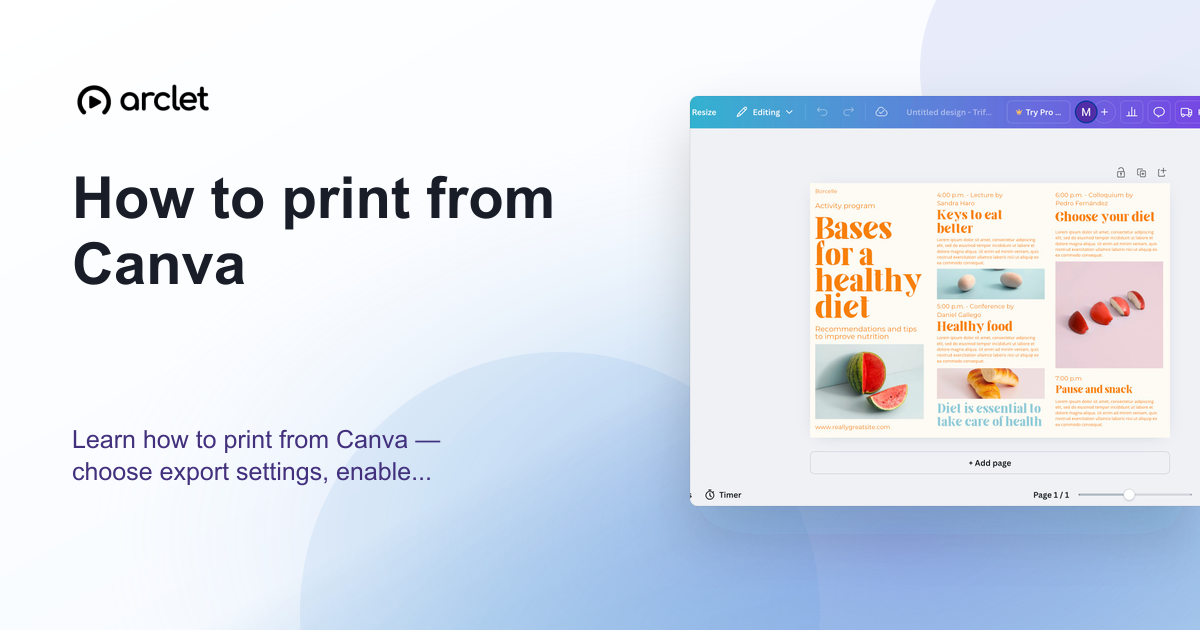 How to print from CanvaLearn how to print from Canva — choose export settings, enable bleed marks for professional results, and order prints directly.
Create interactive demos like this one — free, no coding required.
Start for free →