How to create a presentation in Canva
Create a new presentation in Canva from the home page, add a title to the first slide with a heading, and add a second slide to your deck.
Quick answer
To create a presentation in Canva, click Presentation under Quick Create on the home page. A blank deck opens in the editor. Open the Text tab, click Add a heading, and type your title on the first slide. Then click Add page below the slide to add a second slide to your deck.
Steps at a glance
- Click Presentation under Quick Create on the Canva home page.
- Open the Text tab in the editor side panel.
- Click Add a heading to place a heading on the slide.
- Type your presentation title into the heading.
- Click Add page to add a second slide.
Interactive demo
Summary
Canva opens a new presentation from the Quick Create row on the home page. You then add a title to the first slide and extend the deck with more slides. This gets a deck started in under a minute.
Step-by-step guide
Step 1
Start a new presentation
On the Canva home page, find the Quick Create row. Click Presentation to open a new presentation. It opens in the editor, sometimes in a new tab.
Step 2
Open the Text panel
In the editor, click the Text tab in the side panel on the left. The panel lists text styles you can add to the slide.
Step 3
Add a heading
In the Text panel, click Add a heading. A heading box appears on the first slide, ready for your title.
Step 4
Type your presentation title
With the heading selected, type your title straight into the text box on the slide. The text appears on the slide as you type.
Step 5
Add a second slide
Below the slide, click Add page. Canva adds a new slide after your title slide, and you can repeat this for each extra slide you need.
Why this matters
You have a meeting or pitch coming up and need a deck started now. Creating the presentation, titling the first slide and adding a second slide gives you a working structure you can keep filling in, instead of staring at an empty page.
Frequently asked questions
Where do I find the option to create a presentation?
On the Canva home page, under Quick Create, click Presentation.
How do I add another slide?
Click Add page below the current slide. Canva adds a new slide to the deck.
Related guides
Continue with more step-by-step guides for getting work done.
 How to add text to a design in CanvaAdd text to a Canva design: open a blank design, use the Text panel to insert a heading, type your own words, and style them with the toolbar.
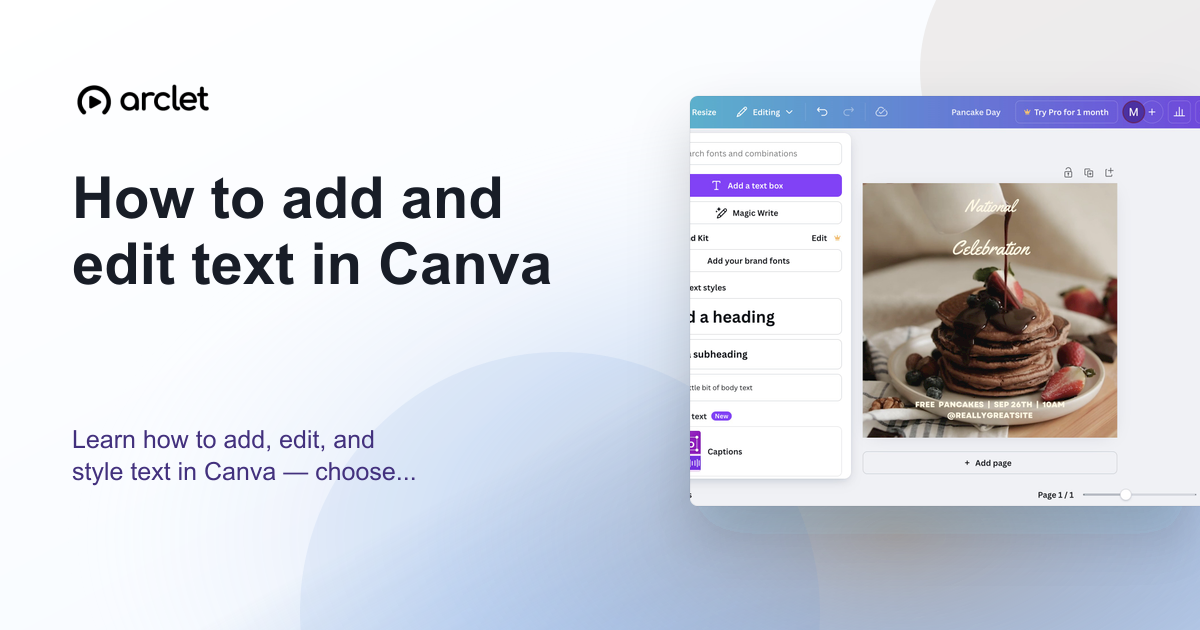 How to add and edit text in CanvaLearn how to add, edit, and style text in Canva — choose fonts, adjust size and spacing, and align text blocks in your design.
 How to add a background in CanvaAdd a solid background colour to any Canva design: select the page, open the colour picker in the toolbar, pick a swatch, and close the panel.
 How to create a social media post in CanvaLearn how to create a social media post in Canva: open Create a design, choose Social media, pick Instagram Post, and edit a template headline.
 How to create an infographic in CanvaCreate an infographic in Canva: search for the Infographic design size, pick a free template, and replace the title text with your own heading.
 How to curve text in CanvaLearn how to curve text in Canva using the Effects panel curve slider — apply arc, bent, or wave styles to any text element.
Create interactive demos like this one — free, no coding required.
Start for free →