How to create a social media post in Canva
Learn how to create a social media post in Canva: open Create a design, choose Social media, pick Instagram Post, and edit a template headline.
Quick answer
To create a social media post in Canva, select Create a design on the home page, choose Social media, and pick Instagram Post (4:5). The editor opens with a Templates panel. Choose a template from that panel, click the headline on the canvas, and type your own text to finish the post.
Steps at a glance
- Select Create a design on the Canva home page.
- Choose Social media in the dialog.
- Pick Instagram Post (4:5) to open the editor.
- Choose a template from the Templates panel.
- Click the headline on the canvas.
- Type your own headline text.
Interactive demo
Summary
Canva lets you start a social media post from the home page by choosing a post size, then shaping a ready-made template. Editing the headline is the fastest way to turn a template into your own post.
Step-by-step guide
Step 1
Open the Create a design menu
On the Canva home page, select "Create a design" in the top left. A dialog opens with design categories and sizes.
Step 2
Choose Social media
In the dialog, select "Social media" from the category list. The dialog then shows post sizes for networks such as Instagram, Facebook and LinkedIn.
Step 3
Pick Instagram Post
Select "Instagram Post (4:5)" from the list of sizes. Canva opens the editor with a blank Instagram Post design and a Templates panel on the left.
Step 4
Edit the headline text
Choose a template from the Templates panel so it fills the canvas, then click the headline, for example "Not Sure What You Need?". Type your own text, such as a new menu announcement, to replace it.
Why this matters
You need a post for a launch or a menu change and have no design time. Starting from a template in the right size means you only change the words, so the post is ready to review within minutes.
Frequently asked questions
Can I start a post from a template?
Yes. After you pick a post size, the editor opens with a Templates panel where you can choose a template for that size.
Which post size did this walkthrough use?
It used Instagram Post (4:5), which is 1080 x 1350 px.
Related guides
Continue with more step-by-step guides for getting work done.
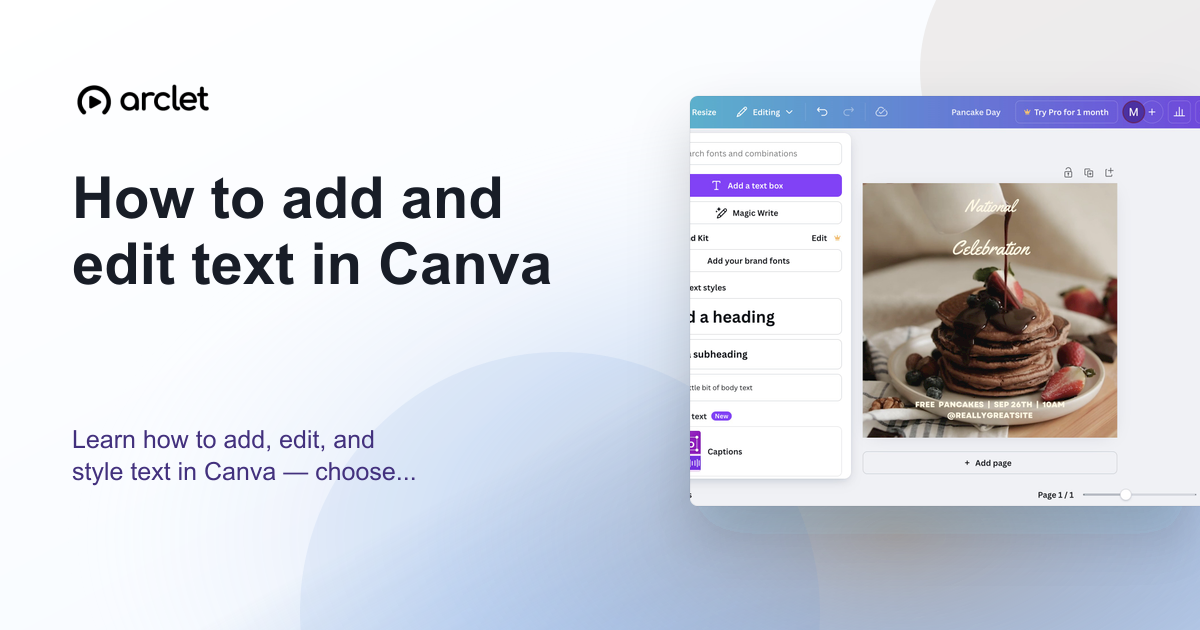 How to add and edit text in CanvaLearn how to add, edit, and style text in Canva — choose fonts, adjust size and spacing, and align text blocks in your design.
 How to add a background in CanvaAdd a solid background colour to any Canva design: select the page, open the colour picker in the toolbar, pick a swatch, and close the panel.
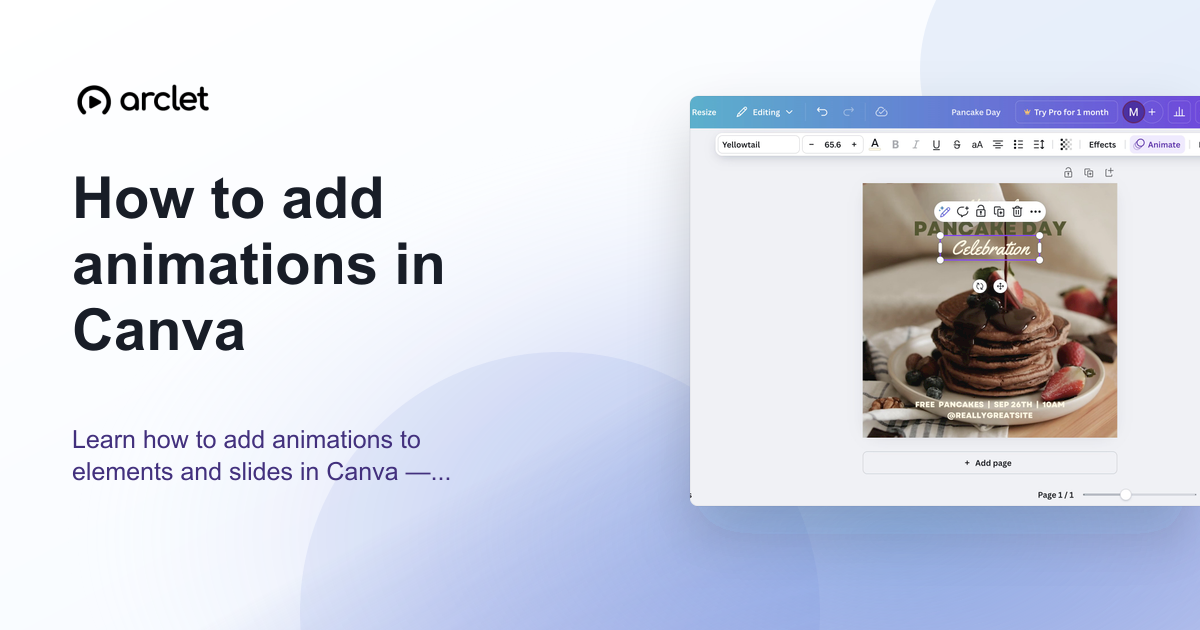 How to add animations in CanvaAnimate elements or whole pages in Canva: select, click Animate, pick an entrance, exit or continuous effect, then set speed. Includes an interactive demo.
 How to create an infographic in CanvaCreate an infographic in Canva: search for the Infographic design size, pick a free template, and replace the title text with your own heading.
 How to curve text in CanvaLearn how to curve text in Canva using the Effects panel curve slider — apply arc, bent, or wave styles to any text element.
 How to draw a line in CanvaLearn how to draw a line in Canva: add one from Elements, switch it to a dashed stroke, and drag the end point to stretch it across your design.
Create interactive demos like this one — free, no coding required.
Start for free →