How to create a frame in Figma
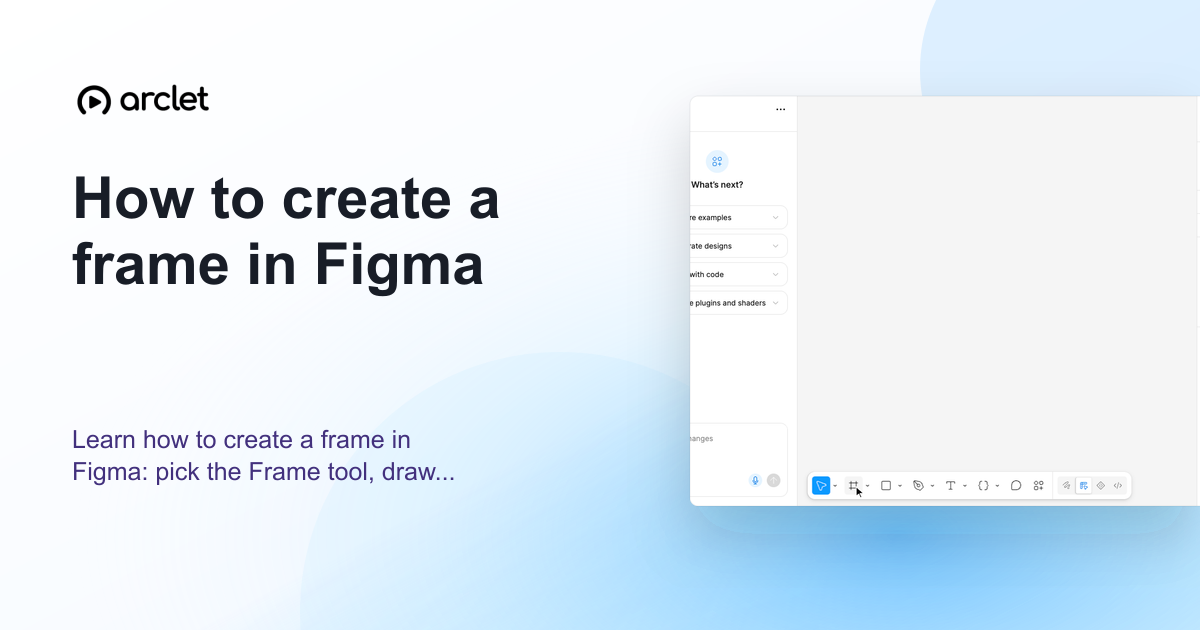
Learn how to create a frame in Figma: pick the Frame tool, draw it on the canvas, and set its width in the Design panel on a free account.
Quick answer
To create a frame in Figma, select the Frame tool from the toolbar at the bottom of the canvas, then click and drag on the canvas to draw it. Once the frame exists, open the Dimensions section of the Design panel and type a new value into the Width field to resize it.
Steps at a glance
- Open a design file in Figma.
- Select the Frame tool in the toolbar.
- Drag on the canvas to draw the frame.
- Find Dimensions in the Design panel.
- Type a new value in the Width field.
Interactive demo
Summary
A frame is the container you design inside, such as a screen, a page, or a card. Creating one first gives your layout a defined size and keeps related elements grouped together.
Step-by-step guide
Step 1
Select the Frame tool
With your design file open, find the toolbar at the bottom of the canvas and click Frame. The button stays highlighted to show the tool is active, and the Design panel on the right lists size presets you can pick from.
Step 2
Drag on the canvas to draw the frame
Click an empty spot on the canvas and drag to the opposite corner. When you release, a new frame appears and is selected, and the Design panel switches to the frame's properties.
Step 3
Set the frame width
In the Design panel, find the Dimensions section and click the Width field. Type a new value to resize the frame. The Height field sits next to it if you want to change that too.
Why this matters
You are starting a new screen design and need a container with a known size before you add content. Drawing a frame and setting its width gives you a fixed canvas to lay out into, so everything you add later sits inside it.
Frequently asked questions
Where do I change the size of a frame?
Select the frame and use the Width and Height fields in the Dimensions section of the Design panel.
Can I start from a preset size instead of dragging?
Yes. When the Frame tool is active, the Design panel lists preset sizes grouped by category, such as Phone, Tablet and Desktop.
Related guides
Continue with more step-by-step guides for getting work done.
 How to create a local variable in FigmaLearn how to create a local variable in Figma: open the Variables panel, pick a type like Color, name it, set a value, and see it in the table.
 How to create a section in FigmaCreate a section in Figma to group frames on the canvas: pick the Section tool, drag around your frames, rename it, and confirm it in Layers.
 How to duplicate objects in FigmaLearn how to duplicate objects in Figma from the Edit menu, then drag the copy aside, using a simple rectangle you can follow on the free plan.
 How to export assets from FigmaLearn how to export a Figma layer as PNG and SVG assets by adding export settings, setting a 2x scale, and exporting every format in one click.
 How to export a Figma file as PDFExport a Figma design file as a PDF in four steps: add export settings, open the file type menu, choose PDF, then click Export. Works on a free plan.
 How to group elements in FigmaGroup elements in Figma by selecting several shapes, right-clicking, and choosing Group selection, then check the new group in the Layers panel.
Create interactive demos like this one — free, no coding required.
Start for free →