How to duplicate objects in Figma
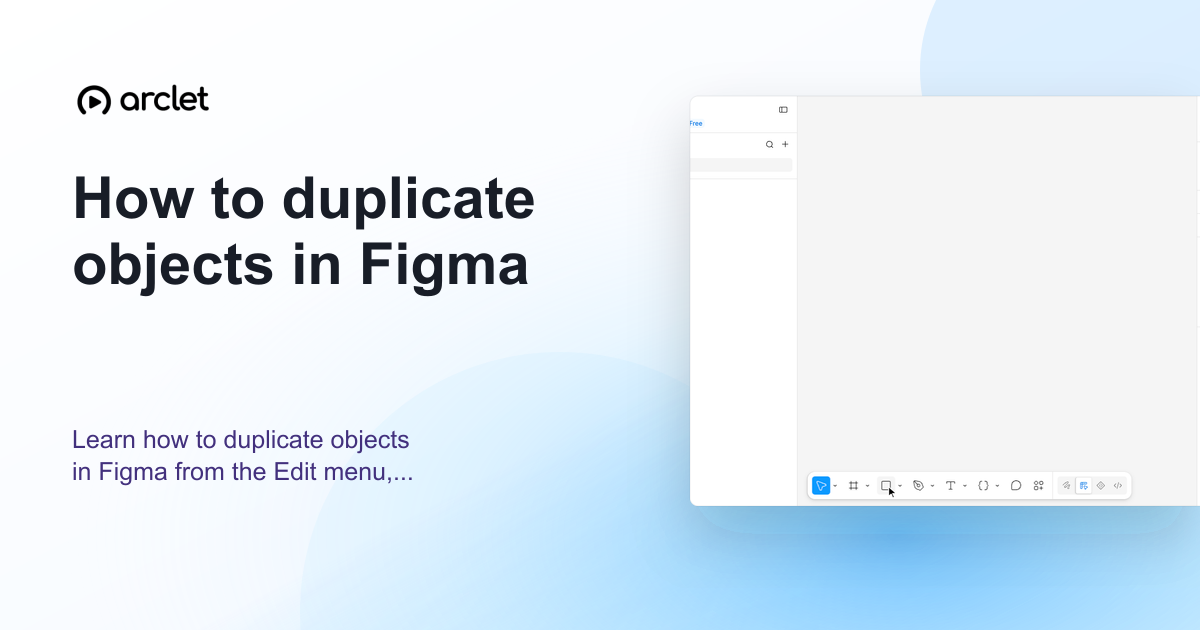
Learn how to duplicate objects in Figma from the Edit menu, then drag the copy aside, using a simple rectangle you can follow on the free plan.
Quick answer
To duplicate an object in Figma, select it on the canvas, open the Main menu, choose Edit, then Duplicate. Figma creates a copy named Rectangle 2 directly on top of the original and selects it. Drag the copy aside to see both objects. This works on the free plan in the browser.
Steps at a glance
- Pick the Rectangle tool from the bottom toolbar.
- Drag on the canvas to draw a rectangle.
- Open the Main menu at the top left.
- Choose Edit, then Duplicate.
- Drag the new copy away from the original.
Interactive demo
Summary
Duplicating creates an exact copy of the selected object, including its size and fill. It saves you from redrawing shapes you need more than once, such as buttons, cards or icons.
Step-by-step guide
Step 1
Pick the Rectangle tool
Open a design file and click Rectangle in the bottom toolbar. This gives you a simple object to duplicate.
Step 2
Draw a rectangle on the canvas
Drag across an empty part of the canvas. Rectangle 1 appears in the Layers list and stays selected.
Step 3
Open the main menu
With the rectangle still selected, click Main menu, the Figma logo at the top left of the editor. The menu lists File, Edit and View.
Step 4
Choose Duplicate from the Edit menu
Open Edit and click Duplicate ⌘D. Figma copies the selected object right away.
Step 5
Drag the duplicate aside
The copy, Rectangle 2, sits on top of Rectangle 1 and is selected. Drag it across the canvas to see both rectangles side by side.
Why this matters
You are laying out a row of identical cards and do not want to redraw each one. Duplicating gives you a matching copy in two clicks, so you can spend your time on layout and content instead of rebuilding the same shape.
Frequently asked questions
Where does the duplicate appear?
It appears at the same position as the original, above it in the Layers list, and it is selected so you can move it straight away.
Does duplicating work on the free plan?
Yes. Duplicate is in the Edit menu of the browser editor, and it was available on a free account.
Related guides
Continue with more step-by-step guides for getting work done.
 How to create a frame in FigmaLearn how to create a frame in Figma: pick the Frame tool, draw it on the canvas, and set its width in the Design panel on a free account.
 How to export assets from FigmaLearn how to export a Figma layer as PNG and SVG assets by adding export settings, setting a 2x scale, and exporting every format in one click.
 How to export a Figma file as PDFExport a Figma design file as a PDF in four steps: add export settings, open the file type menu, choose PDF, then click Export. Works on a free plan.
 How to group elements in FigmaGroup elements in Figma by selecting several shapes, right-clicking, and choosing Group selection, then check the new group in the Layers panel.
 How to make a button in FigmaLearn how to make a button in Figma: draw a rectangle, round its corners, add a text label, and group both layers into a frame in a free file.
 How to present a prototype in FigmaLearn how to present a prototype in Figma: open the Prototype tab, click Present, step through your frames, and close the preview when you finish.
Create interactive demos like this one — free, no coding required.
Start for free →