How to present a prototype in Figma
Learn how to present a prototype in Figma: open the Prototype tab, click Present, step through your frames, and close the preview when you finish.
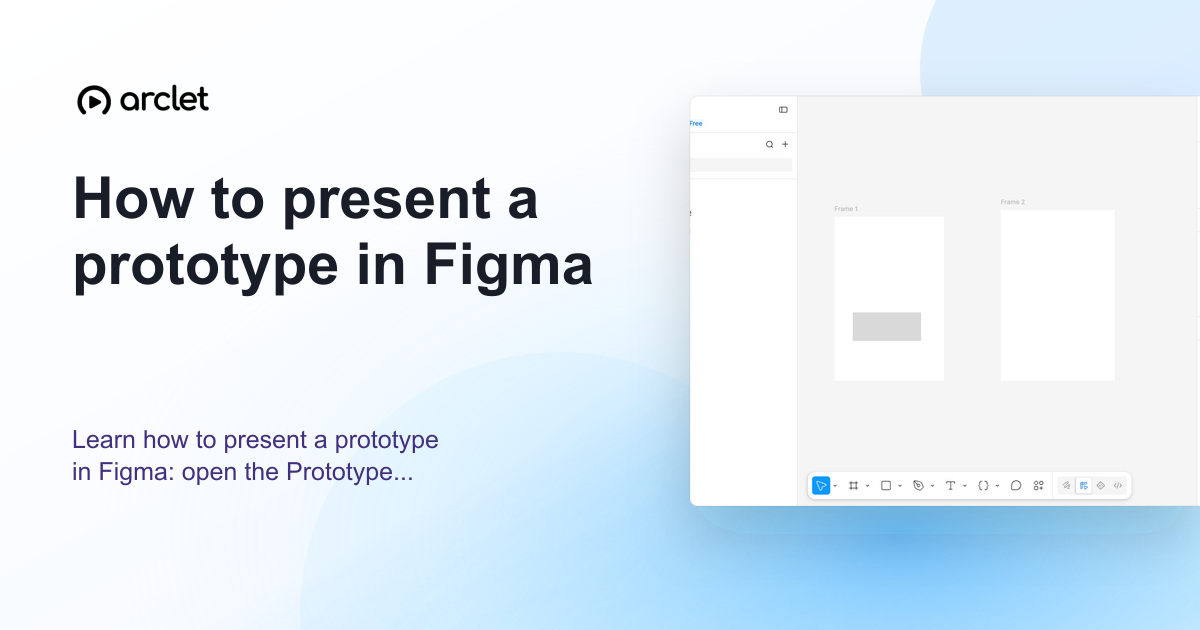
Quick answer
Open your design file, switch to the Prototype tab, and click Present in the top-right corner. Figma opens the prototype in a new tab in presentation view. Click the connected button to move to the next frame, then close the tab to exit and return to your design.
Steps at a glance
- Open your design file with a prototype connection
- Click the Prototype tab in the right sidebar
- Click Present to launch the prototype
- Click the connected button to reach the next frame
- Close the prototype tab to return to your design
Interactive demo
Summary
Presenting a prototype lets you click through your frames the way a user would. It is the quickest way to check that your connections work before you share the design.
Step-by-step guide
Step 1
Open the Prototype tab
Open your design file and look at the right sidebar. Click Prototype next to Design to switch to the prototype settings, where your flow is listed.
Step 2
Click the Present button
Click Present at the top right of the file. The prototype opens in presentation view, which may appear in a new browser tab.
Step 3
Click the button to move to the next frame
In presentation view, click the button that has the connection. The prototype navigates to the second frame. The Previous frame and Restart controls let you step back or start over. When you are done, close the prototype tab to return to your design.
Why this matters
You have two frames and a connection between them, and you need to know it behaves before a review. Presenting the prototype shows the flow as a viewer sees it, so you can catch a broken link early.
Frequently asked questions
Does presenting a prototype change my design?
No. Presentation view only plays your connections, so your frames stay as they were.
How do I go back to the first frame?
Use the Previous frame or Restart control in presentation view.
Related guides
Continue with more step-by-step guides for getting work done.
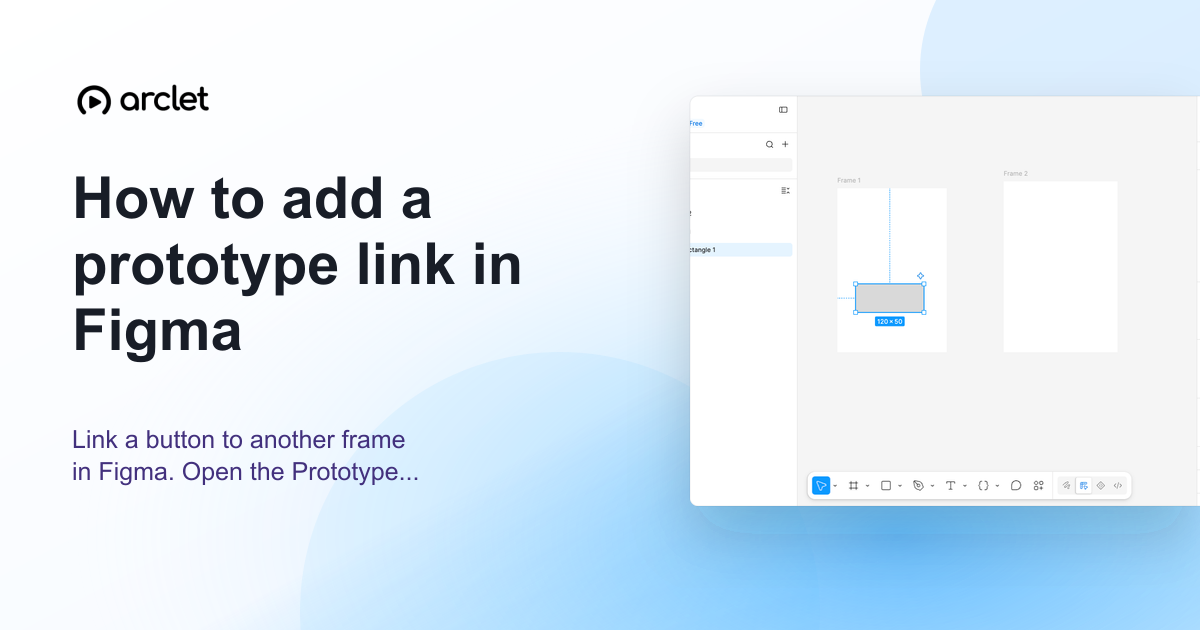 How to add a prototype link in FigmaLink a button to another frame in Figma. Open the Prototype tab, drag a connection to your destination frame, and set up a click interaction.
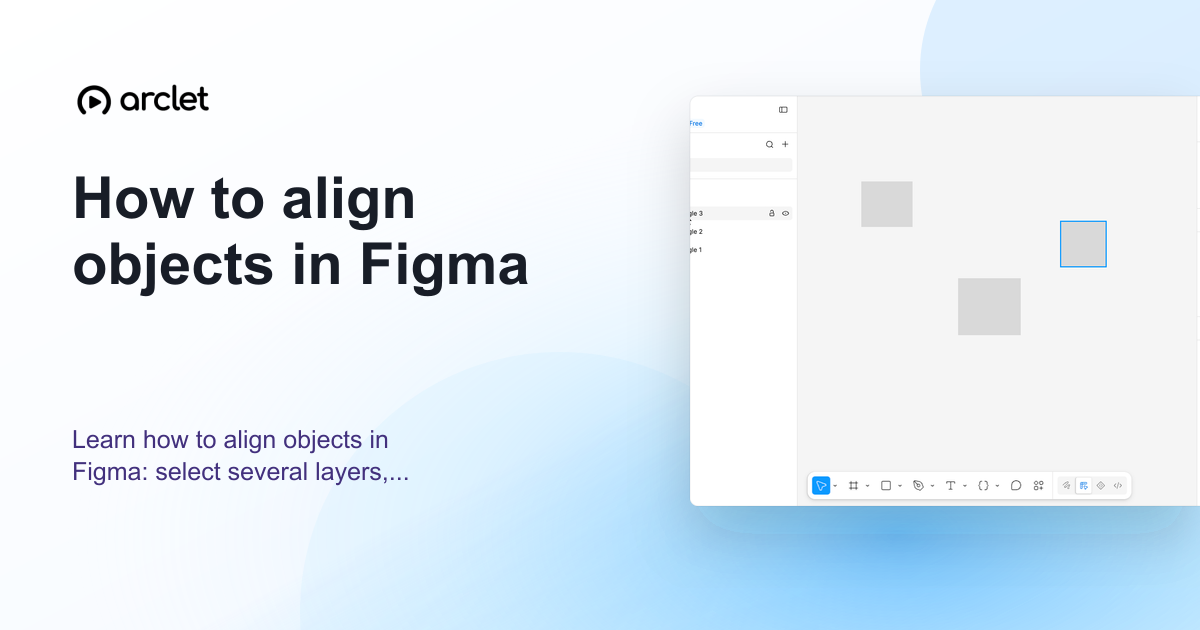 How to align objects in FigmaLearn how to align objects in Figma: select several layers, then use the Alignment controls in the Design panel to line up tops and centers.
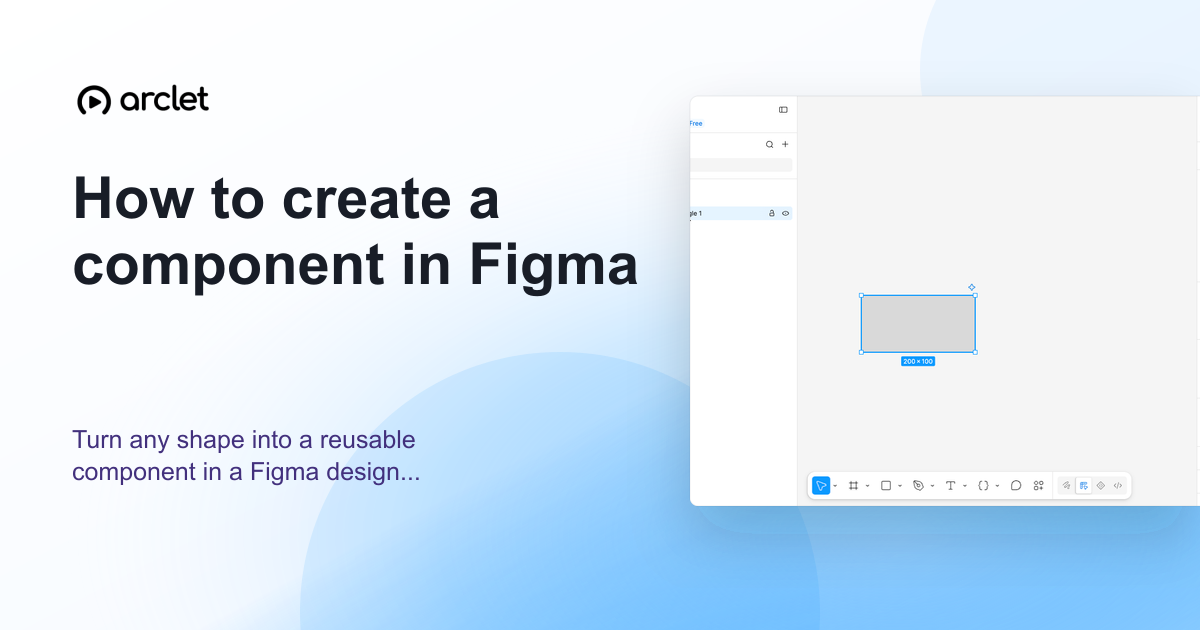 How to create a component in FigmaTurn any shape into a reusable component in a Figma design file: select the layer, click Create component, then find it listed under Assets.
 How to remove a component in FigmaLearn how to remove a component in Figma by detaching an instance into a plain frame, then deleting the main component if you no longer need it.
 How to rename layers in FigmaRename layers in Figma from the Layers panel: double-click a layer name, type a new name, and press Enter so your design file stays easy to scan.
 How to ungroup elements in FigmaLearn how to ungroup elements in Figma: select a group in Layers, right-click, choose Ungroup, and get each object back as its own editable layer.
Create interactive demos like this one — free, no coding required.
Start for free →