How to rename layers in Figma
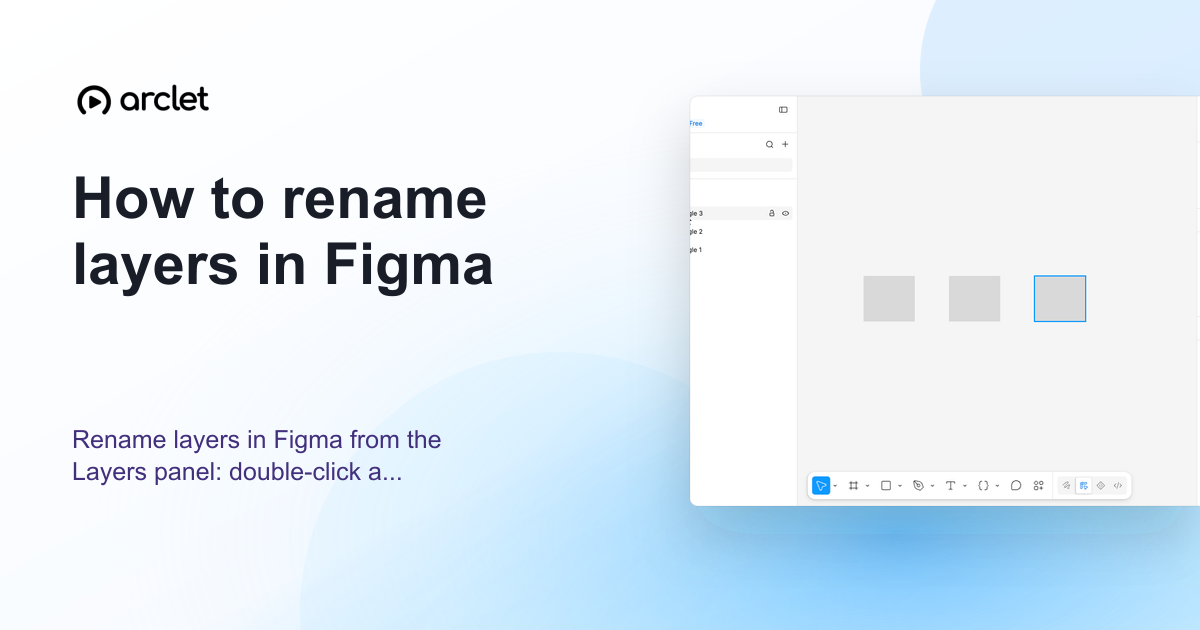
Rename layers in Figma from the Layers panel: double-click a layer name, type a new name, and press Enter so your design file stays easy to scan.
Quick answer
To rename a layer in Figma, find it in the Layers panel on the left sidebar, then double-click its name so the text becomes editable. Type the new name, press Enter to confirm, and check that the updated name now appears in the Layers list, such as Card background.
Steps at a glance
- Find the layer in the Layers panel
- Double-click the layer name
- Type the new name
- Press Enter to confirm
- Check the renamed layer in the list
Interactive demo
Summary
Layer names in Figma default to labels like Rectangle 3. Renaming them in the Layers panel makes a file easier to read, search and hand off, and it takes a couple of seconds per layer.
Step-by-step guide
Step 1
Find the layer to rename
Look at the Layers section of the left sidebar. Each object on the page has its own row, for example Rectangle 3, Rectangle 2 and Rectangle 1. Pick the row for the layer you want to rename.
Step 2
Double-click the layer name
Double-click the name of the layer in the Layers panel. The layer is selected on the canvas and its name becomes an editable field with the current text highlighted.
Step 3
Type the new name
With the name highlighted, type the new name. For example, type Card background to replace Rectangle 3. The old text is overwritten as you type.
Step 4
Press Enter to confirm
Press Enter to save the name. The field closes and the layer row now shows Card background.
Step 5
Check the renamed layer
Look at the Layers panel to confirm the row shows the new name. The layer keeps its position and look on the canvas; only the label changed.
Why this matters
You open a design file a week later and see three layers named Rectangle 1, Rectangle 2 and Rectangle 3. Giving each one a clear name, like Card background, means you and your teammates can find the right layer without clicking around the canvas.
Frequently asked questions
Does renaming a layer change how my design looks?
No. In this capture the rectangle looked the same on the canvas after the rename; only the name in the Layers panel changed.
Can I rename layers on a free plan?
Yes. This was done in a design file on a free plan using the Layers panel.
Related guides
Continue with more step-by-step guides for getting work done.
 How to add a prototype link in FigmaLink a button to another frame in Figma. Open the Prototype tab, drag a connection to your destination frame, and set up a click interaction.
 How to align objects in FigmaLearn how to align objects in Figma: select several layers, then use the Alignment controls in the Design panel to line up tops and centers.
 How to create a component in FigmaTurn any shape into a reusable component in a Figma design file: select the layer, click Create component, then find it listed under Assets.
 How to ungroup elements in FigmaLearn how to ungroup elements in Figma: select a group in Layers, right-click, choose Ungroup, and get each object back as its own editable layer.
 How to use auto layout in FigmaLearn how to turn several layers into one auto layout frame in Figma, then change the gap and direction so the layers stay evenly spaced as they change.
 How to use a mask in FigmaLearn how to use a mask in Figma: select two overlapping shapes, choose Use as mask, and clip the top shape to the one below it in the Layers panel.
Create interactive demos like this one — free, no coding required.
Start for free →