How to add a prototype link in Figma
Link a button to another frame in Figma. Open the Prototype tab, drag a connection to your destination frame, and set up a click interaction.
Quick answer
To add a prototype link in Figma, open the Prototype tab, select the layer that should act as the button, and drag its circular connection node onto the destination frame. Figma creates an On click interaction with a Navigate to action, so the button now links the first frame to the second frame.
Steps at a glance
- Open the Prototype tab in the right sidebar.
- Select the button layer in the Layers panel.
- Drag the circular connection node to the second frame.
- Check the On click interaction that Figma creates.
- Confirm the action reads Navigate to your destination frame.
Interactive demo
Summary
Prototype connections turn static frames into a clickable flow. In Figma, you link a layer to another frame in the Prototype tab, and the connection appears as an arrow on the canvas.
Step-by-step guide
Step 1
Open the Prototype tab
In the right sidebar, click Prototype next to Design. The panel switches from layout properties to an Interactions section, where connections are managed.
Step 2
Select the button layer
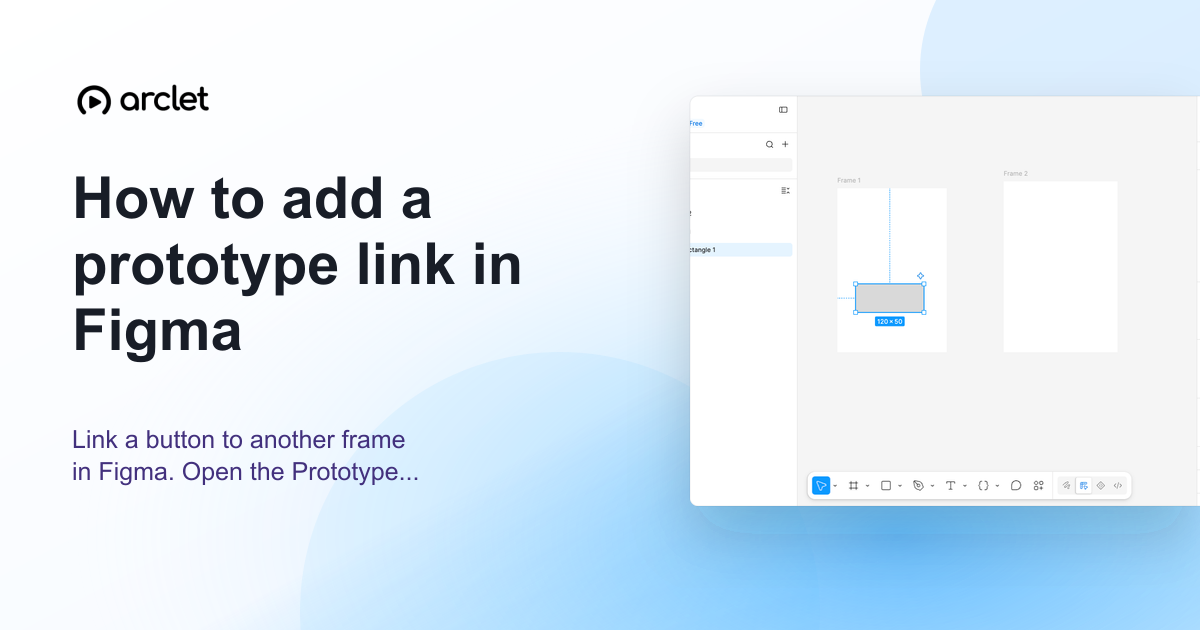
Click the button in the Layers panel, here Rectangle 1, inside the first frame. With a layer selected in the Prototype tab, the panel shows Interactions, and a tip titled Creating a connection explains how to link it.
Step 3
Drag the connection node to the second frame
Drag the circular node on the right edge of the selected button across the canvas and release it over Frame 2. An arrow now runs from the button to the second frame.
Step 4
Review the connection
The Interactions section now lists Click with Frame 2. The Interaction popup shows the Trigger as On click, the Action as Navigate to, and the Destination as Frame 2.
Why this matters
You have designed two screens and need a stakeholder to click from one to the next. A prototype link makes the button navigate to the second frame, so people can walk through the flow instead of reading static mockups.
Frequently asked questions
Which trigger does a new connection use?
A new connection uses On click, with the Navigate to action and the second frame as the Destination.
How do I remove a connection?
Click and drag on either end of the connection to delete it, as the Removing a connection tip explains. You can also use the Remove click interaction button in the Interactions section.
Related guides
Continue with more step-by-step guides for getting work done.
 How to create a frame in FigmaLearn how to create a frame in Figma: pick the Frame tool, draw it on the canvas, and set its width in the Design panel on a free account.
 How to duplicate objects in FigmaLearn how to duplicate objects in Figma from the Edit menu, then drag the copy aside, using a simple rectangle you can follow on the free plan.
 How to export a Figma file as PDFExport a Figma design file as a PDF in four steps: add export settings, open the file type menu, choose PDF, then click Export. Works on a free plan.
 How to add text styles in FigmaLearn how to add a text style in Figma: open Create text style, name it, set the font size, and save it so you can reuse it across your design file.
 How to align objects in FigmaLearn how to align objects in Figma: select several layers, then use the Alignment controls in the Design panel to line up tops and centers.
 How to create a component in FigmaTurn any shape into a reusable component in a Figma design file: select the layer, click Create component, then find it listed under Assets.
Create interactive demos like this one — free, no coding required.
Start for free →