How to create a component in Figma
Turn any shape into a reusable component in a Figma design file: select the layer, click Create component, then find it listed under Assets.
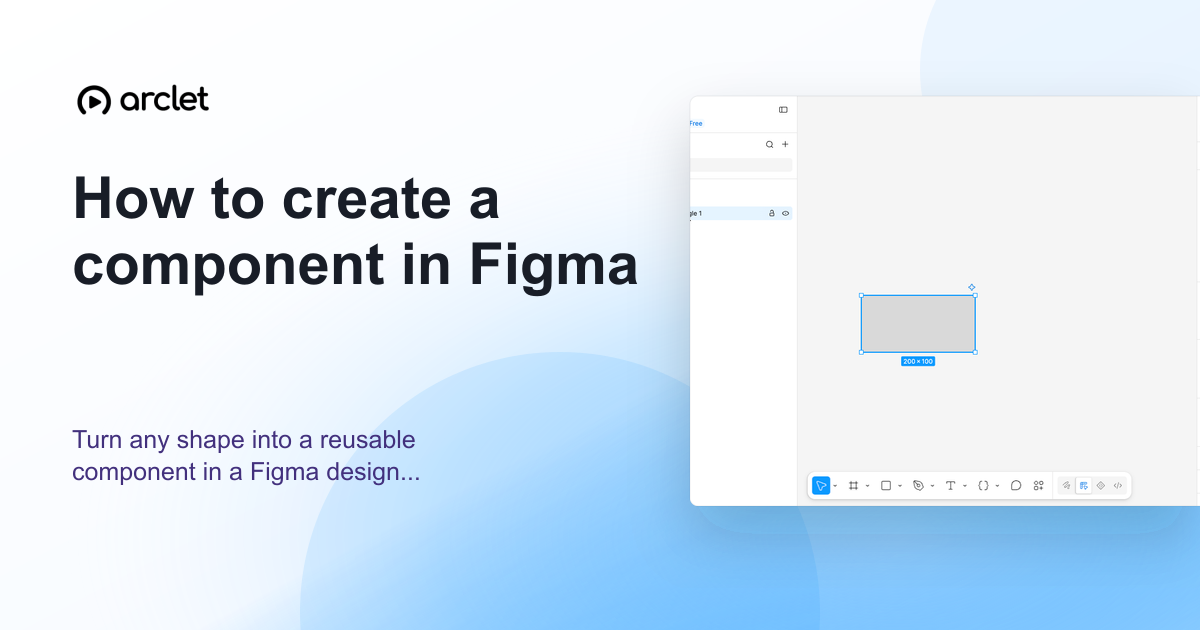
Quick answer
Select the shape you want to reuse on the canvas, then click Create component in the right sidebar. Figma converts the layer into a component, keeps it listed in Layers as Rectangle 1, and shows it under Created in this file when you open Assets, ready to reuse anywhere in the file.
Steps at a glance
- Draw a shape on the canvas
- Select its layer
- Click Create component in the right sidebar
- Check the layer in the Layers panel
- Open Assets to see the component listed
Interactive demo
Summary
Components let you build a design element once and reuse it across a file. Creating one takes a single click on a selected layer, and it works on the free plan.
Step-by-step guide
Step 1
Select the shape to turn into a component
Draw a shape on the canvas, then select it. Click Rectangle 1 in the Layers panel or click the shape itself. The right sidebar shows its properties, including Corner radius and Fill.
Step 2
Click Create component
With the layer selected, click Create component at the top of the right sidebar. The layer becomes a component and the sidebar switches to Component configuration options.
Step 3
Open Assets to see it listed
Click Assets in the left sidebar. The Libraries panel shows Created in this file with 1 component, so you can find the component and reuse it later.
Why this matters
You have drawn a button or card that appears on several screens. Turning it into a component means you keep one source version instead of copies, so a later change to the original does not need repeating by hand everywhere.
Frequently asked questions
Can I create a component on the free plan?
Yes. The capture was made on a free plan, and Create component was available in the right sidebar.
Where do I find my components afterwards?
Open Assets in the left sidebar. Components made in the current file are listed under Created in this file.
Related guides
Continue with more step-by-step guides for getting work done.
 How to add a prototype link in FigmaLink a button to another frame in Figma. Open the Prototype tab, drag a connection to your destination frame, and set up a click interaction.
 How to align objects in FigmaLearn how to align objects in Figma: select several layers, then use the Alignment controls in the Design panel to line up tops and centers.
 How to create a frame in FigmaLearn how to create a frame in Figma: pick the Frame tool, draw it on the canvas, and set its width in the Design panel on a free account.
 How to create a local variable in FigmaLearn how to create a local variable in Figma: open the Variables panel, pick a type like Color, name it, set a value, and see it in the table.
 How to create a section in FigmaCreate a section in Figma to group frames on the canvas: pick the Section tool, drag around your frames, rename it, and confirm it in Layers.
 How to duplicate objects in FigmaLearn how to duplicate objects in Figma from the Edit menu, then drag the copy aside, using a simple rectangle you can follow on the free plan.
Create interactive demos like this one — free, no coding required.
Start for free →