How to ungroup elements in Figma
Learn how to ungroup elements in Figma: select a group in Layers, right-click, choose Ungroup, and get each object back as its own editable layer.
Quick answer
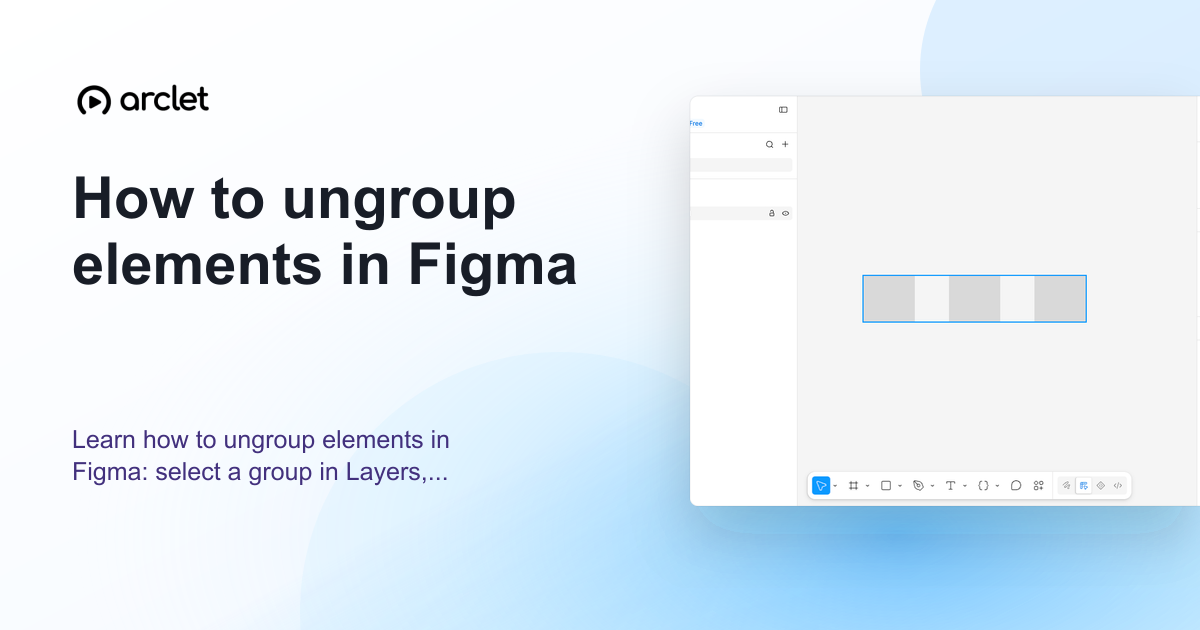
To ungroup elements in Figma, select the group in the Layers panel, right-click it, and choose Ungroup from the context menu. The group layer disappears and its contents, here Rectangle 1, Rectangle 2 and Rectangle 3, appear as separate layers that you can select and edit on their own.
Steps at a glance
- Open the design file that contains the group.
- Select the group in the Layers panel.
- Right-click the group to open the context menu.
- Choose Ungroup from the menu.
- Check the separate layers in the Layers panel.
Interactive demo
Summary
Ungrouping in Figma breaks a group back into the individual layers it contained. It lets you restructure a design when a group no longer matches how you want to work.
Step-by-step guide
Step 1
Select the group in Layers
Open your design file and find the group in the Layers panel on the left. Click Group 1 to select it. The properties panel on the right updates to show the group's settings.
Step 2
Right-click the group
With the group selected, right-click its row in the Layers panel. A context menu opens with editing options for the selection.
Step 3
Choose Ungroup
Click Ungroup in the context menu. The menu shows the Mac shortcut next to the item as ⌘⌫.
Step 4
Check the separate layers
The group layer is gone from the Layers panel. Rectangle 3, Rectangle 2 and Rectangle 1 now appear as separate layers, all still selected, so you can edit each one on its own.
Why this matters
You grouped a few shapes earlier, and now you need to restyle or reposition one of them on its own. Ungrouping returns each shape to the page as a separate layer, so you can work on any of them without the group in the way.
Frequently asked questions
What happens to the layers inside a group when I ungroup it?
The group layer is removed and each object inside it appears as its own layer in the Layers panel. In this capture, Rectangle 1, Rectangle 2 and Rectangle 3 were listed separately and stayed selected.
Is there a keyboard shortcut for Ungroup?
The context menu lists the Mac shortcut next to Ungroup as ⌘⌫.
Related guides
Continue with more step-by-step guides for getting work done.
 How to add a prototype link in FigmaLink a button to another frame in Figma. Open the Prototype tab, drag a connection to your destination frame, and set up a click interaction.
 How to align objects in FigmaLearn how to align objects in Figma: select several layers, then use the Alignment controls in the Design panel to line up tops and centers.
 How to create a component in FigmaTurn any shape into a reusable component in a Figma design file: select the layer, click Create component, then find it listed under Assets.
 How to use auto layout in FigmaLearn how to turn several layers into one auto layout frame in Figma, then change the gap and direction so the layers stay evenly spaced as they change.
 How to use a mask in FigmaLearn how to use a mask in Figma: select two overlapping shapes, choose Use as mask, and clip the top shape to the one below it in the Layers panel.
 How to use the pen tool in FigmaLearn how to use the pen tool in Figma: pick Pen, click points on the canvas, close the path, and find the finished vector in the Layers panel.
Create interactive demos like this one — free, no coding required.
Start for free →