How to create a kanban board in Notion
Learn how to create a kanban board in Notion to organize tasks visually, track progress across stages, and manage projects with drag-and-drop cards.
Quick answer
Create a new page in Notion, type /board to insert a board view database, then adjust its default groups to match your workflow stages like Not started, In progress, and Done. Add properties such as a due date, then drag cards between columns to track progress as tasks move forward.
Steps at a glance
- Create a new page in your workspace
- Type /board and select Board view
- Reorder or hide the default groups with Edit groups
- Add properties like Select, Date, or Person
- Create cards for each task in the right column
- Drag cards between columns as work progresses
- Open a card to add notes, files, or checklists
Interactive demo
Summary
A kanban board in Notion is a board-view database that organizes tasks into columns representing stages of work, such as To-Do, Doing, and Done. It gives you an at-a-glance view of every task's status and lets you move work forward simply by dragging cards between columns.
Step-by-step guide
Step 1
Create a new page
Open your Notion sidebar and click the + New Page button, or select an existing page where you want the board to live. Give the page a clear title so teammates can find it later, similar to how you'd set up any new page in your workspace — see creating a page for the basics if you're starting fresh.
Step 2
Insert a board view database
On a blank line, type /board and select Board view from the menu. Notion inserts a new inline database with three default groups: Not started, In progress, and Done, which map directly to a standard kanban workflow.
Step 3
Name your database
Click the database title at the top and type a name that reflects the project, such as 'Marketing Launch' or 'Sprint Backlog.' A clear name matters if you plan to reference this board elsewhere or link it from other pages.
Step 4
Customize your columns
Click the ... (three dots) menu on a column header and choose Edit groups to reorder or hide columns. The columns are the options of the board's Status property, so edit that property to add stages such as 'Blocked' or 'In Review' beyond the default three.
Step 5
Add properties to track details
Open any card and click Add a property and choose a type such as Select, Date, Person, or Multi-select. These properties can show on the card front, so you can scan status without opening every task, and you can filter or sort the board later using them.
Step 6
Create and organize your cards
Click New page at the bottom of any column to add a task card, then give it a title and fill in its properties. Drag cards between columns as work moves forward, and click a card to open it fully for notes, checklists, or attached files — you can even embed images on the card page for reference material.
Step 7
Invite others to collaborate
Click Share in the top-right corner of the page to invite teammates so they can update cards alongside you. If they're new to your workspace, you may first need to add members to your Notion workspace before sharing the board.
Why this matters
You need this when a running to-do list stops showing what stage each task is actually in. Setting up a kanban board lets you and your team see blocked, in-progress, and finished work instantly, so status meetings get shorter and nothing quietly falls through the cracks.
Frequently asked questions
Is creating a kanban board free in Notion?
Yes, board view databases are available on Notion's free plan, making this a fully free feature to set up.
Can I switch my kanban board back to a table or calendar?
Yes, open the database's View settings, choose Layout, and pick Table, Calendar, or another layout. All your existing cards and properties carry over automatically to the new view.
Can multiple people edit the same kanban board at once?
Yes, once you share the page, invited members can drag cards, edit properties, and add tasks in real time, which makes the board useful for team-wide project tracking.
Can I export my kanban board out of Notion?
Yes, click the ... menu on the page, choose More, then Export to save the page and its board.
Related guides
Continue with more step-by-step guides for getting work done.
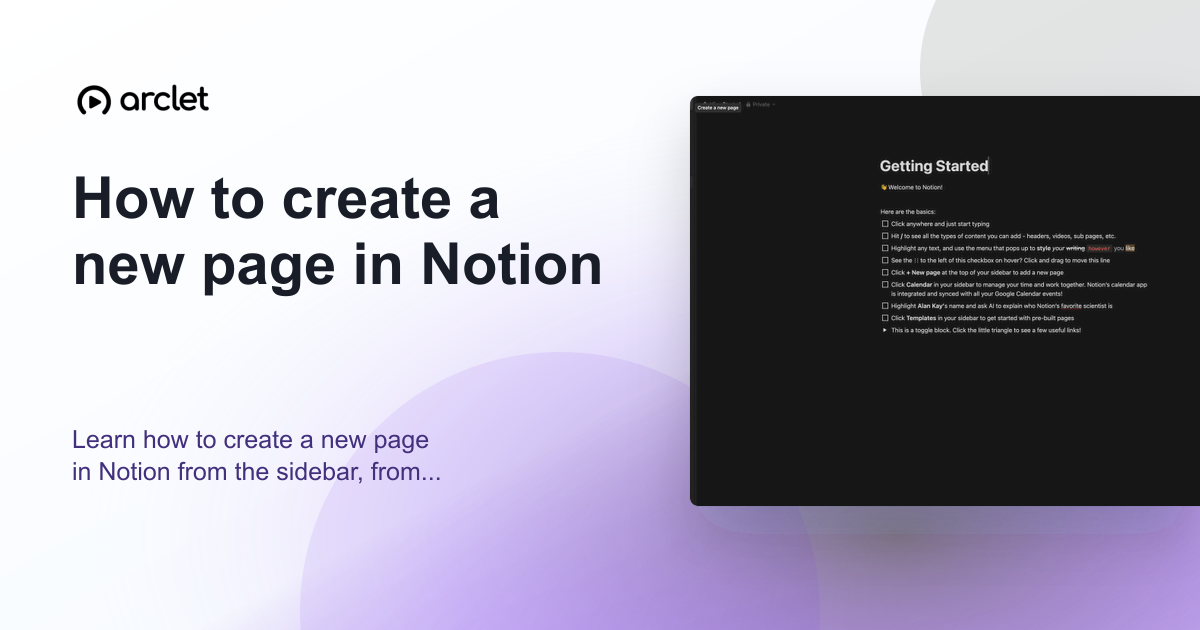 How to create a new page in NotionLearn how to create a new page in Notion from the sidebar, from a template, or as a sub-page nested inside an existing page.
 How to add members to a Notion workspaceLearn how to invite new members to your Notion workspace by email, assign permission levels, and manage collaborator access.
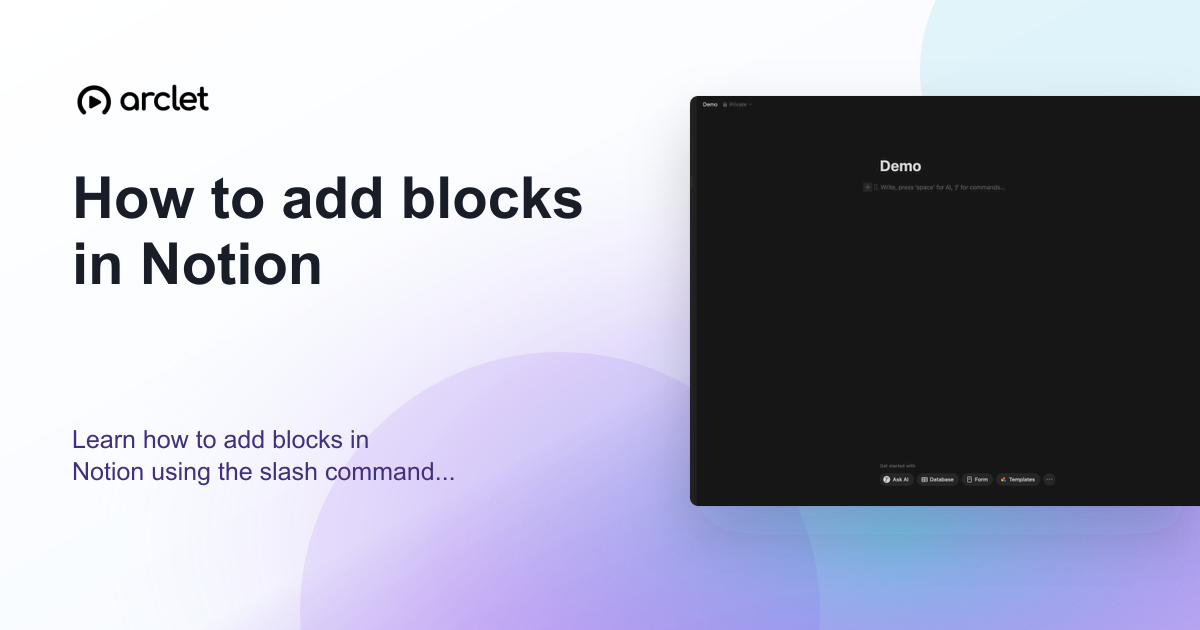 How to add blocks in NotionLearn how to add blocks in Notion using the slash command menu to insert text, headings, images, databases, and 50+ block types.
Create interactive demos like this one — free, no coding required.
Start for free →