How to set up mention and keyword notifications in Slack
Learn how to set up mention and keyword notifications in Slack by adding channel keywords in Preferences, so topics you care about get your attention.
Quick answer
To set up keyword notifications in Slack, open Preferences and choose the Notifications tab. Scroll down to Channel keywords, click the box, and type the words you want Slack to treat like mentions, separated by commas. Keywords are not case sensitive, so one entry covers every spelling.
Steps at a glance
- Open Preferences in Slack.
- Click the Notifications tab.
- Scroll to Channel keywords.
- Click the box and type your keyword.
- Use commas to add more keywords.
Interactive demo
Summary
Channel keywords act like mentions but work for topics instead of people. Add words such as a project name and Slack treats them as important to you.
Step-by-step guide
Step 1
Open Notifications preferences
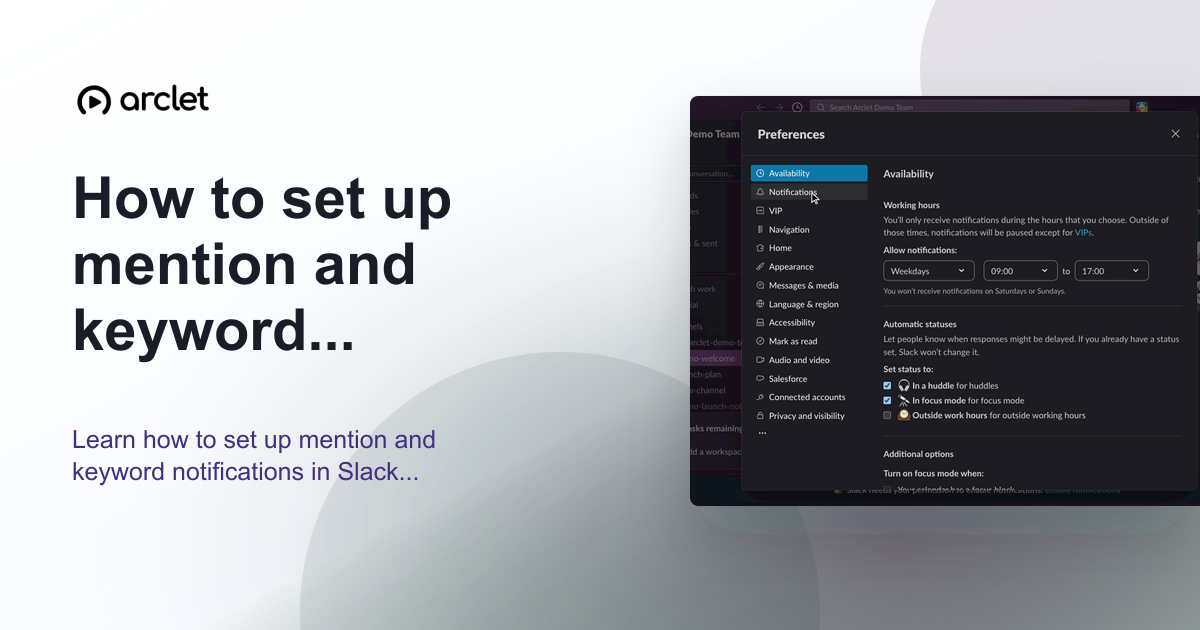
Open Preferences in Slack and click the Notifications tab in the list on the left. It holds your messaging defaults and notification options.
Step 2
Add a keyword
Scroll down to Channel keywords. The description says these act like mentions, but can be set for topics that are important to you. Click the box and type a keyword, for example launch.
Step 3
Check your keyword is in the box
Make sure your keyword shows in the box. To add more, separate each keyword with a comma. Keywords are not case sensitive.
Why this matters
You follow a product launch across several busy channels and cannot read every message. Adding the word launch as a keyword means those topics get your attention, without you having to be tagged by name.
Frequently asked questions
How do I add more than one keyword?
Type them in the same box and separate each one with a comma.
What is a keyword in Slack?
Channel keywords act like mentions, but can be set for topics that are important to you.
Related guides
Continue with more step-by-step guides for getting work done.
 How to add a description to a Slack channelAdd a description to a Slack channel so everyone knows what it is for. Open channel details, edit the Description on the About tab, and save it.
 How to archive a channel in SlackLearn how to archive a Slack channel from its details panel: open the Settings tab, choose Archive channel for everyone and confirm the prompt.
 How to create a Slack channelLearn how to create a Slack channel: open Add channels, name it, choose Public visibility, and select Create so your team has a focused place to talk.
 How to use slash commands in SlackLearn how to use slash commands in Slack: open the command list from the message box, pick /remind, add what and when, then send it to run.
 How to use threads in SlackLearn how to use threads in Slack: open Reply in thread on a message, write your reply in the thread panel, and send it so the reply stays with the message.
 How to bookmark a message in SlackBookmark a Slack message by saving it for later. Open the message menu, select Add to saved, then find it again from Saved in the sidebar.
Create interactive demos like this one — free, no coding required.
Start for free →