Slack How-to Guides
Slack how-tos for setting up channels, writing and replying to messages, and keeping your status and notifications under control in the browser.

These guides are for people who run a project or a small team in Slack: setting up a channel for the work, keeping conversations in threads, and making sure the right people see the right message at the right time. Each one is recorded in Slack's browser app, so the buttons match what you see on screen.
Common Slack workflows
Spin up a project channel
Create the channel, say what it is for, then pin the message everyone needs to find later.
Keep a busy channel readable
Answer in threads, acknowledge with a reaction instead of a reply, and schedule updates for when people are online.
Slack guides
Set up and wind down channels
A new project needs its own place with a clear purpose, and a finished one should be archived so the sidebar stays tidy.
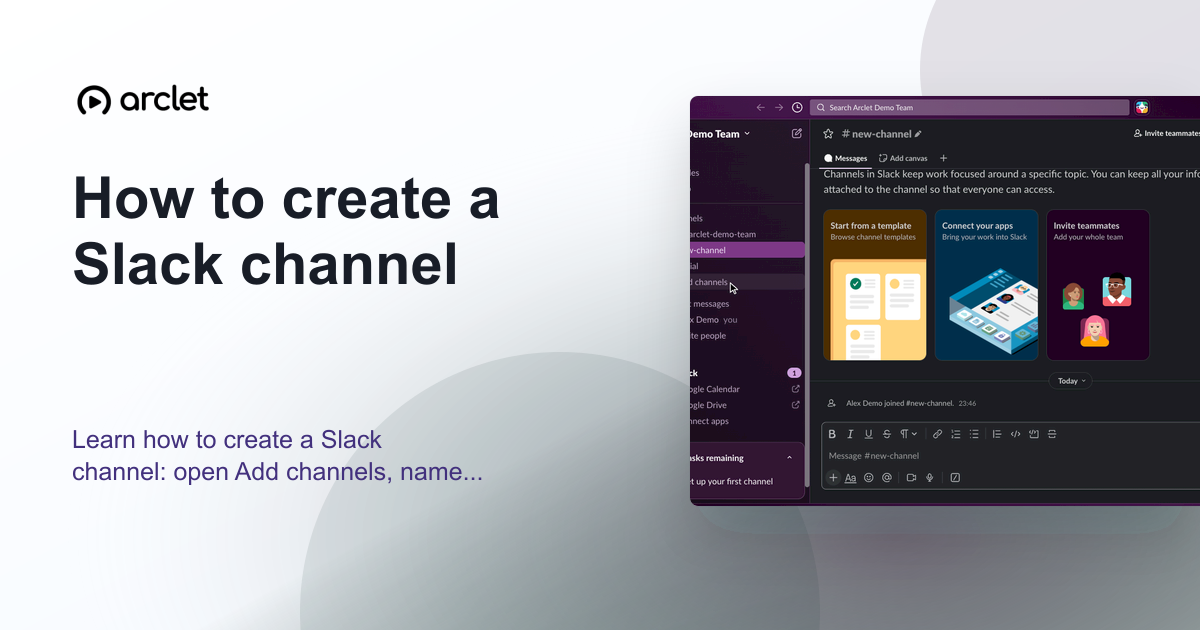
How to create a Slack channel
Learn how to create a Slack channel: open Add channels, name it, choose Public visibility, and select Create so your team has a focused place to talk.
How to add a description to a Slack channel
Add a description to a Slack channel so everyone knows what it is for. Open channel details, edit the Description on the About tab, and save it.

How to archive a channel in Slack
Learn how to archive a Slack channel from its details panel: open the Settings tab, choose Archive channel for everyone and confirm the prompt.
Write and reply
You are in the channel and want to post at the right moment, reply without clutter, and acknowledge quickly.
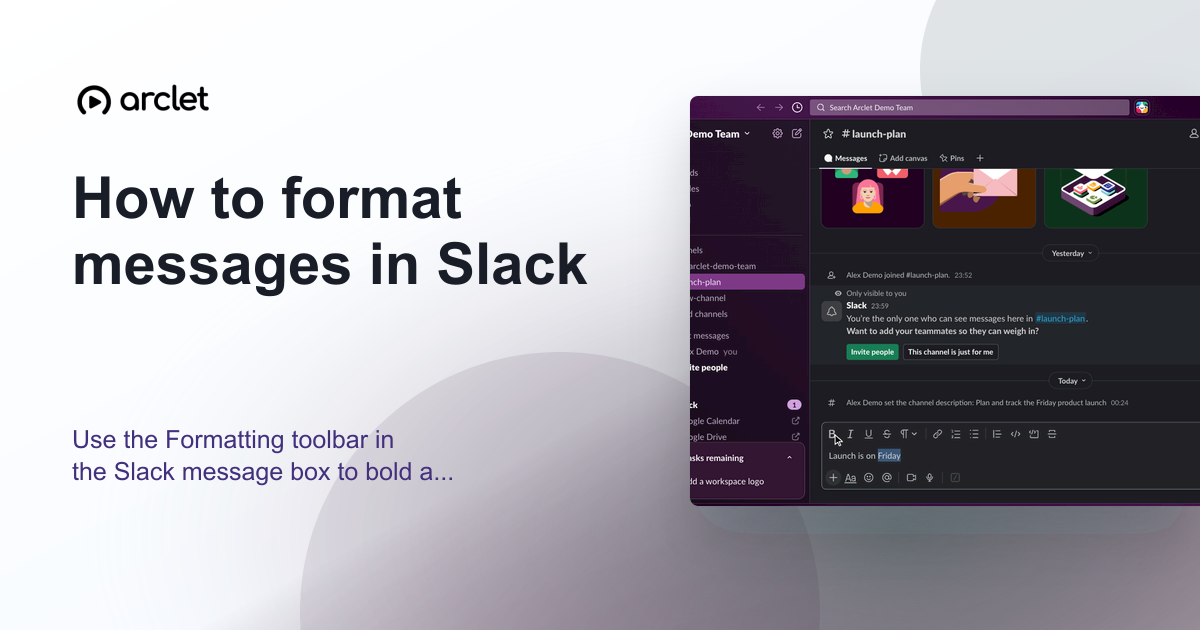
How to format messages in Slack
Use the Formatting toolbar in the Slack message box to bold a word, turn a line into a bulleted list, and send the formatted message to a channel.

How to use threads in Slack
Learn how to use threads in Slack: open Reply in thread on a message, write your reply in the thread panel, and send it so the reply stays with the message.
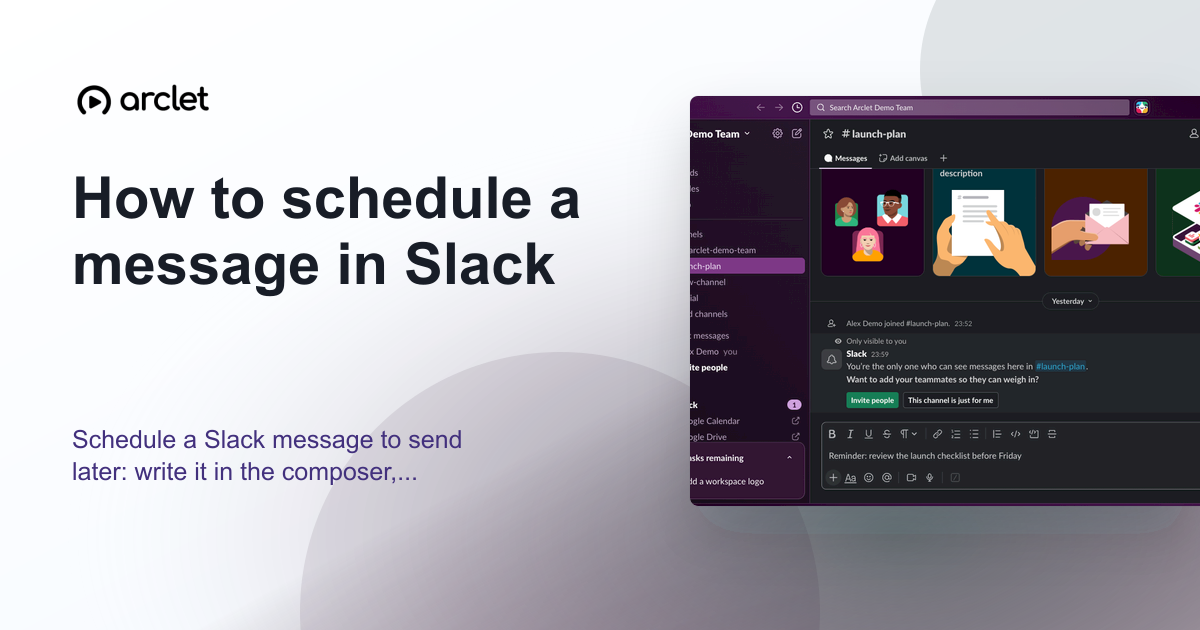
How to schedule a message in Slack
Schedule a Slack message to send later: write it in the composer, pick a preset or custom time, then review it under Drafts & sent before it goes out.
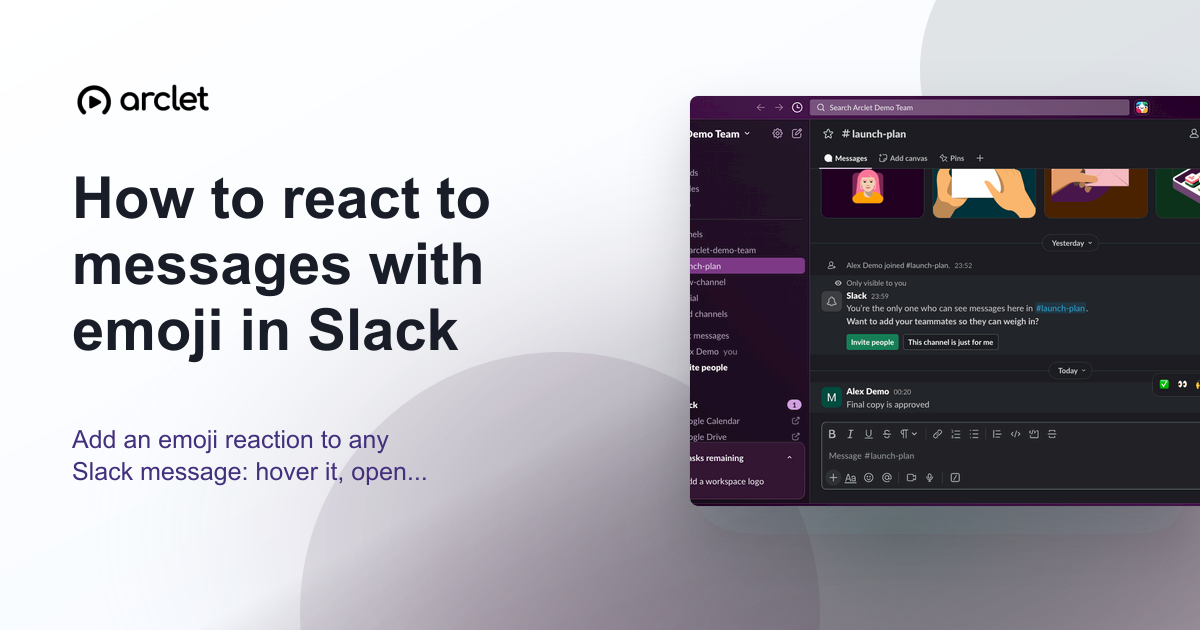
How to react to messages with emoji in Slack
Add an emoji reaction to any Slack message: hover it, open Add reaction, search the emoji picker, and pick one to acknowledge without replying.
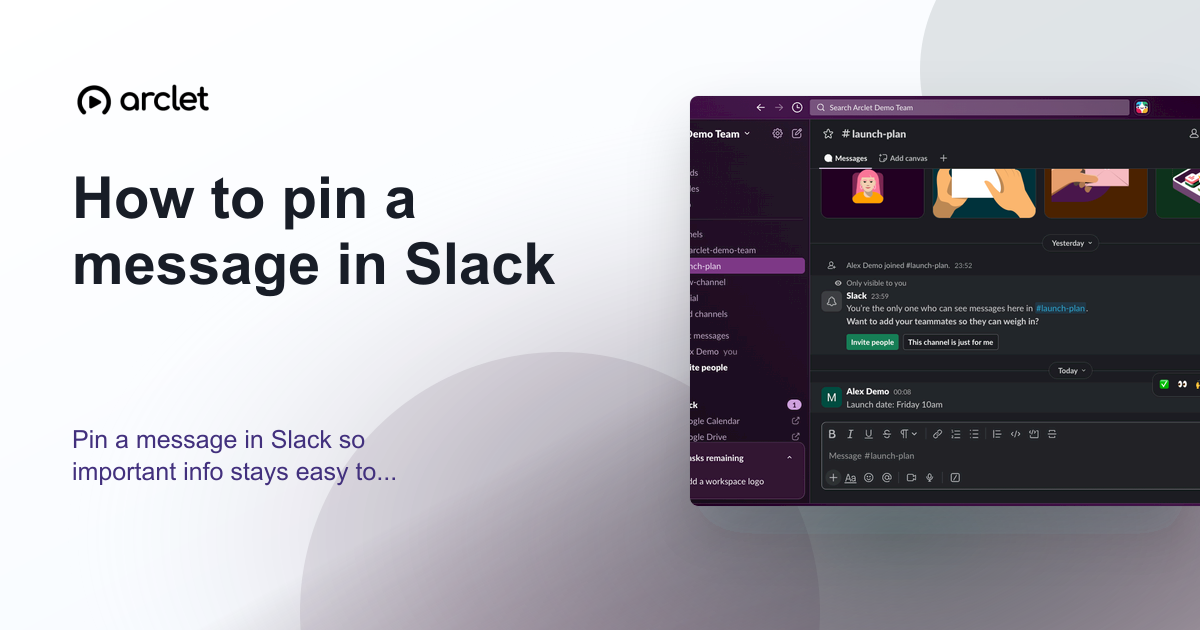
How to pin a message in Slack
Pin a message in Slack so important info stays easy to find. Open More actions on the message, choose Organise, then select Pin to channel.
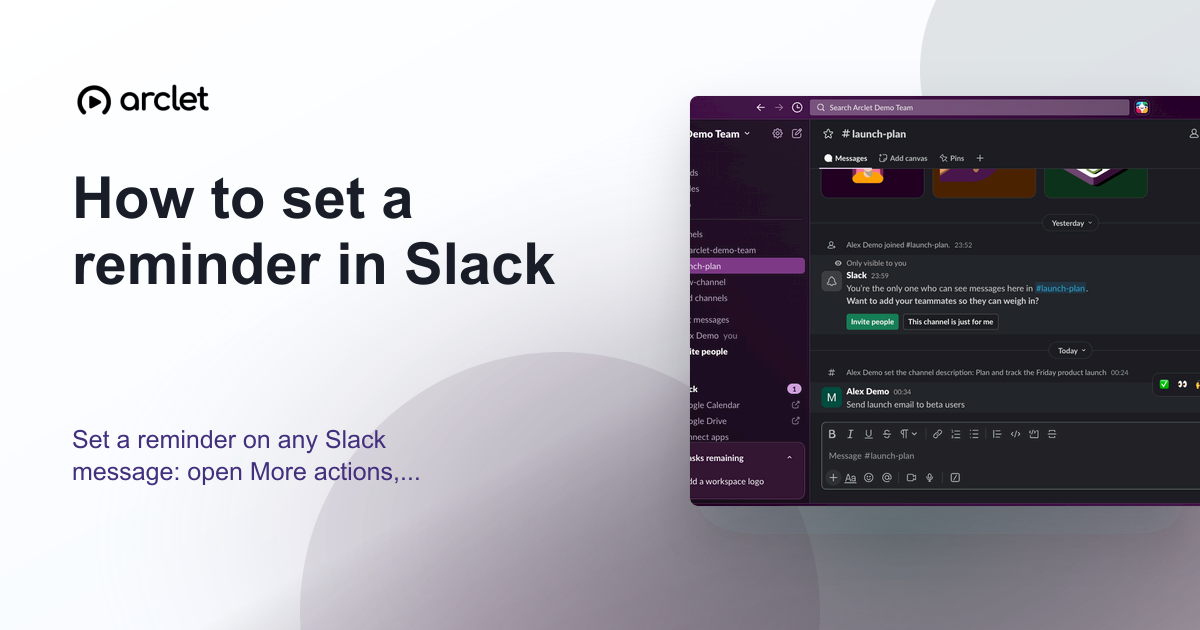
How to set a reminder in Slack
Set a reminder on any Slack message: open More actions, choose Add a reminder, pick a time such as In 1 hour, and Slack adds it to your to-dos.
Control your attention
Let people know when you are busy and cut noise from channels you only need to check now and then.
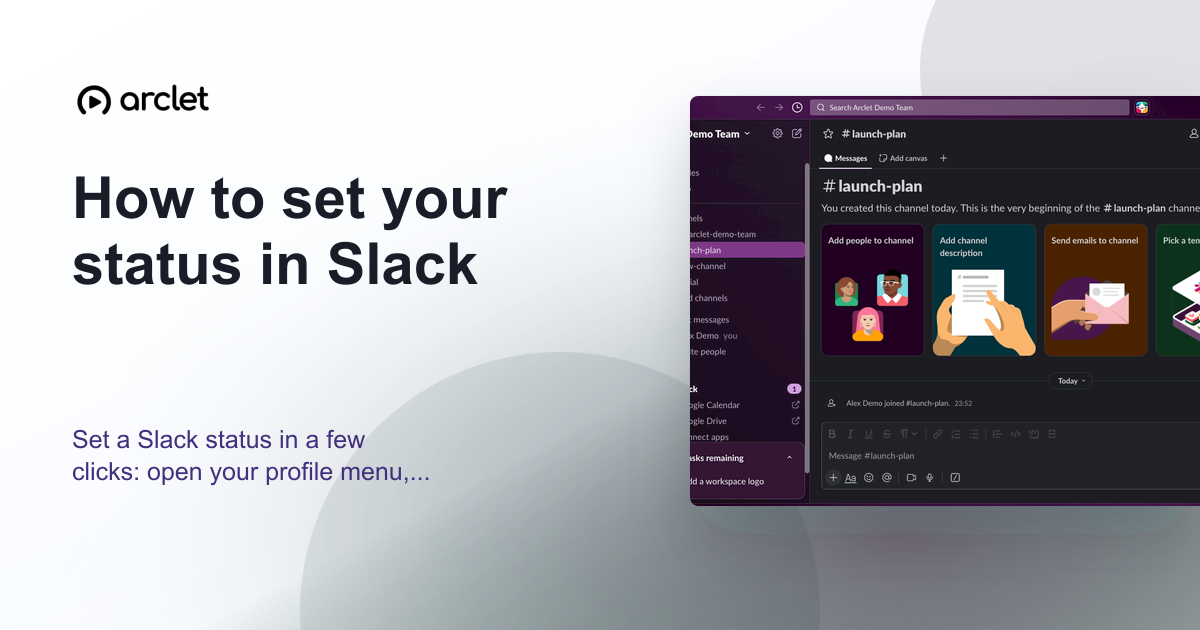
How to set your status in Slack
Set a Slack status in a few clicks: open your profile menu, pick a preset like In a meeting, choose how long it lasts, and save it so teammates see it.
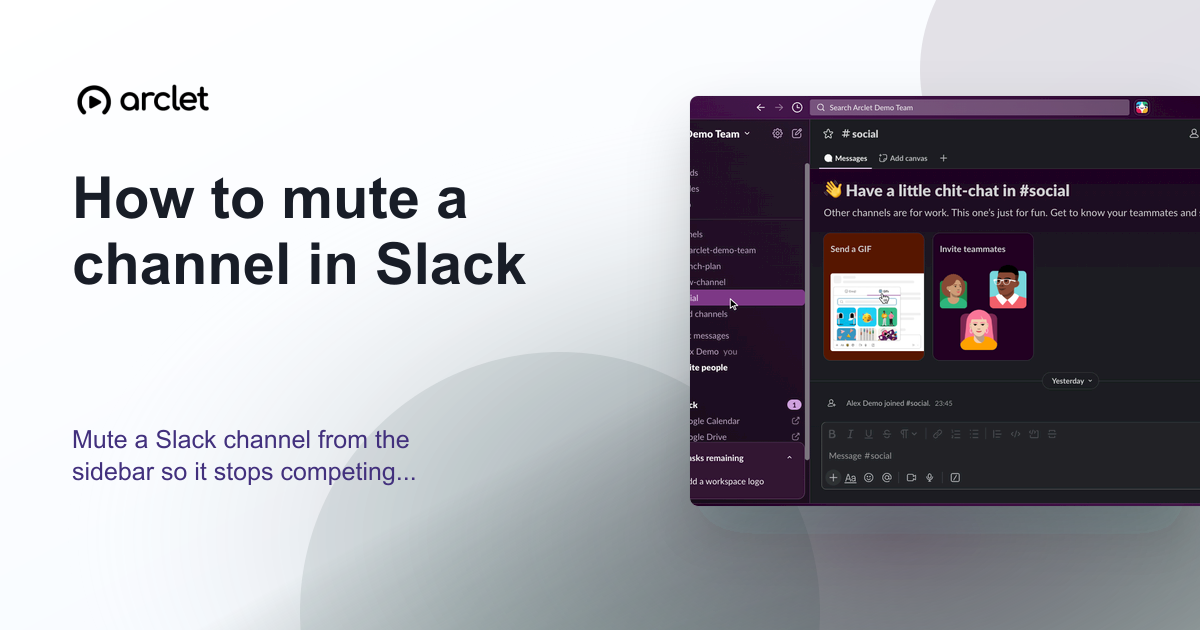
How to mute a channel in Slack
Mute a Slack channel from the sidebar so it stops competing for your attention. Right-click the channel and pick Mute and hide, then check the icon.
Frequently asked questions
How do I reply to one message without filling the channel?
Reply in a thread. See how to use threads; the replies stay under the original message and the channel shows a reply count.
Can I write a Slack message now and send it later?
Yes. Use the arrow next to Send and pick a time. See how to schedule a message.
Where do pinned messages go in Slack?
Pinned messages are listed in the channel's pins, so anyone in the channel can find them. See how to pin a message.
How do I tell my team I am in a meeting?
Set a status with an emoji and a duration so it clears itself. See how to set your status.
Guides for other tools
- Airtable44 guides
- Asana49 guides
- Cal.com26 guides
- Calendly26 guides
- Canva35 guides
- ClickUp31 guides
- Coda61 guides
- Dropbox10 guides
- Figma34 guides
- Gemini18 guides
- Google Docs28 guides
- Google Forms26 guides
- Google Sheets56 guides
- Linear54 guides
- Miro42 guides
- Notion39 guides
- SurveyMonkey34 guides
- Trello29 guides
- Zoom18 guides


