How to mute a channel in Slack
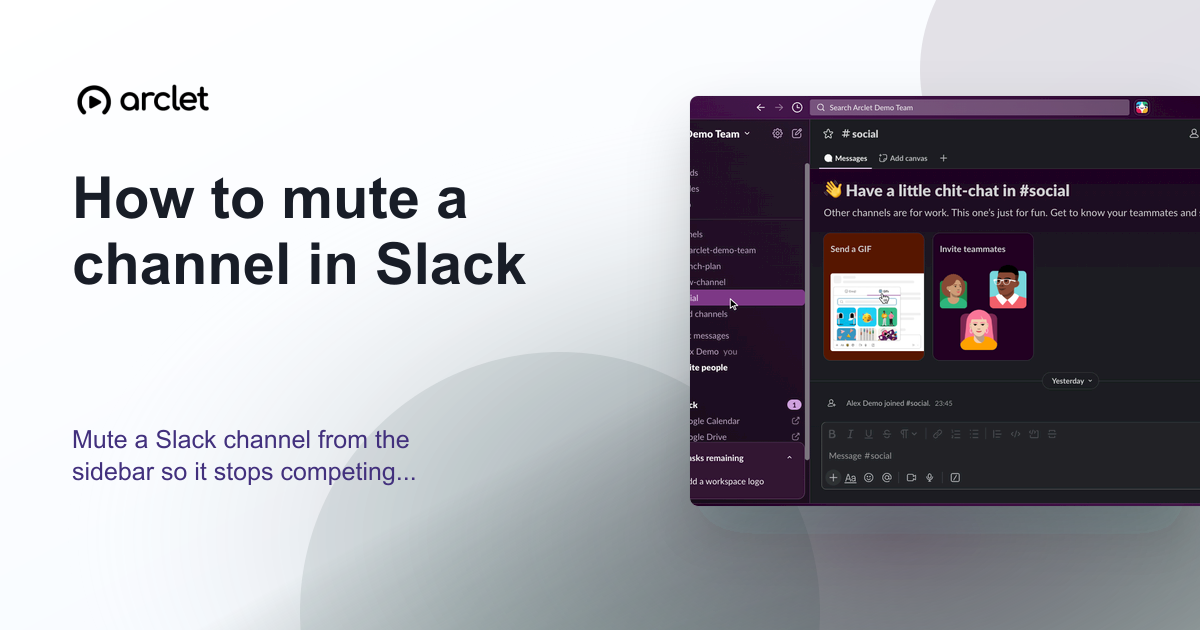
Mute a Slack channel from the sidebar so it stops competing for your attention. Right-click the channel and pick Mute and hide, then check the icon.
Quick answer
To mute a channel in Slack, right-click the channel name in the sidebar and choose "Mute and hide" from the menu. Slack confirms with a short notice that the channel is muted, and a mute icon appears beside the channel name in the sidebar so you can see its state at a glance.
Steps at a glance
- Open the channel you want to mute
- Right-click the channel name in the sidebar
- Choose "Mute and hide" from the menu
- Read the "social muted." notice
- Look for the mute icon beside the channel name
Interactive demo
Summary
Muting a channel keeps it in your workspace without letting it pull at your attention. The option sits in the context menu of each channel in the sidebar, so you can change it without leaving the page you are on.
Step-by-step guide
Step 1
Right-click the channel
Find the channel in the Channels section of the sidebar. Right-click its name, here social, to open the channel menu. The menu lists options such as "Channel details", "Star channel" and "Leave channel".
Step 2
Choose Mute and hide
In the menu, select "Mute and hide". It sits with the other notification options, next to "All new posts" and "Just mentions". Selecting it applies the change straight away, with no extra dialog.
Step 3
Check the muted icon
Slack shows a notice reading "social muted." with an "Undo" link. The sidebar entry for the channel now carries a mute icon beside its name. Select "Undo" in the notice if you muted the wrong channel.
Why this matters
You joined a social channel for the occasional laugh, but its traffic buries the project channels you actually work in. Muting it lets you stay a member, quiet the noise, and still open it whenever you choose.
Frequently asked questions
How can I tell a channel is muted?
A mute icon appears beside the channel name in the sidebar, and the channel header shows a muted bell icon.
Does muting remove me from the channel?
No. The menu keeps "Leave channel" as a separate option, so muting only changes how the channel behaves for you.
Related guides
Continue with more step-by-step guides for getting work done.
 How to pin a message in SlackPin a message in Slack so important info stays easy to find. Open More actions on the message, choose Organise, then select Pin to channel.
 How to use threads in SlackLearn how to use threads in Slack: open Reply in thread on a message, write your reply in the thread panel, and send it so the reply stays with the message.
 How to add a description to a Slack channelAdd a description to a Slack channel so everyone knows what it is for. Open channel details, edit the Description on the About tab, and save it.
 How to react to messages with emoji in SlackAdd an emoji reaction to any Slack message: hover it, open Add reaction, search the emoji picker, and pick one to acknowledge without replying.
 How to schedule a message in SlackSchedule a Slack message to send later: write it in the composer, pick a preset or custom time, then review it under Drafts & sent before it goes out.
 How to set a reminder in SlackSet a reminder on any Slack message: open More actions, choose Add a reminder, pick a time such as In 1 hour, and Slack adds it to your to-dos.
Create interactive demos like this one — free, no coding required.
Start for free →