How to pin a message in Slack
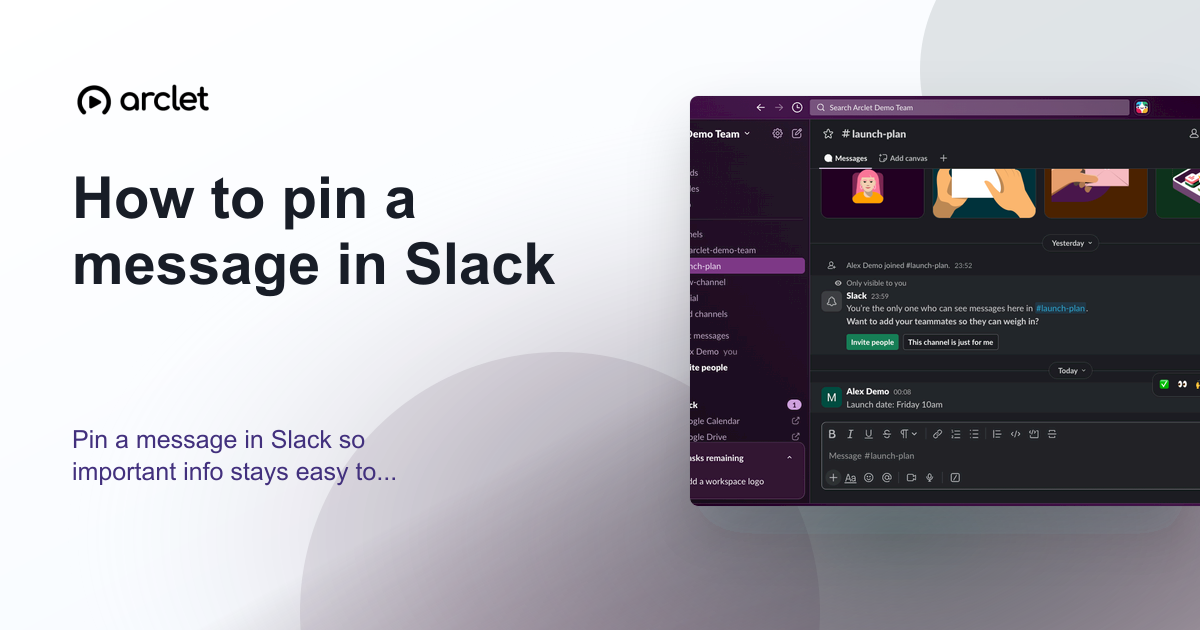
Pin a message in Slack so important info stays easy to find. Open More actions on the message, choose Organise, then select Pin to channel.
Quick answer
To pin a message in Slack, hover over the message in a channel and select More actions. Open the Organise menu, then choose Pin to channel. Slack pins the message so everyone in the channel can find it again without scrolling back through the conversation history.
Steps at a glance
- Open the channel that holds the message.
- Hover over the message to show its toolbar.
- Select More actions.
- Open the Organise menu.
- Choose Pin to channel.
Interactive demo
Summary
Pinning keeps a key message, such as a date or decision, easy to find in a channel. It works from the message's own menu and needs no paid plan.
Step-by-step guide
Step 1
Open More actions
Open the channel and hover over the message you want to keep. A toolbar appears beside it. Select More actions at the end of the toolbar.
Step 2
Open the Organise menu
The message menu lists options such as Edit message, Add to saved and Copy link. Select Organise to open its submenu.
Step 3
Pin the message to the channel
Select Pin to channel. The menu also shows the keyboard shortcut P next to this option.
Why this matters
You posted a launch date in your team channel and it will scroll out of sight within a day. Pinning it means anyone who opens the channel can find the date without asking you or searching the history.
Frequently asked questions
Which menu contains the pin option?
Pin to channel is inside the Organise submenu of the More actions menu.
Is there a shortcut for pinning?
The Organise submenu lists P next to Pin to channel.
Related guides
Continue with more step-by-step guides for getting work done.
 How to use threads in SlackLearn how to use threads in Slack: open Reply in thread on a message, write your reply in the thread panel, and send it so the reply stays with the message.
 How to create a Slack channelLearn how to create a Slack channel: open Add channels, name it, choose Public visibility, and select Create so your team has a focused place to talk.
 How to schedule a message in SlackSchedule a Slack message to send later: write it in the composer, pick a preset or custom time, then review it under Drafts & sent before it goes out.
 How to react to messages with emoji in SlackAdd an emoji reaction to any Slack message: hover it, open Add reaction, search the emoji picker, and pick one to acknowledge without replying.
 How to set a reminder in SlackSet a reminder on any Slack message: open More actions, choose Add a reminder, pick a time such as In 1 hour, and Slack adds it to your to-dos.
 How to set your status in SlackSet a Slack status in a few clicks: open your profile menu, pick a preset like In a meeting, choose how long it lasts, and save it so teammates see it.
Create interactive demos like this one — free, no coding required.
Start for free →