How to create a Slack channel
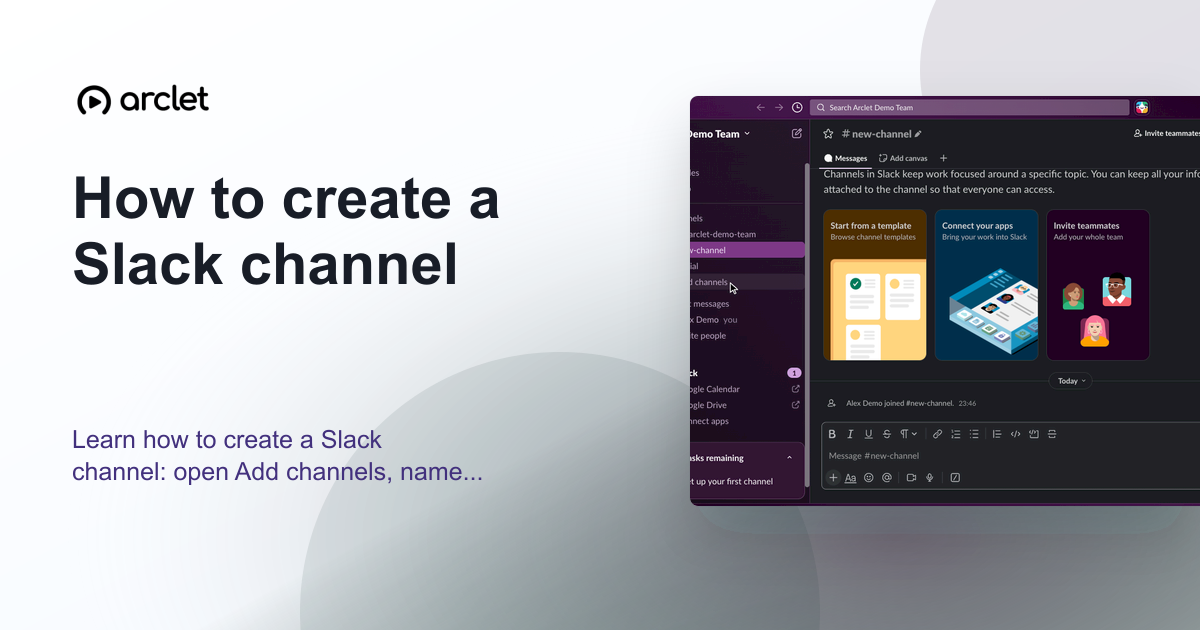
Learn how to create a Slack channel: open Add channels, name it, choose Public visibility, and select Create so your team has a focused place to talk.
Quick answer
To create a Slack channel, open the Add channels menu under Channels in the sidebar and choose Create a new channel. Type a name such as launch-plan, select Next, keep the channel Public so anyone in the workspace can join, then select Create to finish. Slack then opens it.
Steps at a glance
- Select Add channels under Channels in the sidebar
- Choose Create a new channel
- Type a channel name
- Select Next
- Keep the visibility set to Public
- Select Create
Interactive demo
Summary
A Slack channel is a shared space for conversation around one topic. Creating one takes two short steps: a name, then a visibility choice. It keeps work focused instead of scattering it across direct messages.
Step-by-step guide
Step 1
Open the Add channels menu
In the left sidebar, find the Channels section. Select Add channels at the bottom of that list to open a small menu.
Step 2
Choose Create a new channel
The menu offers Create a new channel and Browse channels. Select Create a new channel to open the Create a channel dialog.
Step 3
Name your channel
Click the name field in the dialog and type a short, easy-to-find name such as launch-plan. The field shows how many characters remain, and Slack suggests prefixes like help, proj, and team.
Step 4
Continue to visibility
Select Next to move to step 2 of 2, where you choose who can see the channel.
Step 5
Keep the channel Public
Under Visibility, Public means anyone in the workspace can view and join the channel. Private limits it to specific people and works by invitation only. Leave Public selected for an open team channel.
Step 6
Create the channel
Select Create. Slack creates the channel, shows it in the Channels list, and opens it so you can start posting.
Why this matters
You are starting a new project and want every update, question, and decision in one place. Creating a dedicated channel gives your team a single home for the work, so nobody has to dig through direct messages to catch up.
Frequently asked questions
Should I make the channel Public or Private?
Public lets anyone in the workspace view and join the channel. Private can only be viewed or joined by invitation. Choose Public for open team topics.
What is the difference between Create a new channel and Browse channels?
Create a new channel starts a channel of your own. Browse channels is the other option in the same menu.
Related guides
Continue with more step-by-step guides for getting work done.
 How to format messages in SlackUse the Formatting toolbar in the Slack message box to bold a word, turn a line into a bulleted list, and send the formatted message to a channel.
 How to mute a channel in SlackMute a Slack channel from the sidebar so it stops competing for your attention. Right-click the channel and pick Mute and hide, then check the icon.
 How to pin a message in SlackPin a message in Slack so important info stays easy to find. Open More actions on the message, choose Organise, then select Pin to channel.
 How to react to messages with emoji in SlackAdd an emoji reaction to any Slack message: hover it, open Add reaction, search the emoji picker, and pick one to acknowledge without replying.
 How to schedule a message in SlackSchedule a Slack message to send later: write it in the composer, pick a preset or custom time, then review it under Drafts & sent before it goes out.
 How to set a reminder in SlackSet a reminder on any Slack message: open More actions, choose Add a reminder, pick a time such as In 1 hour, and Slack adds it to your to-dos.
Create interactive demos like this one — free, no coding required.
Start for free →